
d5 cPanel server (and our client account portal) back online

The disruption at the European datacenter that was causing issues with our D5 cPanel server has been resolved. We apologise for any inconvenience caused.

We can confirm that there was no breach of customer data of any kind.

Websites that we transitioned to others servers will be migrated back to the d5 server over the next few days. You do not need to do anything.

cPanel MySQL 03 How to delete a MySQL database Print

  • MySQL, delete
  • 0

3. How to delete a MySQL database in cPanel

This demo assumes you've already logged in to cPanel, and are starting on the home screen.
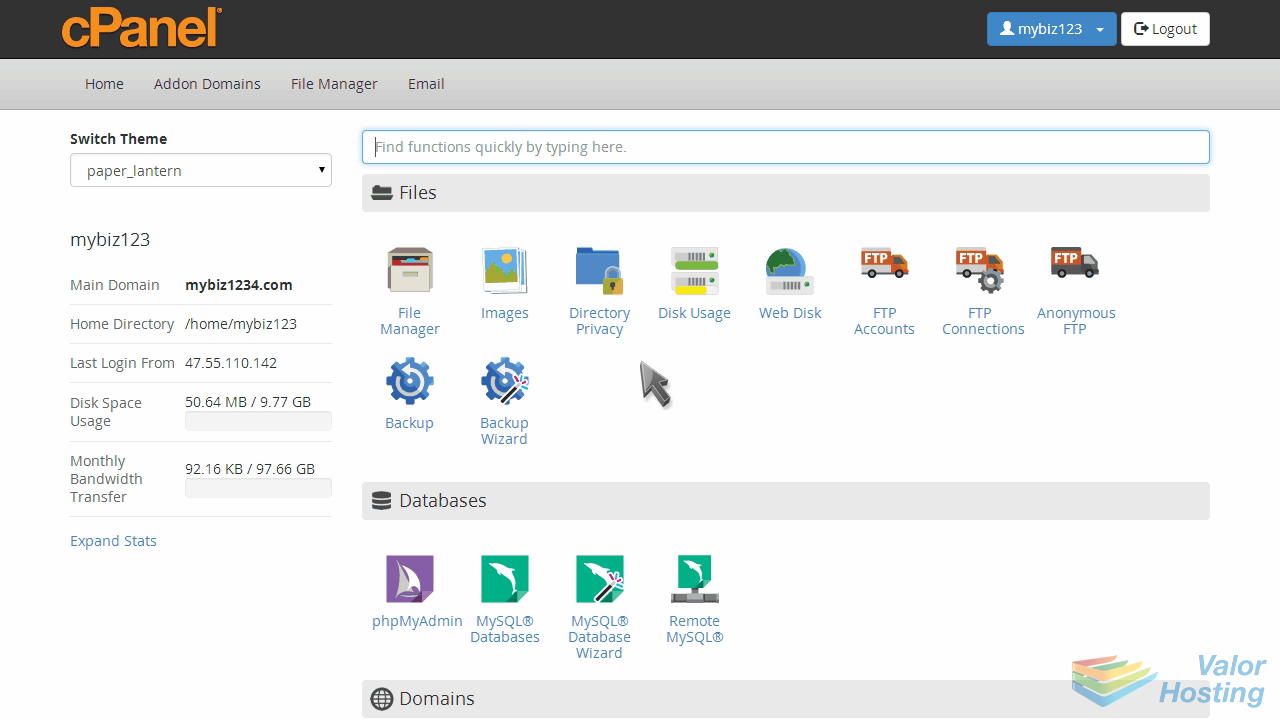
Now let's learn how to delete a MySQL database.

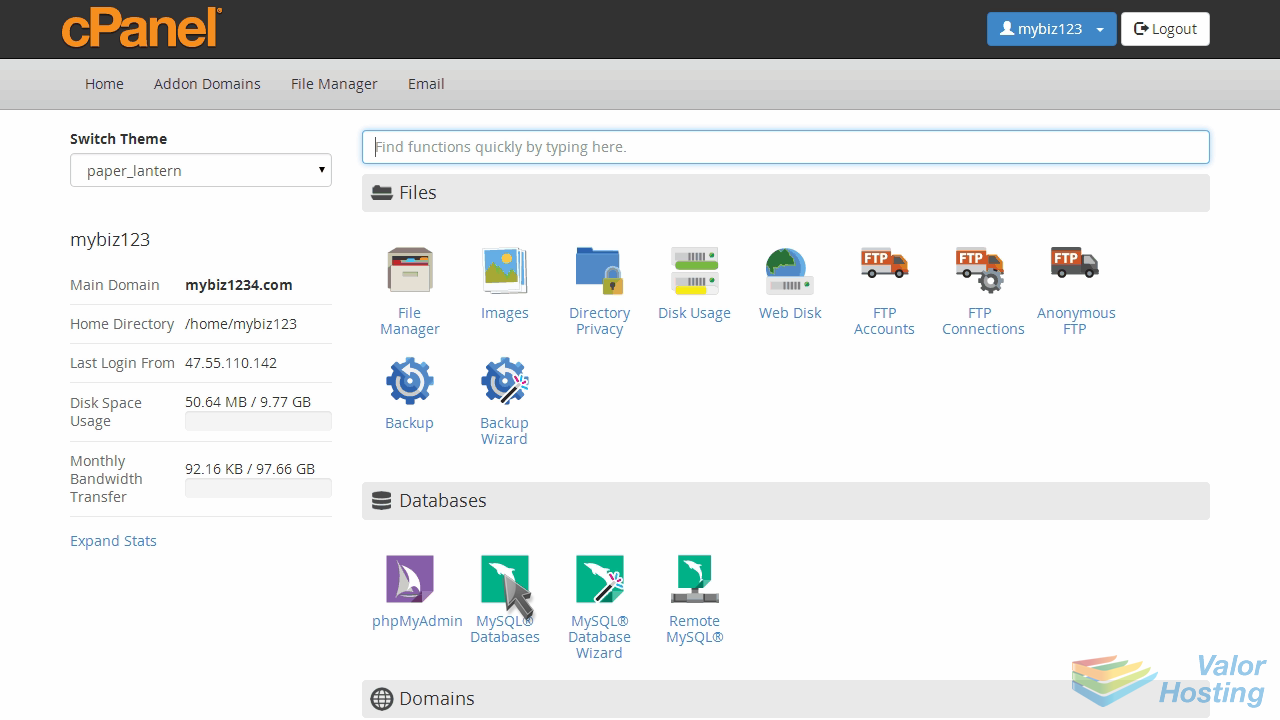
Click the "MySQL Databases" icon.
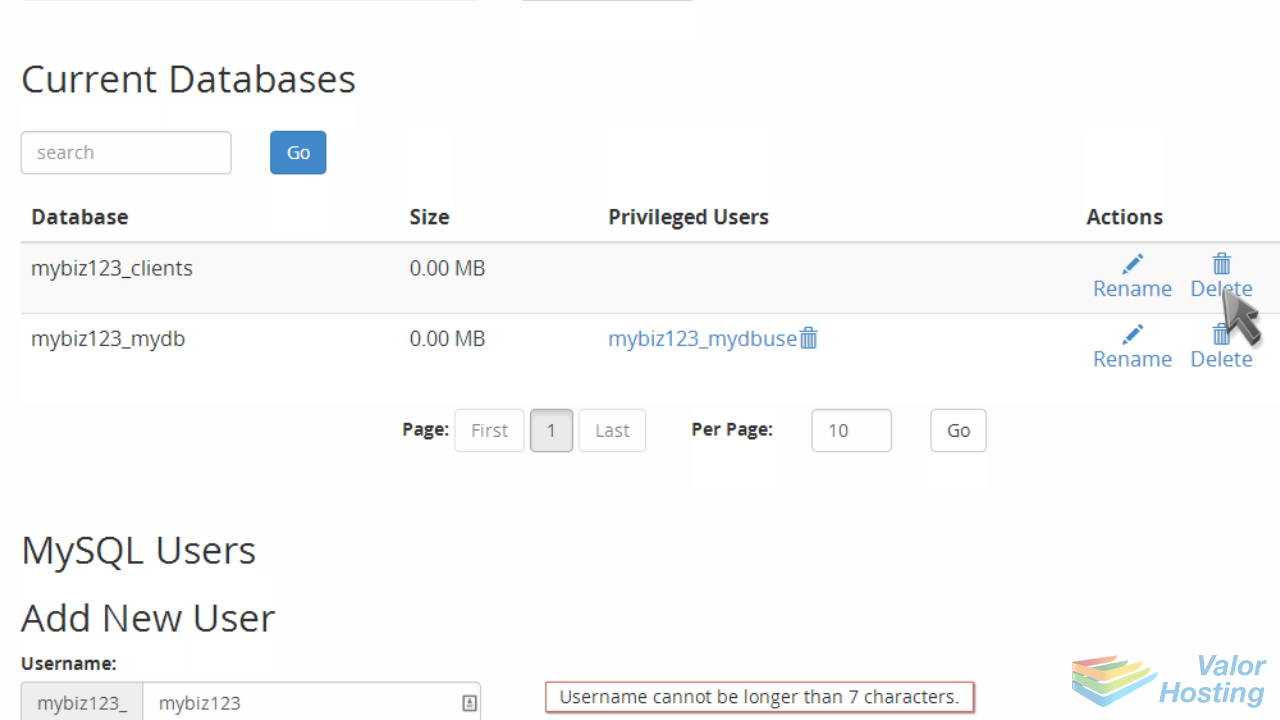
Locate the database name you want to delete, and click the "Delete Database" link next to it.
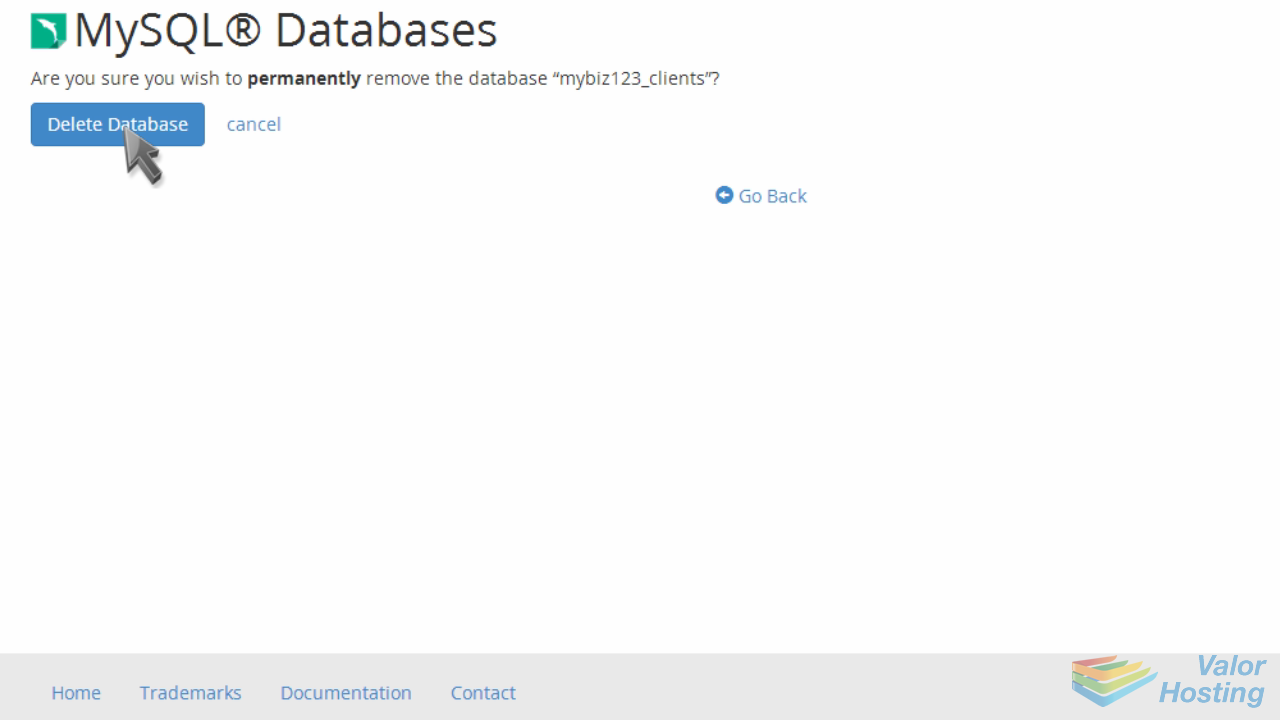
Then click "Delete Database" to confirm.
That's it! The MySQL database has been deleted.
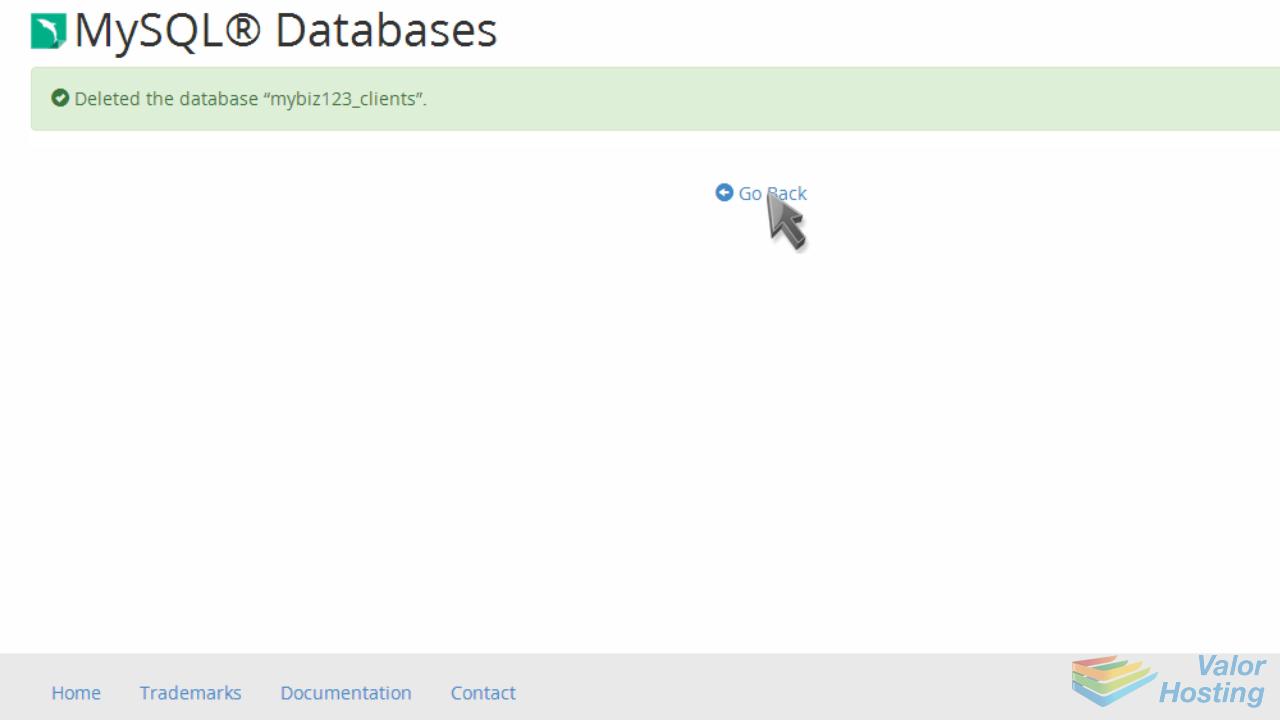
This is the end of the tutorial. You now know how to delete a MySQL database in cPanel.


Was this answer helpful?

« Back