
11. How to update your contact information in cPanel
This demo assumes you've already logged in to cPanel, and are starting on the home screen.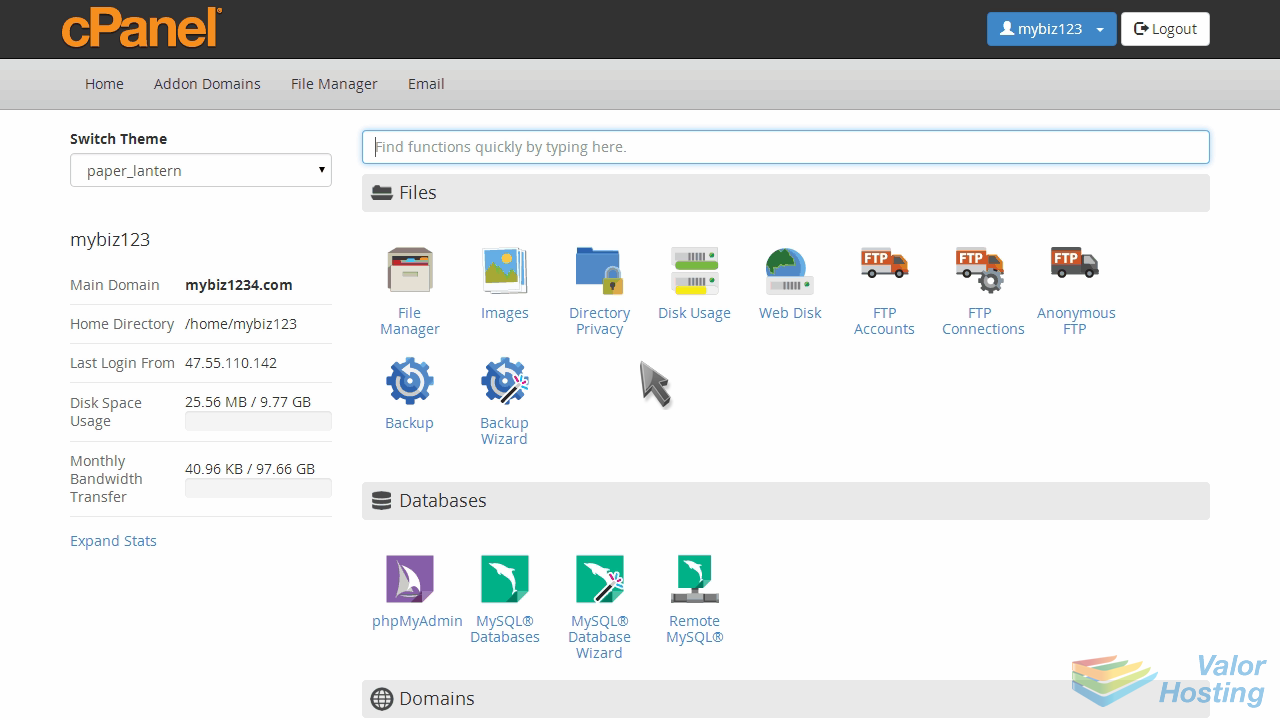
Now let's learn how to update our contact information.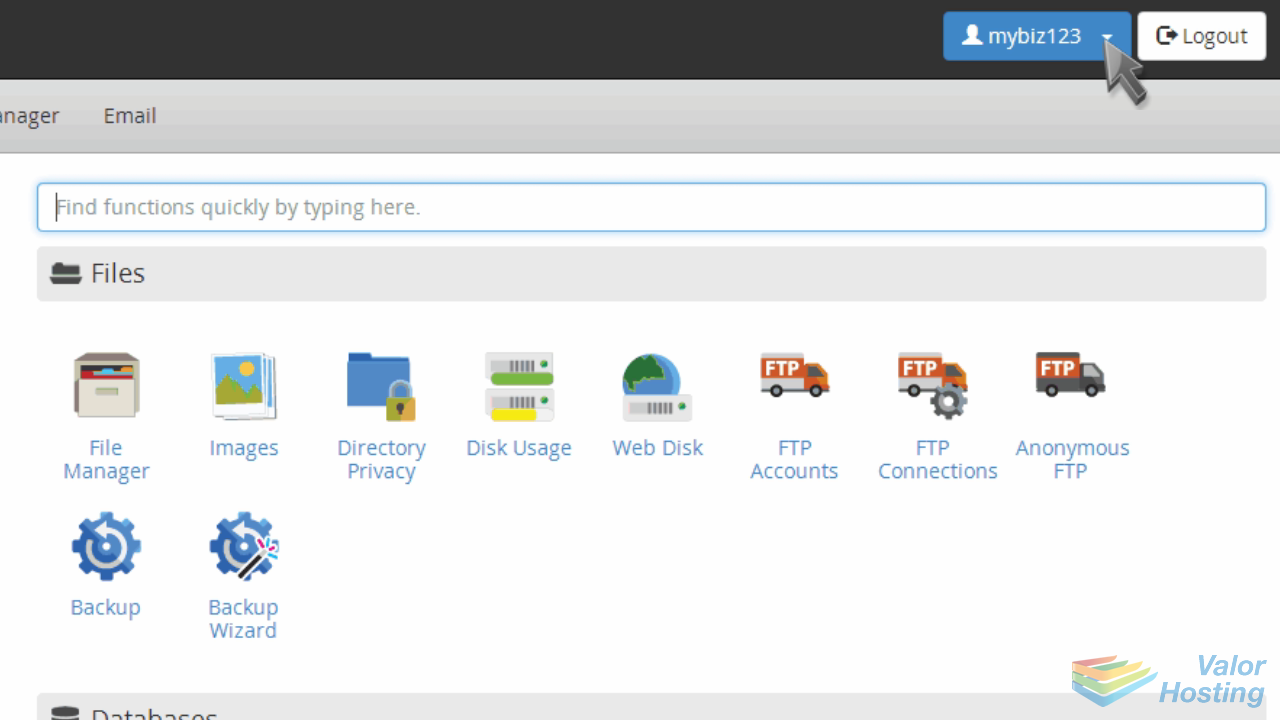
Click the "Contact Information" link.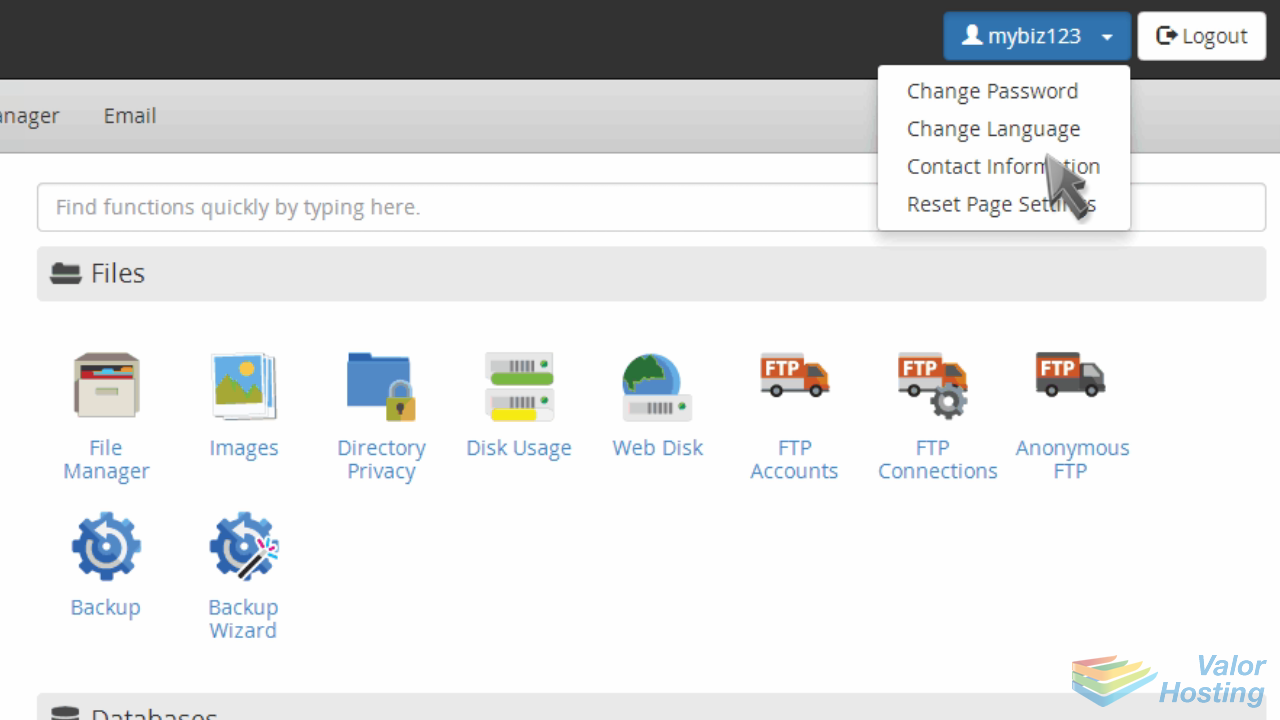
Make sure you enter a correct, working email address... as this is how you will be contacted by the system.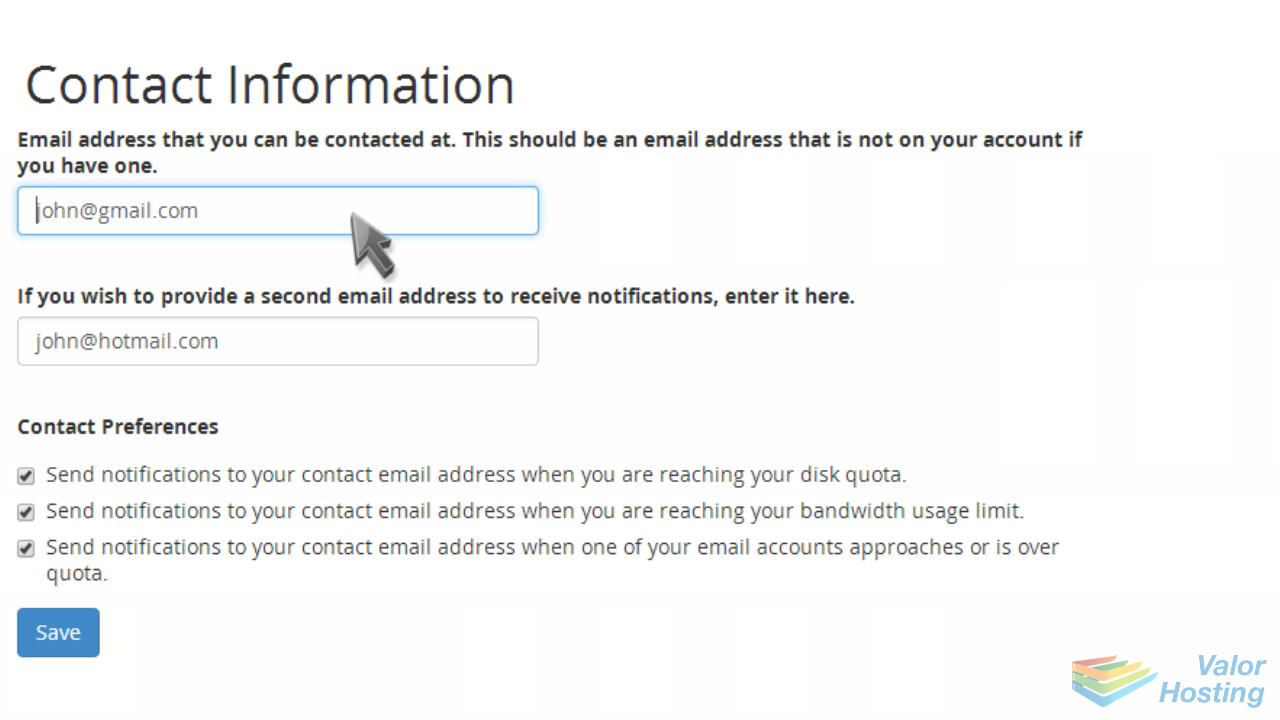
You should enter a second email address as well, simply as a backup to the first.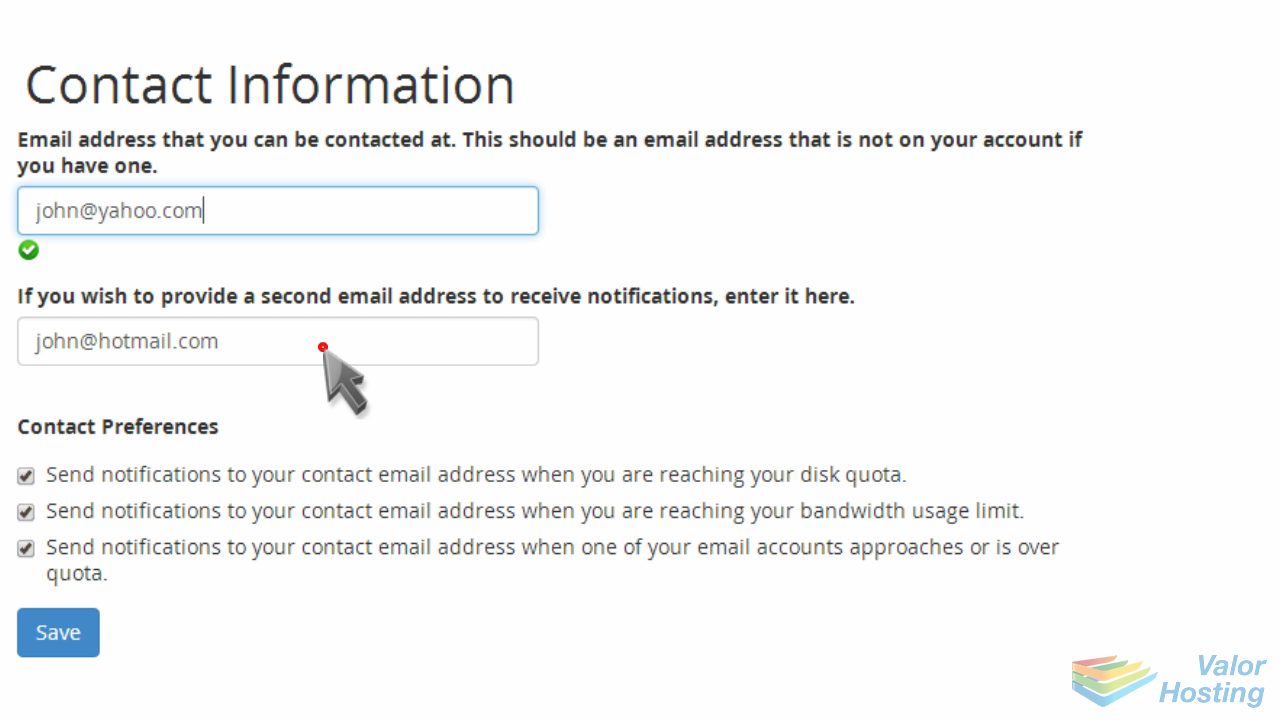
You can choose to be notified when you're reaching your disk quota, bandwith usage limit, or email account quota.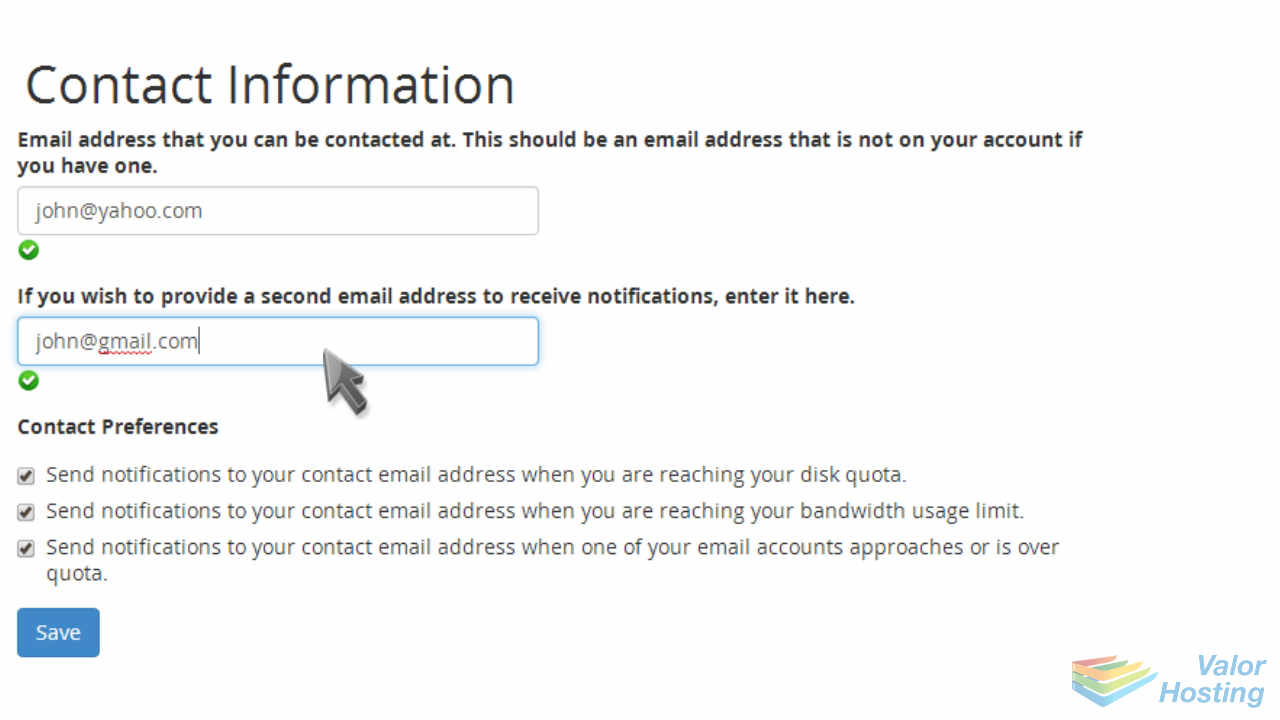
When ready, click "Save".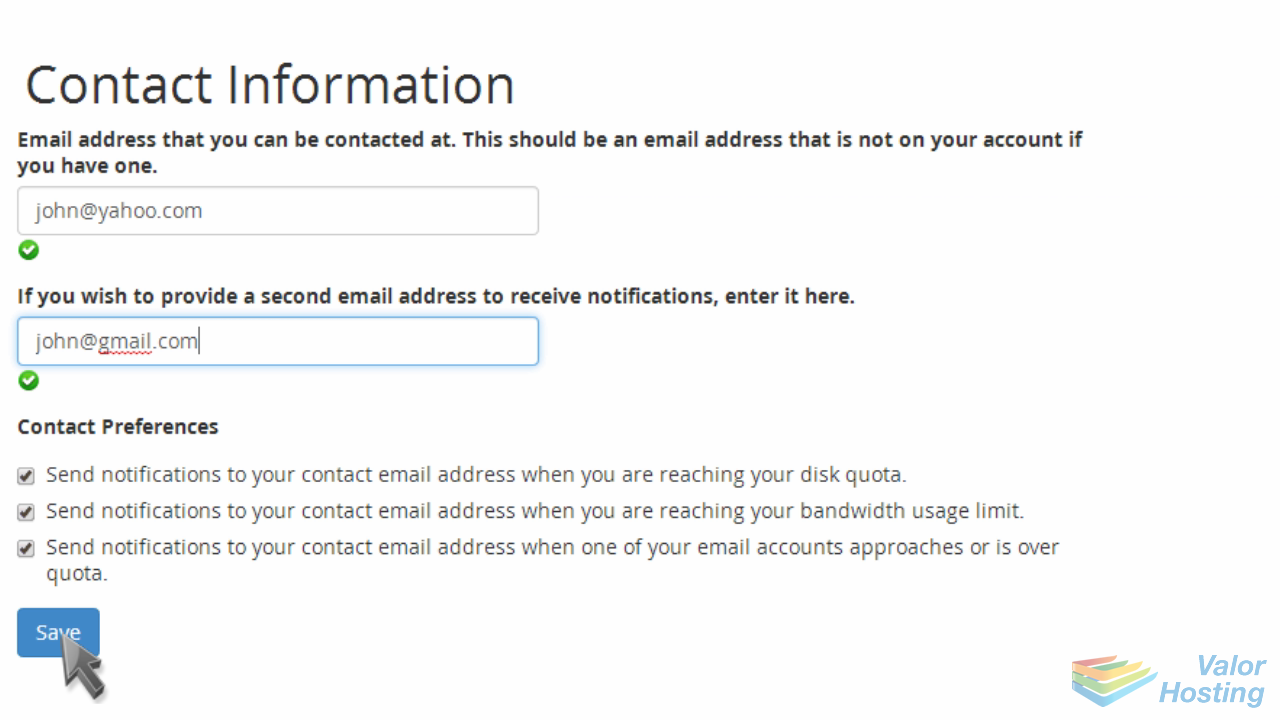
That's it! We've successfully updated our contact information, and will be notified by email when getting close to our storage and bandwidth limits.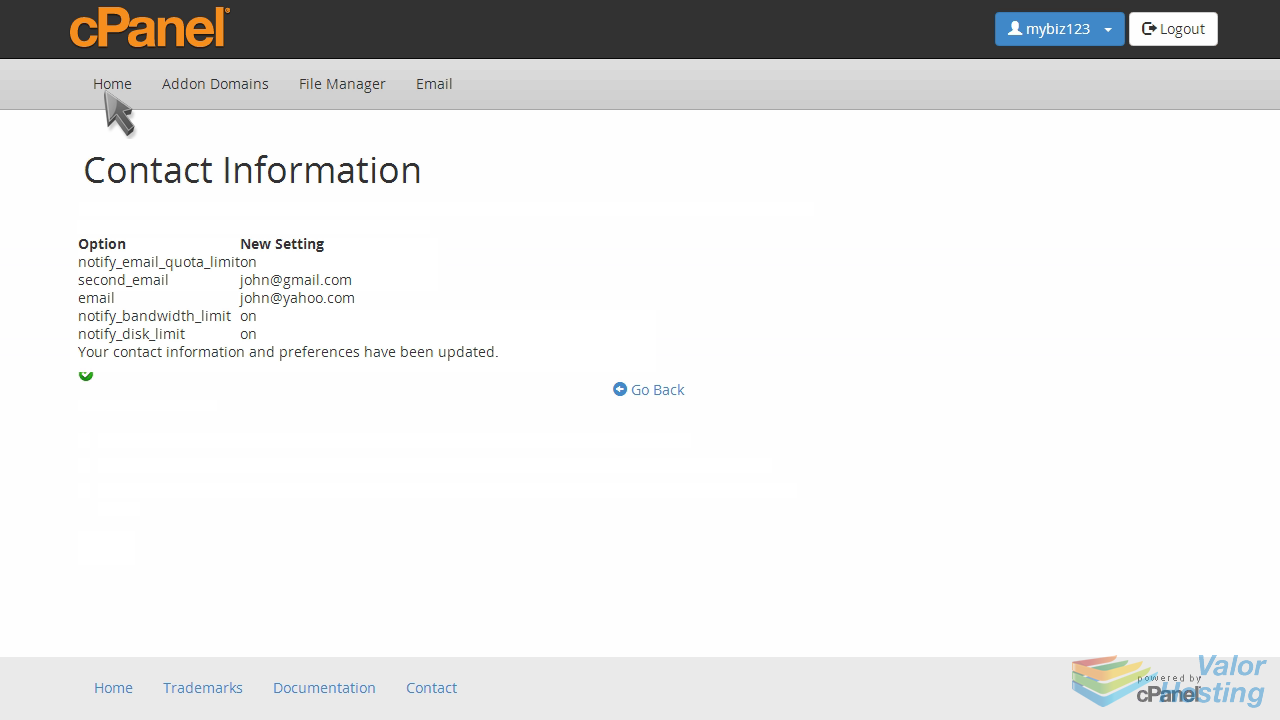
This is the end of the tutorial. You now know how to setup your contact information in cPanel.