
14. How to add a record with the DNS Zone Editor in cPanel
This demo assumes you've already logged in to cPanel, and are starting on the home screen.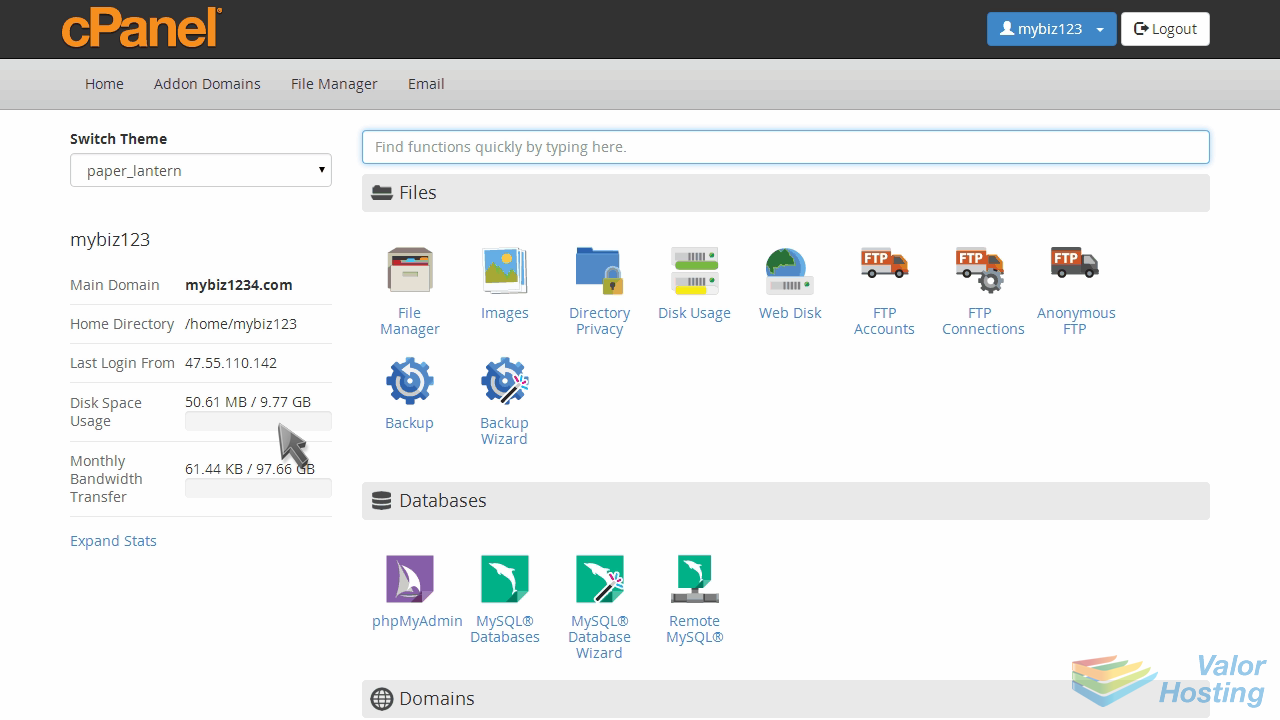
Now let's learn how to add an "A record" with the DNS Zone Editor.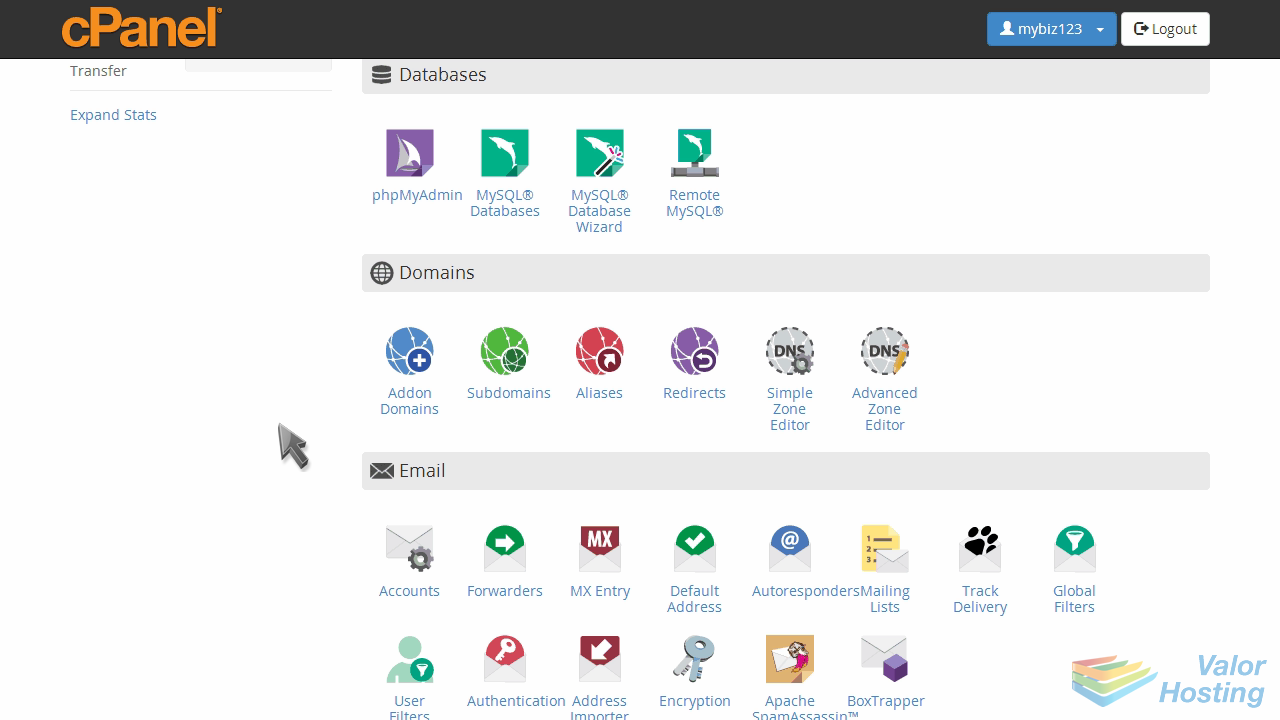
Click the "Simple Zone Editor" icon.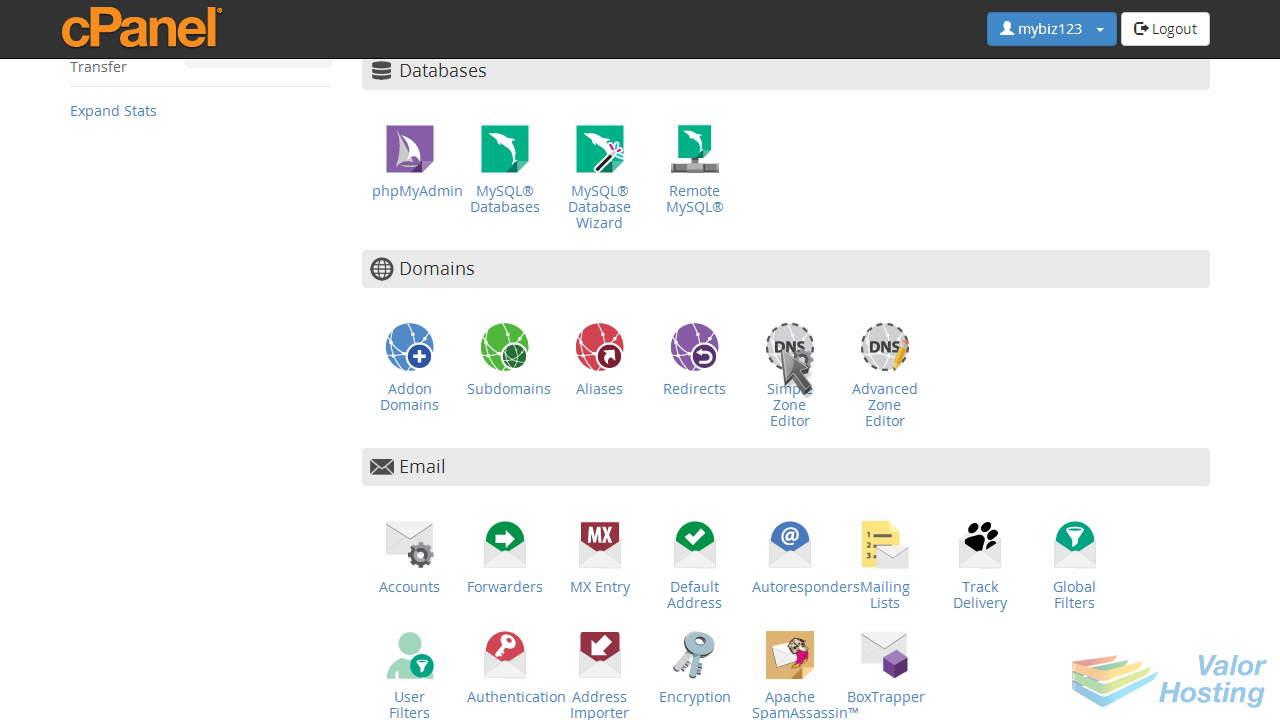
Select the domain you want to edit.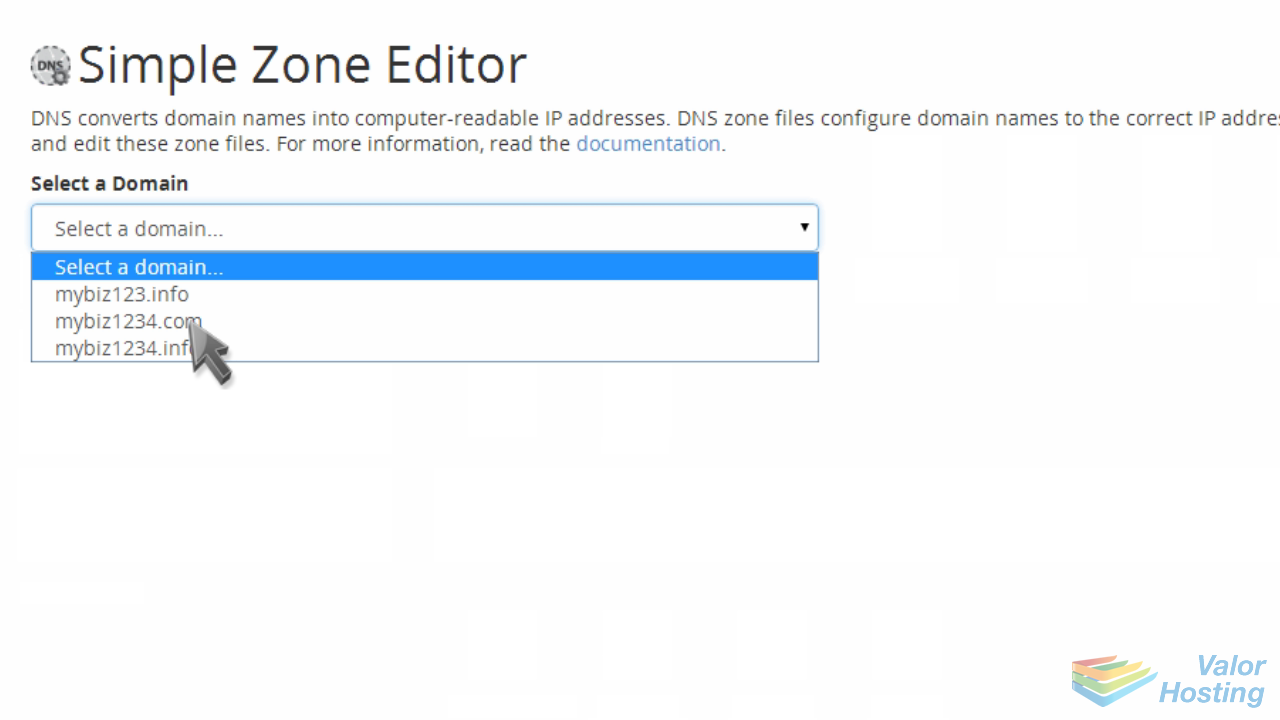
Then enter the "A Record", followed by the IP address you want it to point to.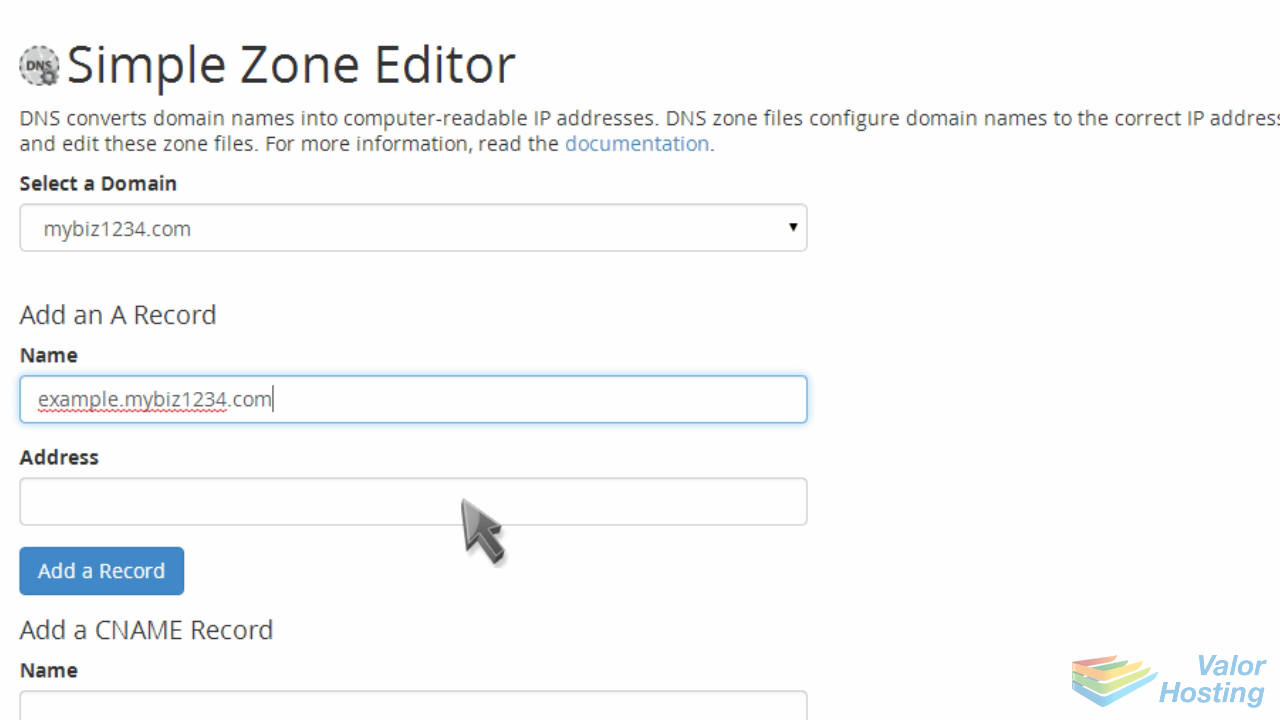
Click Add a Record.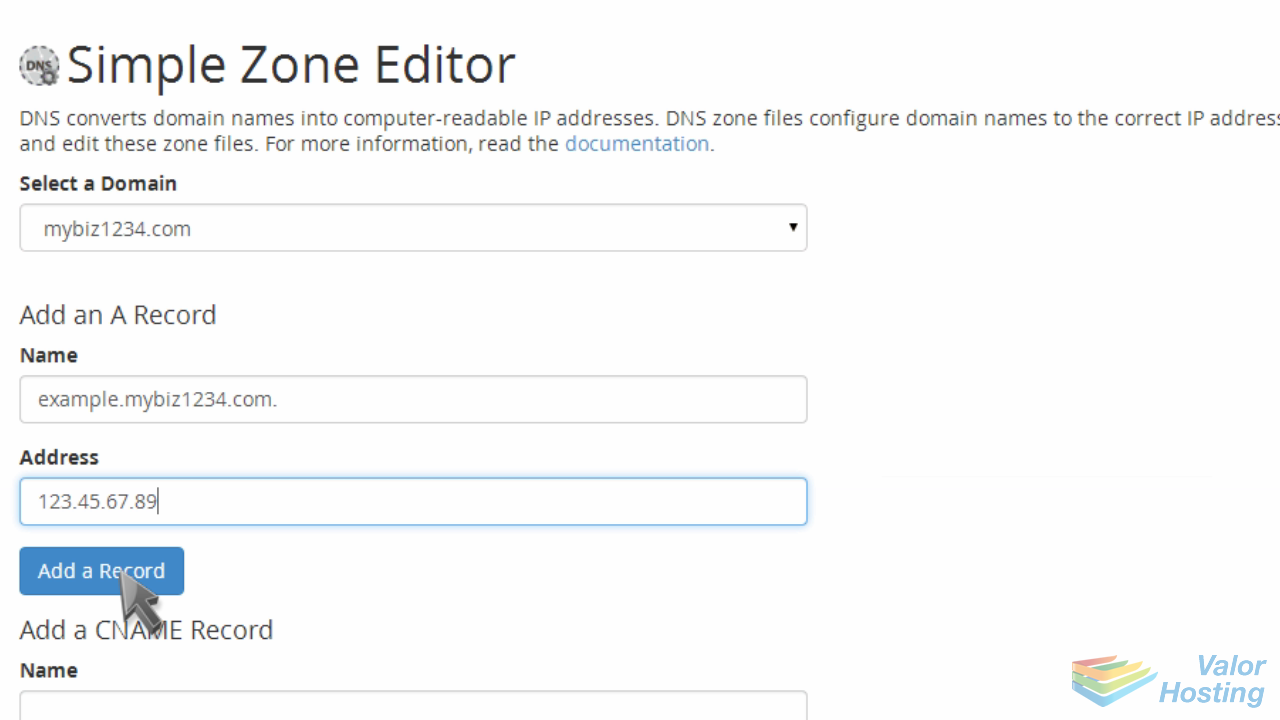
That's it! We've successfully added an "A Record" to our domain.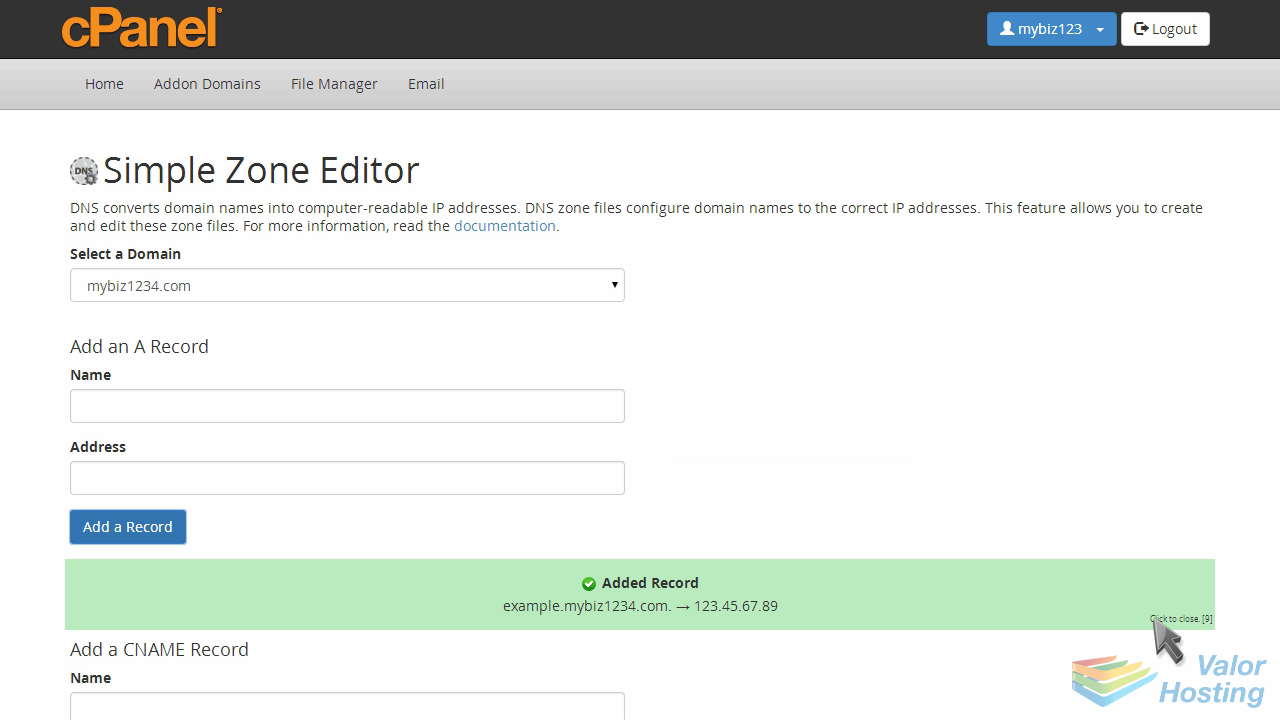
You can see the new record listed here at the bottom...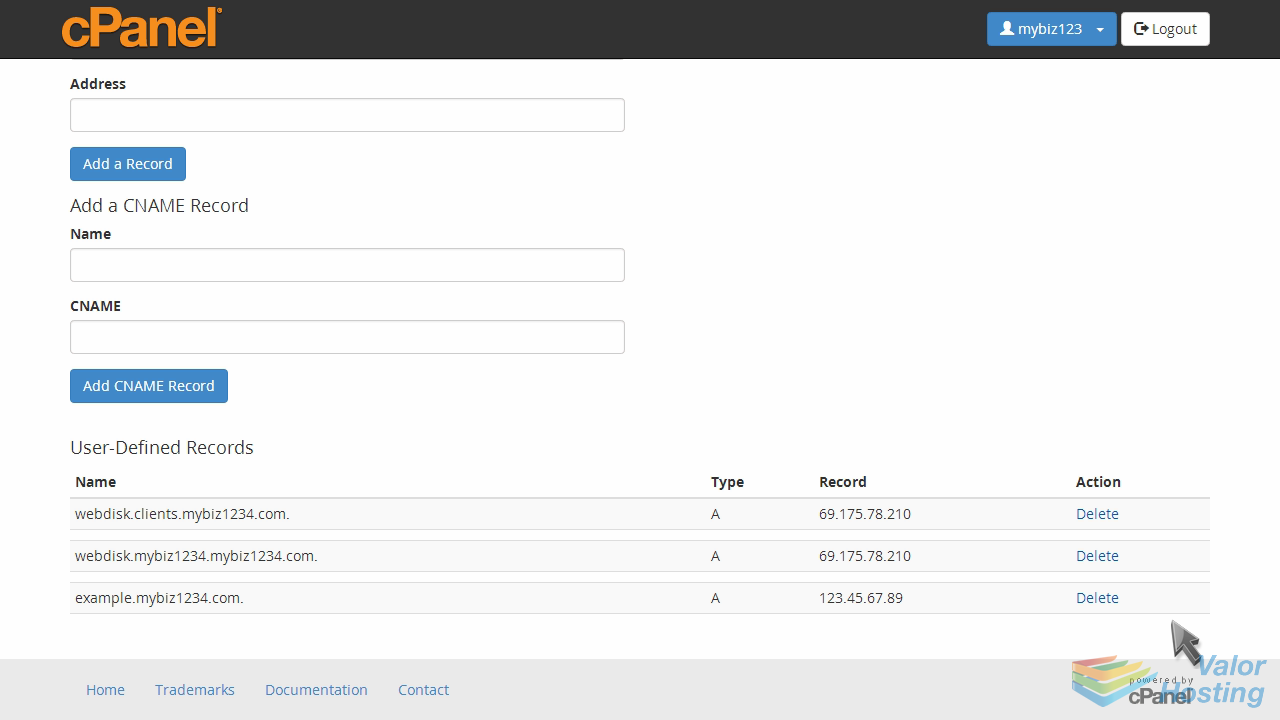
Which is also where you can click to delete the record when it's no longer needed.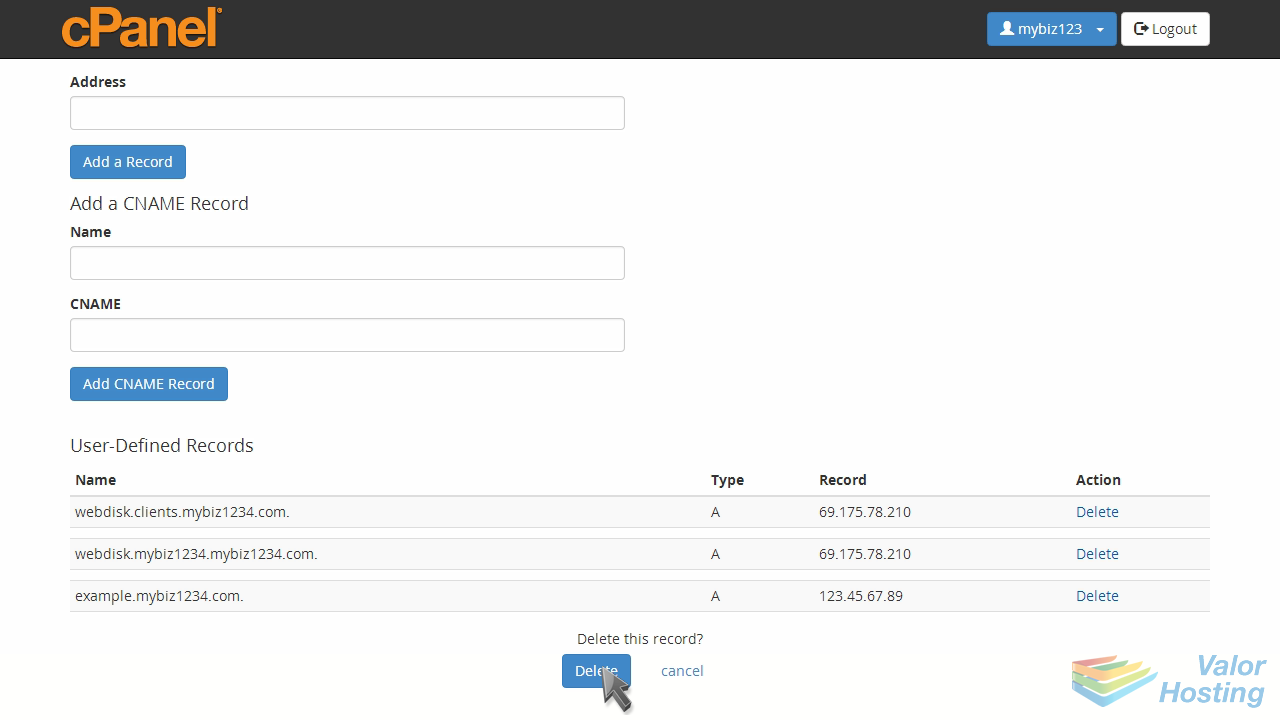
This is the end of the tutorial. You now know how to add and remove records with the DNS Zone Editor.