
17. How to create additional FTP accounts in cPanel
This demo assumes you've already logged in to cPanel, and are starting on the home screen.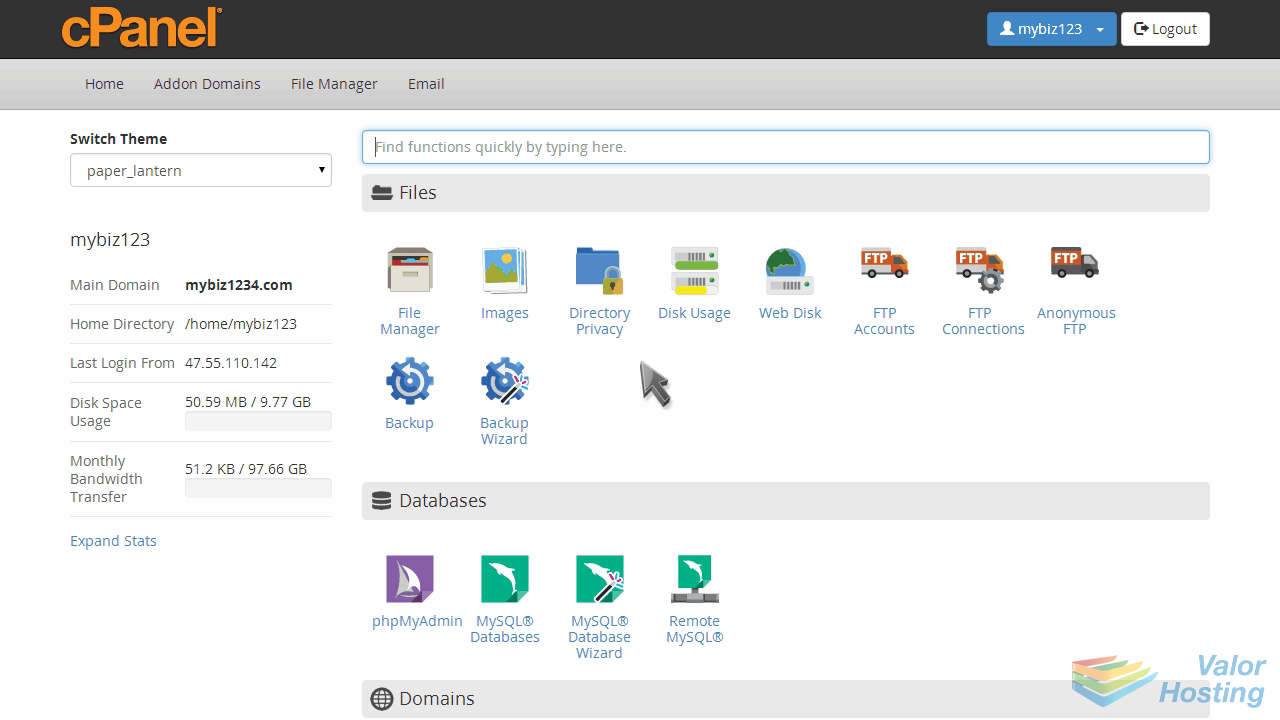
Now let's learn how to setup additional FTP accounts.
Click the "FTP Accounts" icon.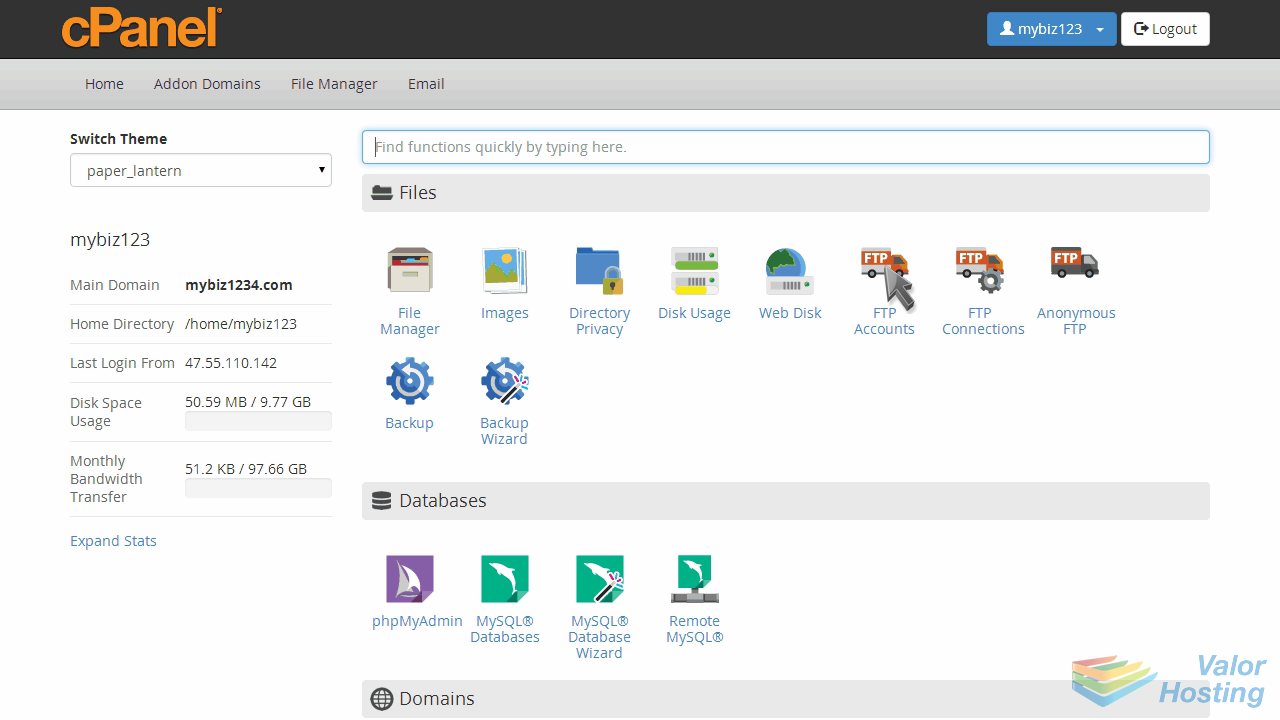
To create a new FTP account, enter a new login and password.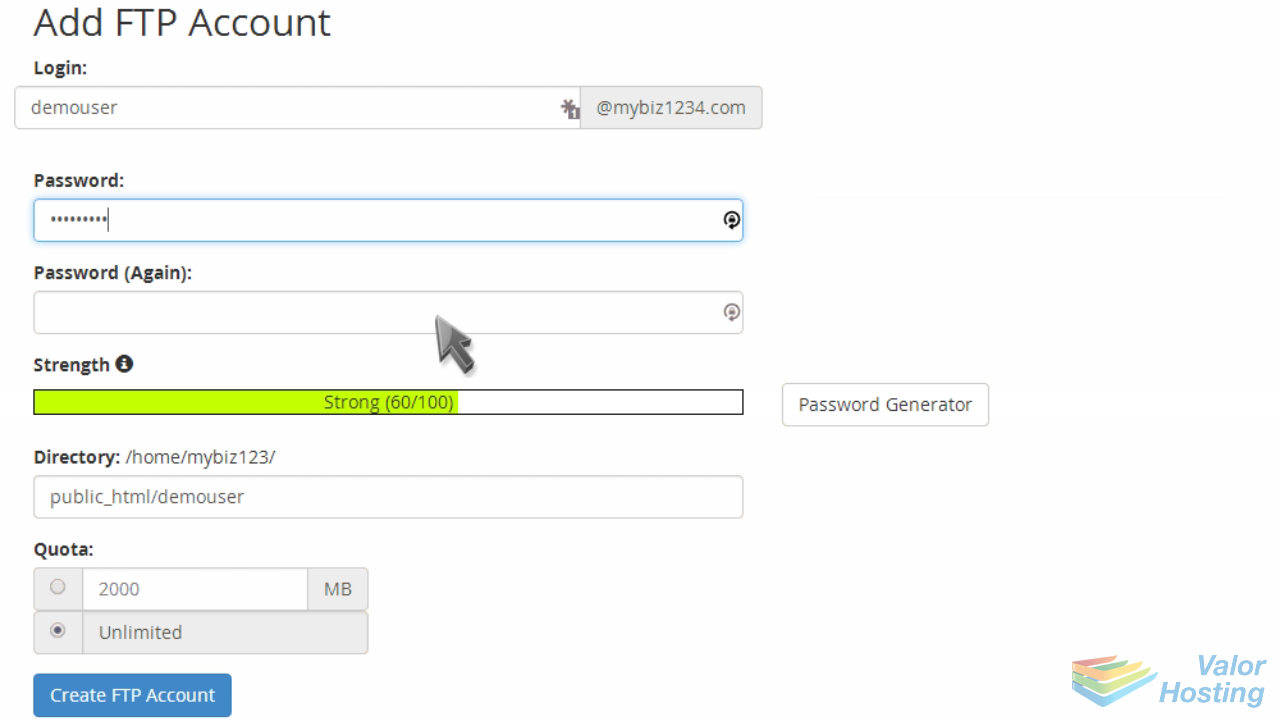
Then click "Create FTP Account".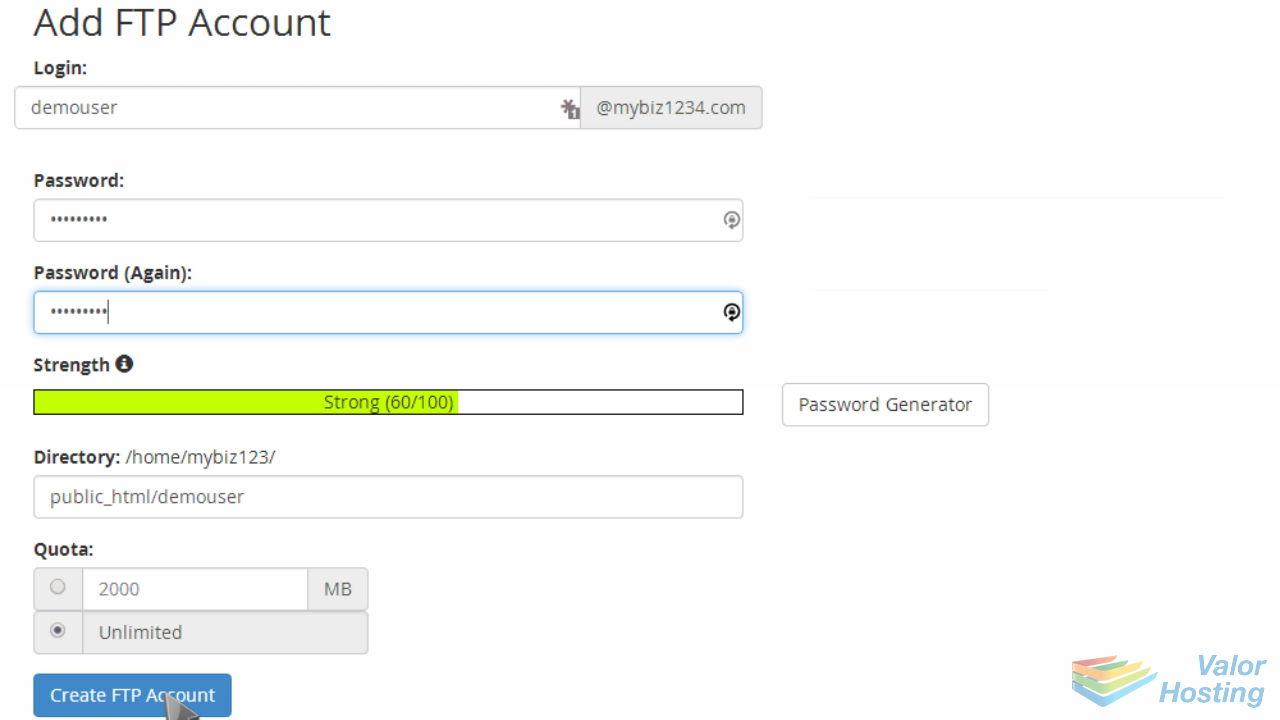
That's it! The new FTP account has been created.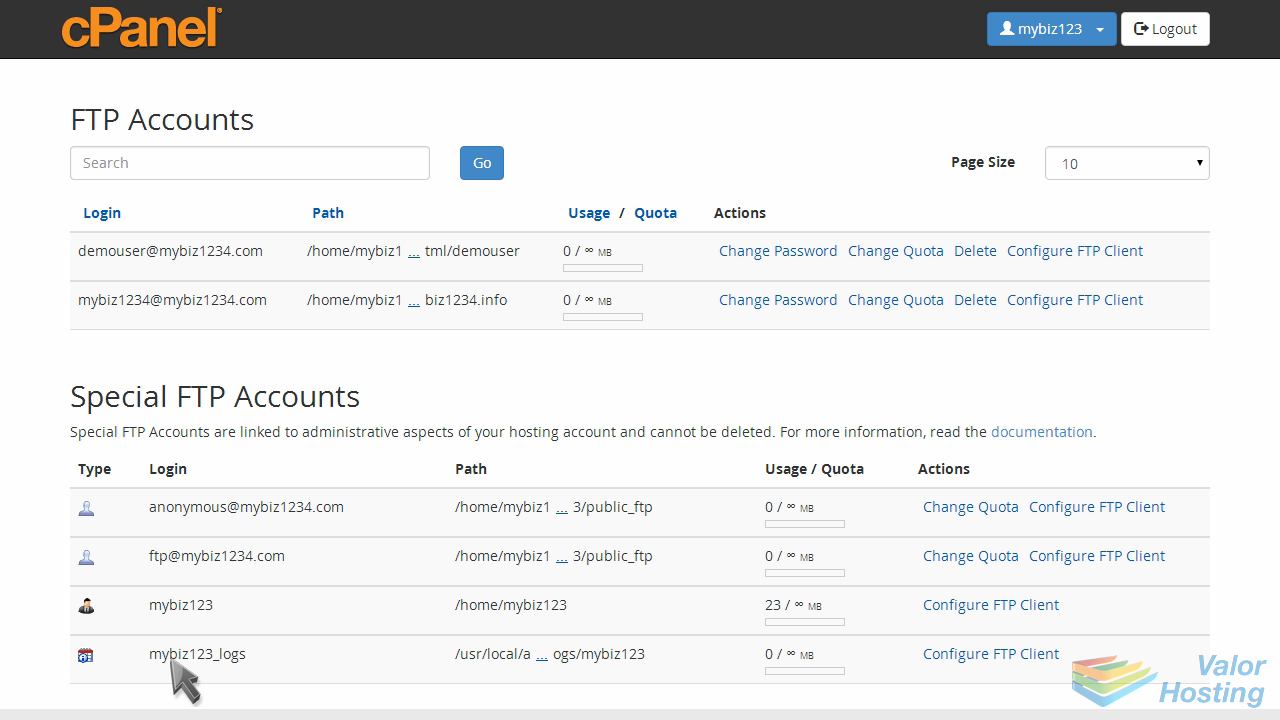
You can then change the FTP account's password, quota, or delete the account.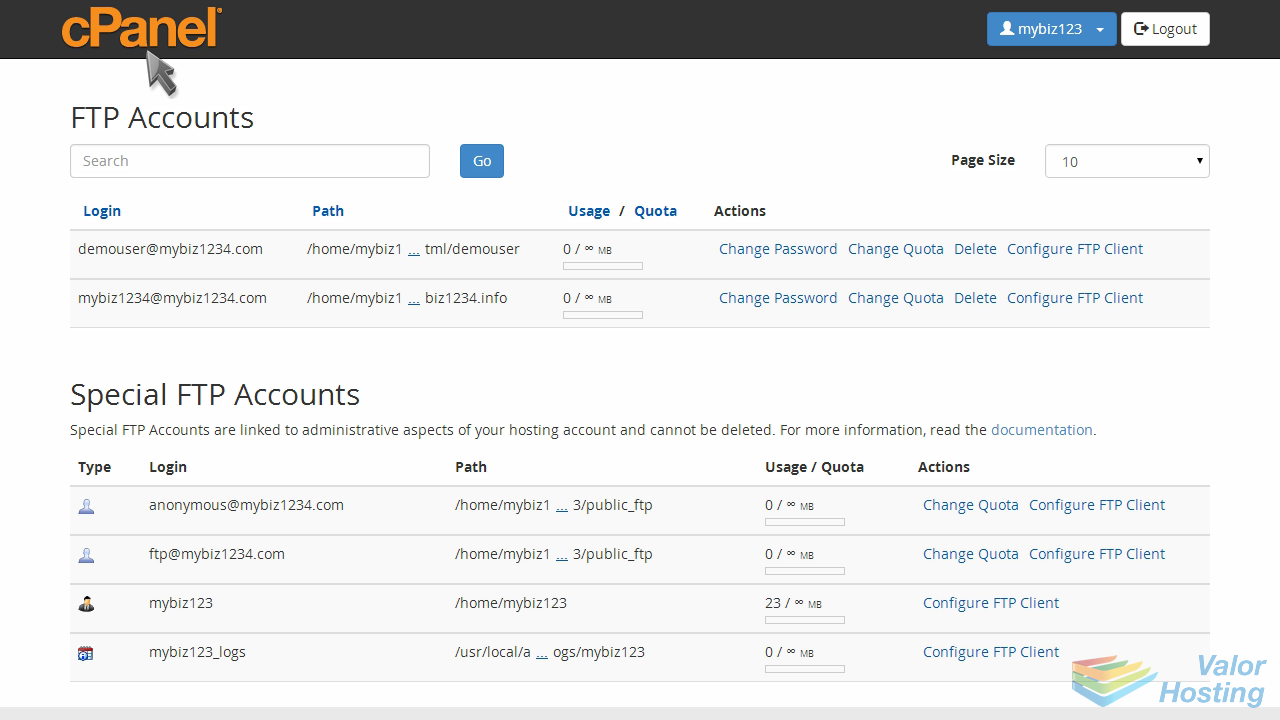
This is the end of the tutorial. You now know how to create additional FTP accounts in cPanel.