
19. How to use the IP Blocker in cPanel

19. How to use the IP Blocker in cPanel

This demo assumes you've already logged in to cPanel, and are starting on the home screen.
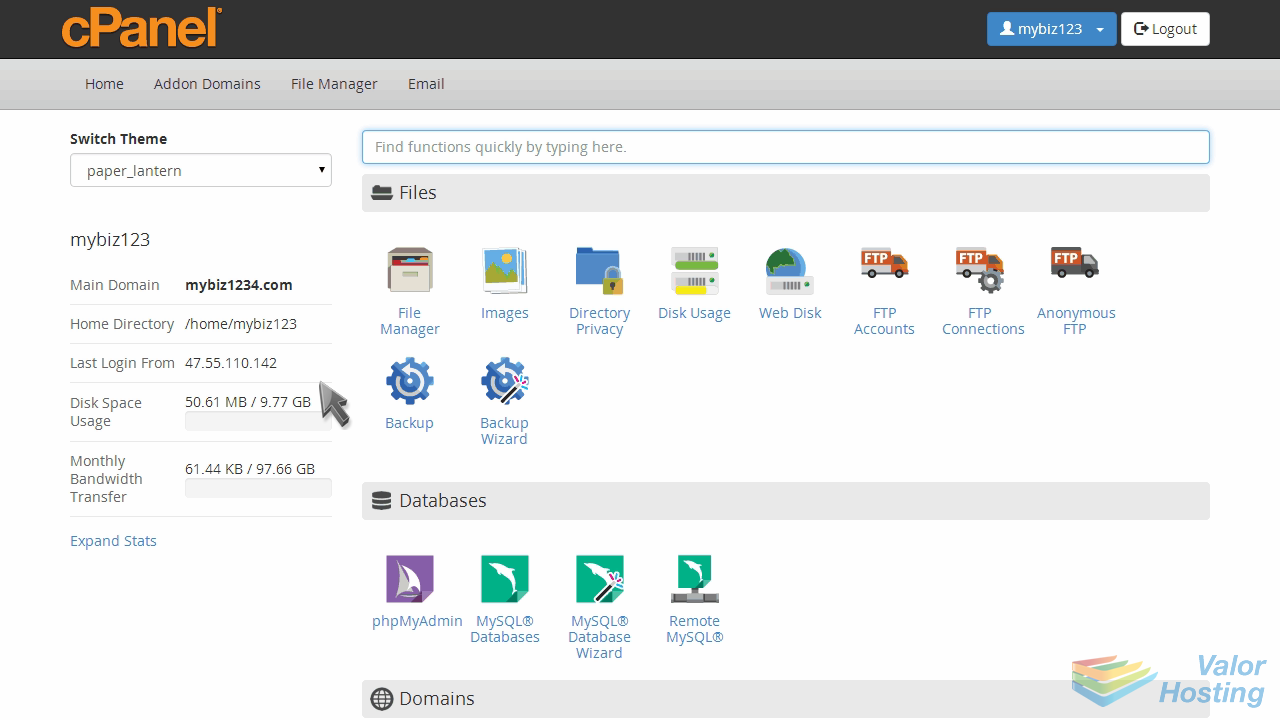
Now let's learn how to use the IP Blocker.
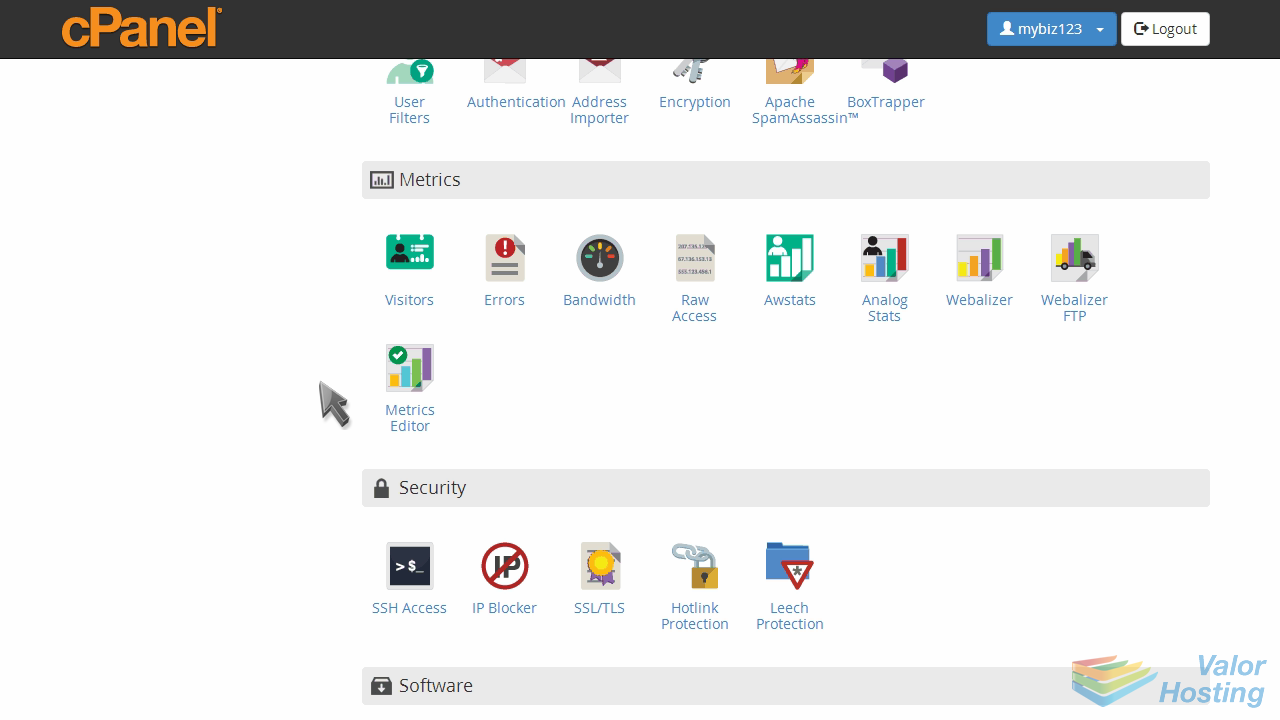
Click the "IP Blocker" icon.
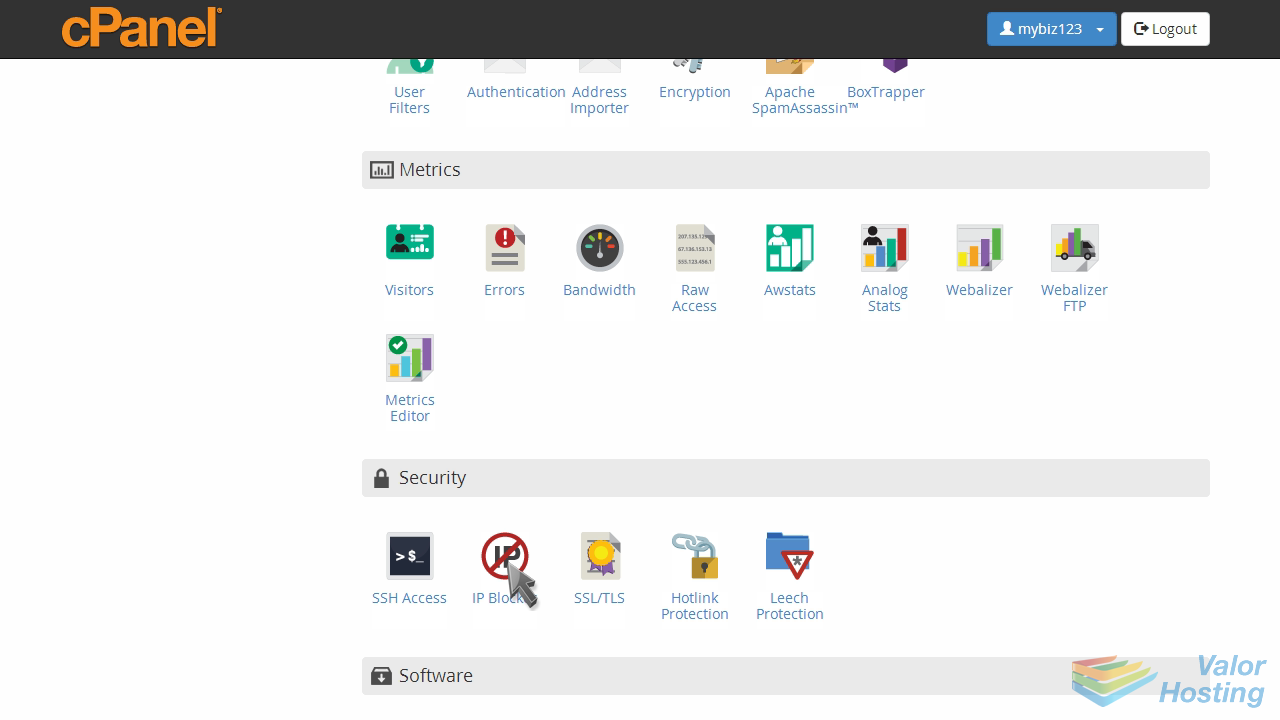
Enter an IP address or range you would like to block, then click "Add".
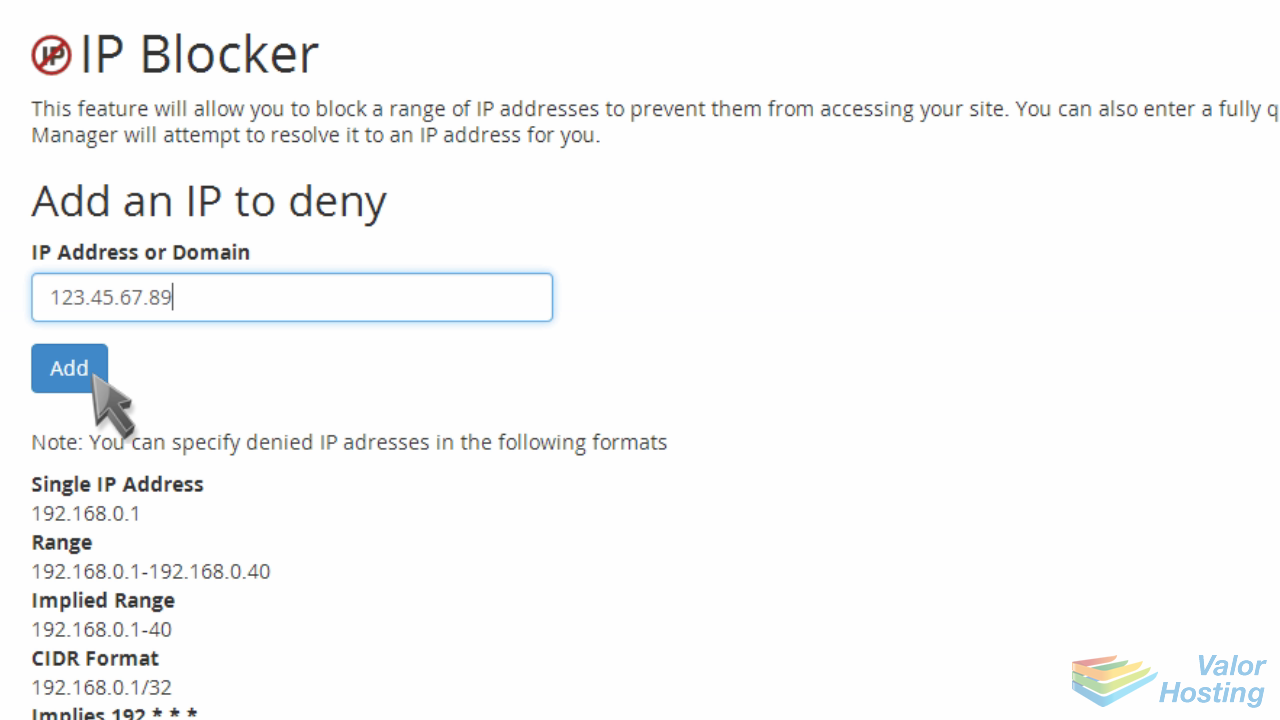
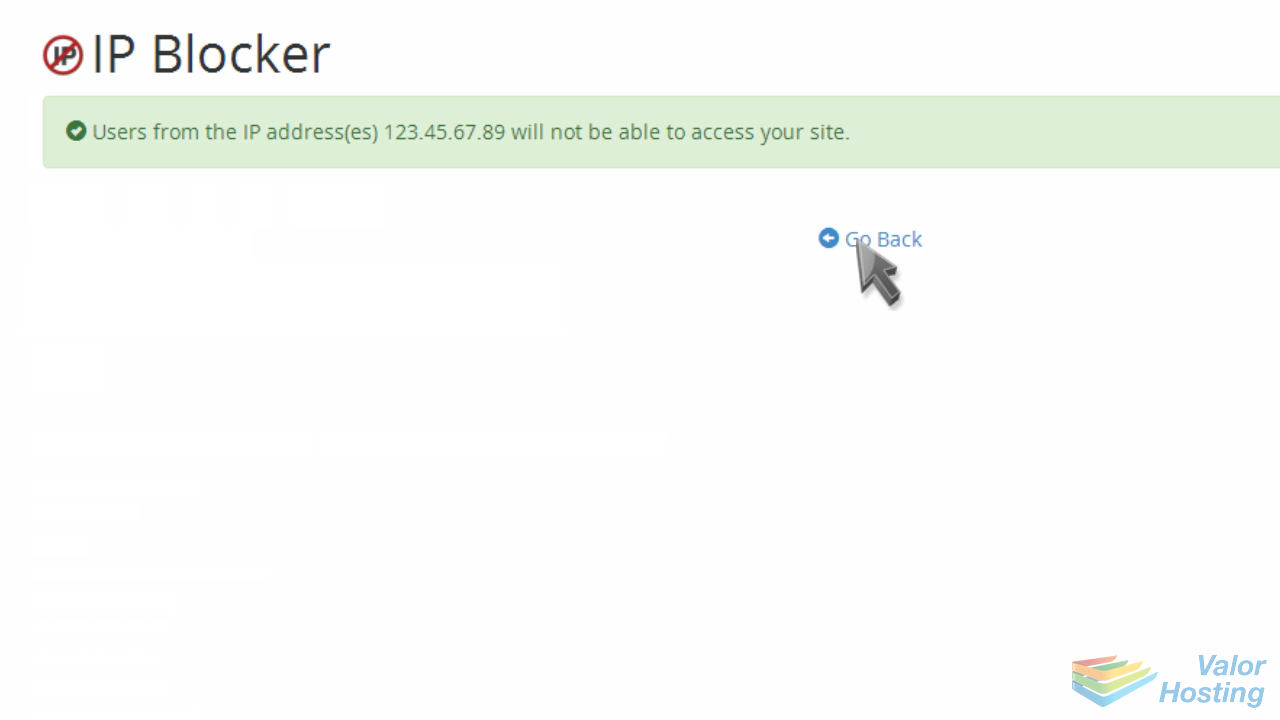
That's it! We've now blocked anyone using the IP address 123.45.67.89 from accessing our website.
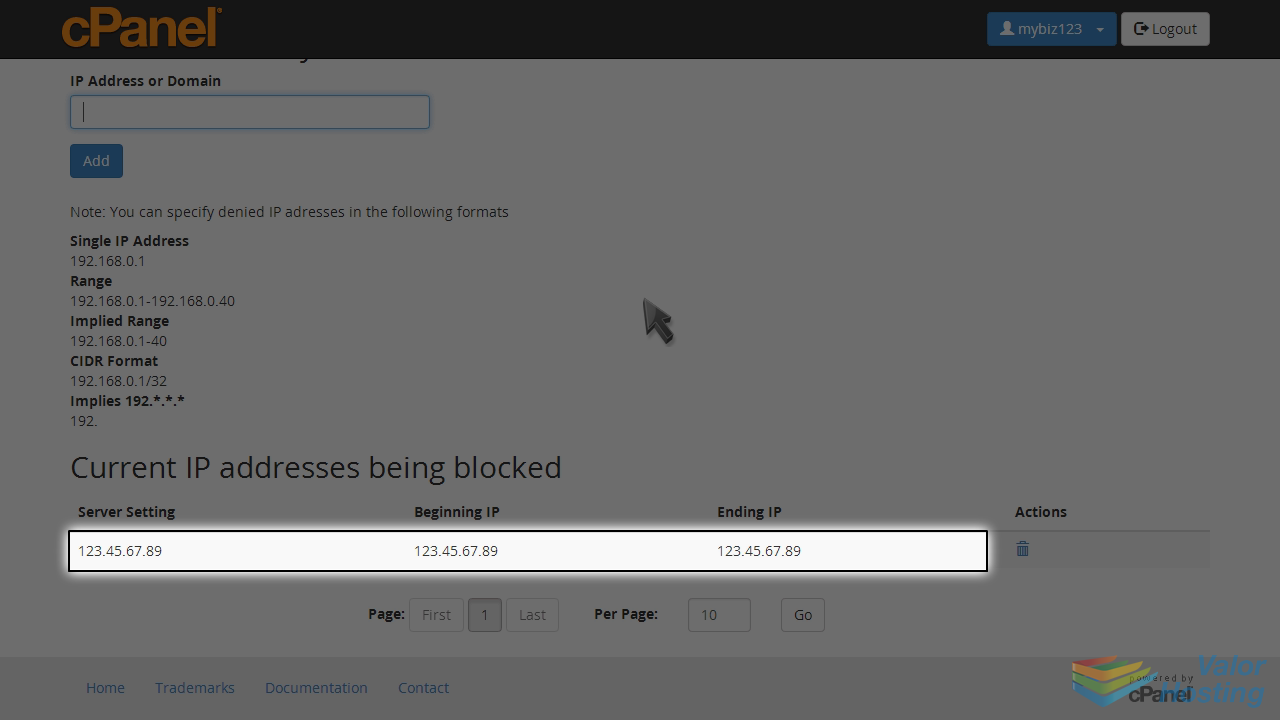
You can see which IP addresses are currently being blocked.
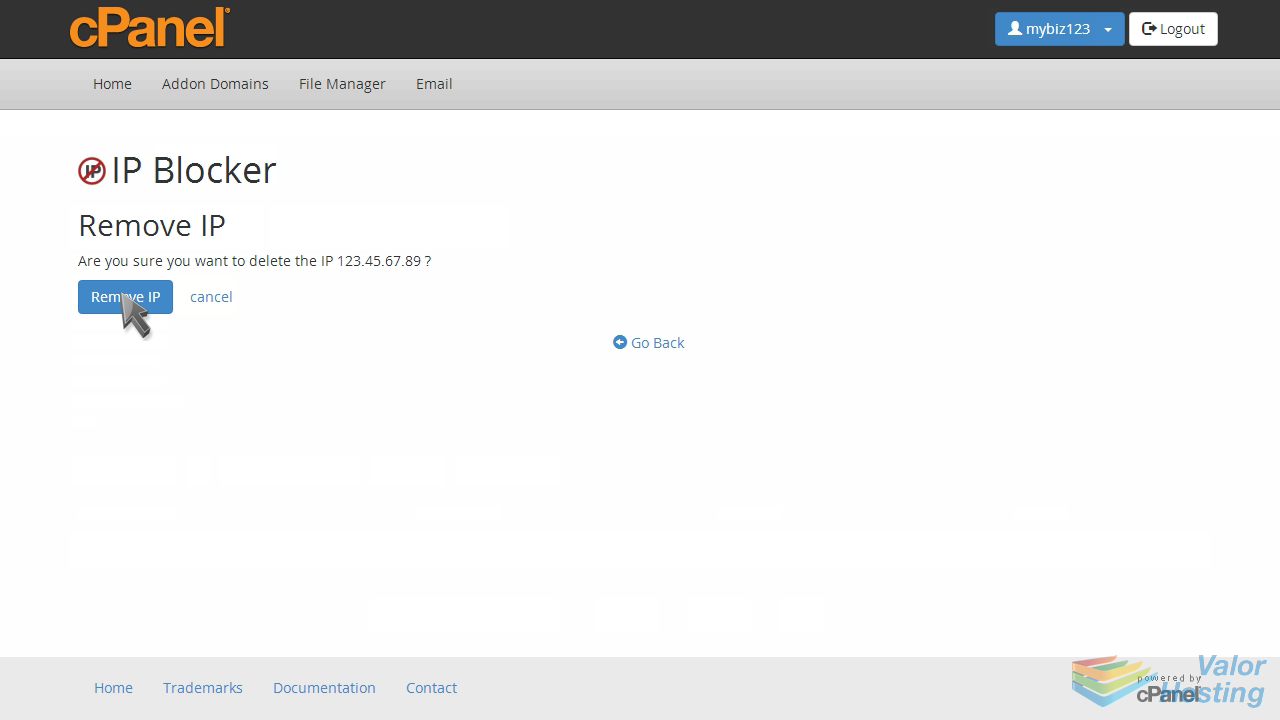
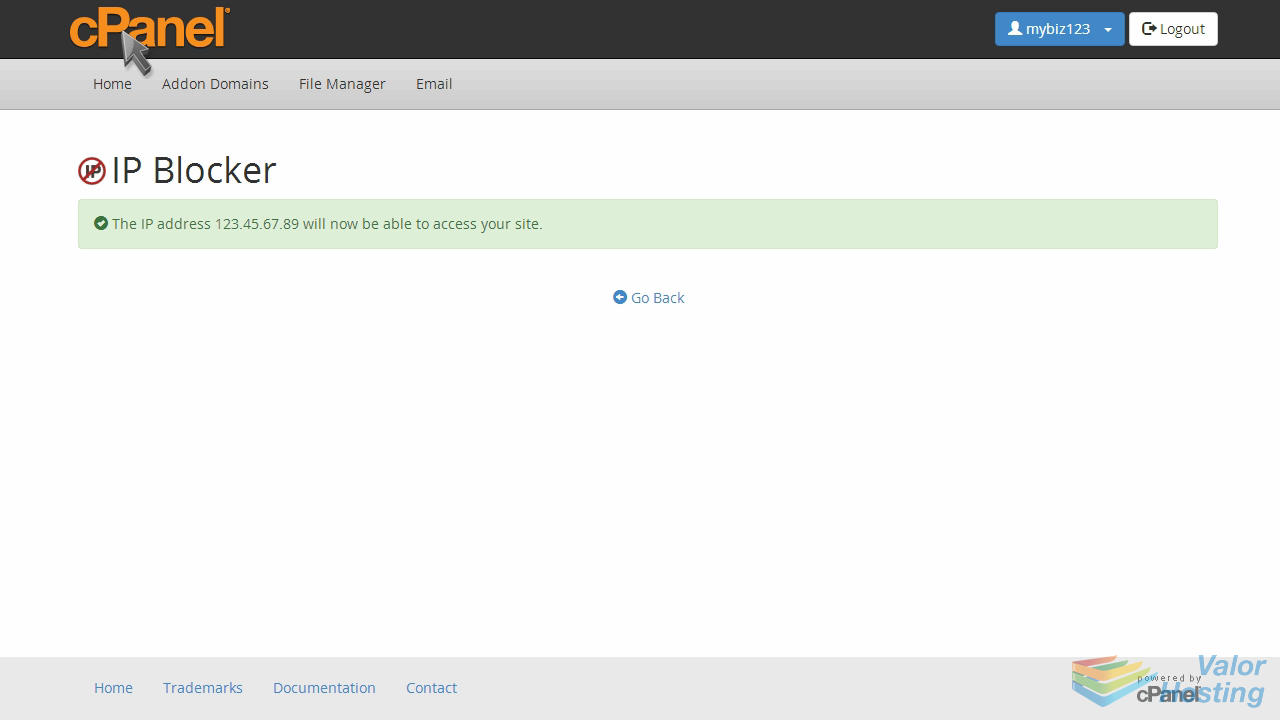
... and you can remove IP blocks by clicking here.
This is the end of the tutorial. You now know how to block IP addresses from accessing your website.

  • IP blocker, block ip
  • 0 Users Found This Useful
Was this answer helpful?

Related Articles

25. How to create a mySQL database in cPanel

25. How to create a MySQL database in cPanel This demo assumes you've already logged in to...

01. How to log into cPanel

1. How to login to cPanel This demo assumes you've already opened your browser and entered...

02. How to create an email account

2. How to create an email account in cPanel This demo assumes you've already logged in to...

03. How to set a default email in cPanel

3. How to set your default address in cPanel This demo assumes you've already logged in to...

04. How to set up an autoresponder in cPanel

4. How to setup an autoresponder in cPanel This demo assumes you've already logged in to...