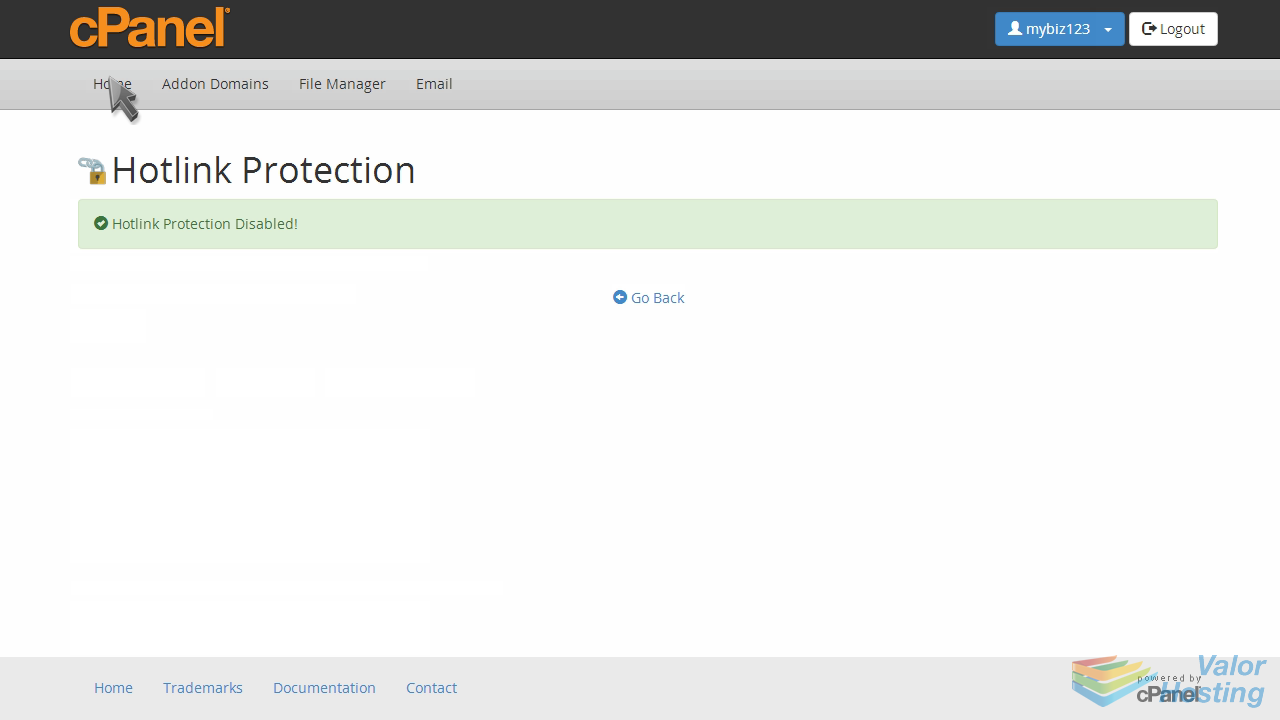
20. How to setup hotlink protection in cPanel
This demo assumes you've already logged in to cPanel, and are starting on the home screen.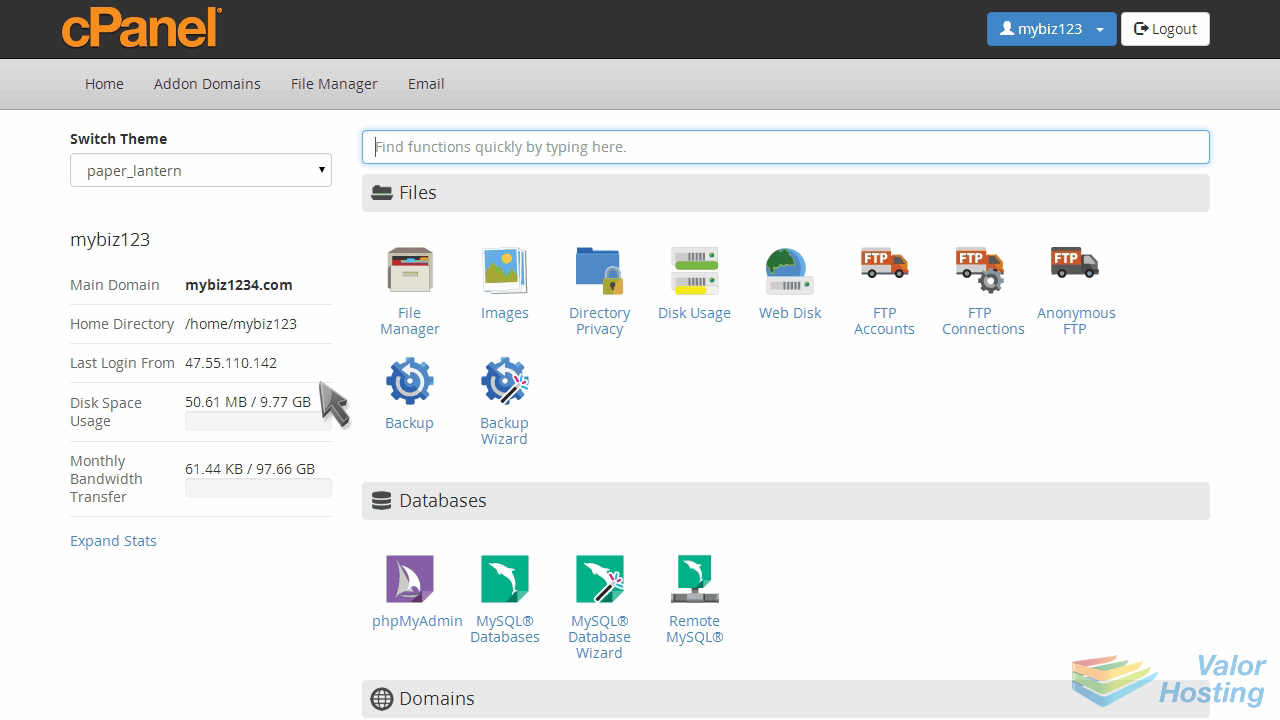
Now let's learn how to setup hotlink protection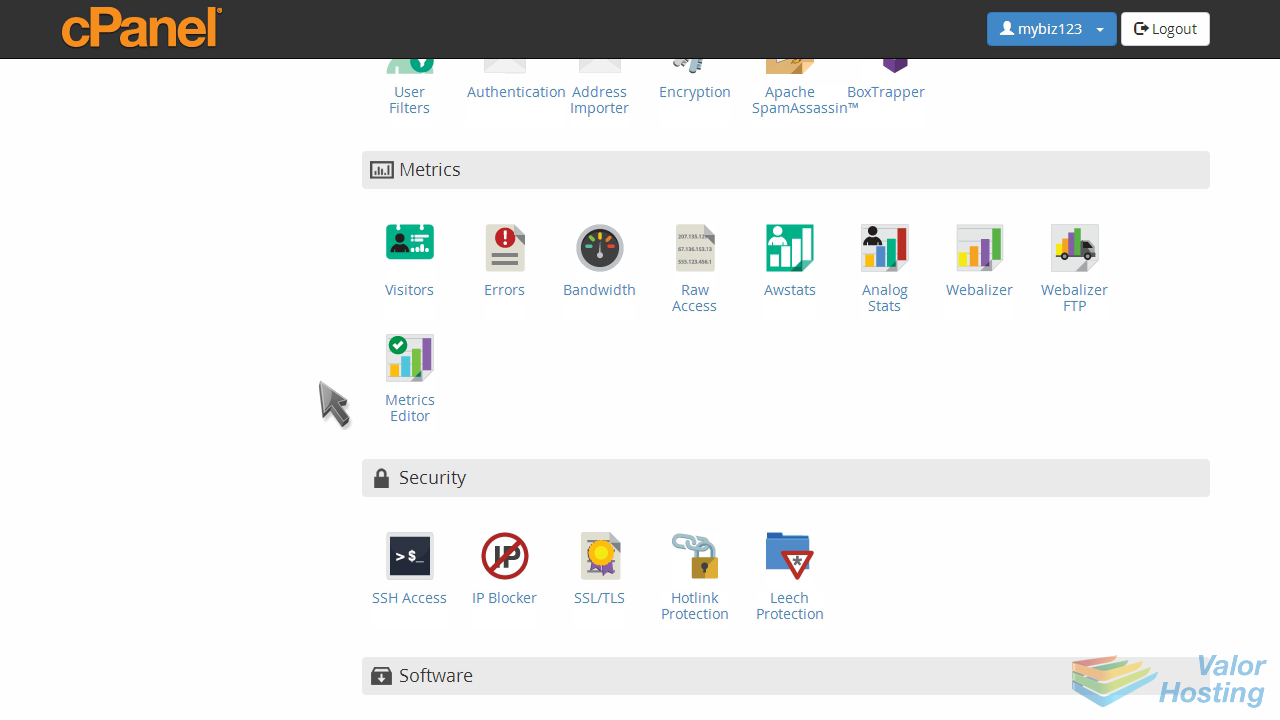
Click the "Hotlink Protection" icon.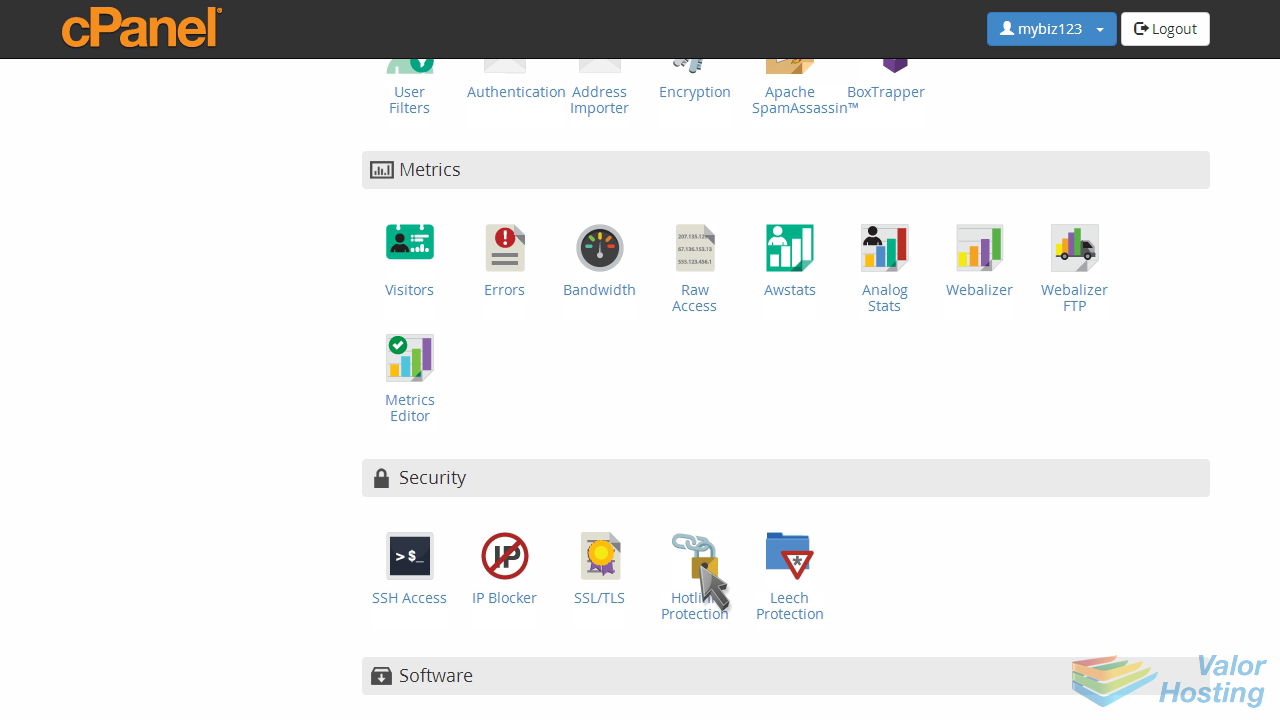
Hotlink protection prevents other websites from directly linking to certain files (typically images) on your website.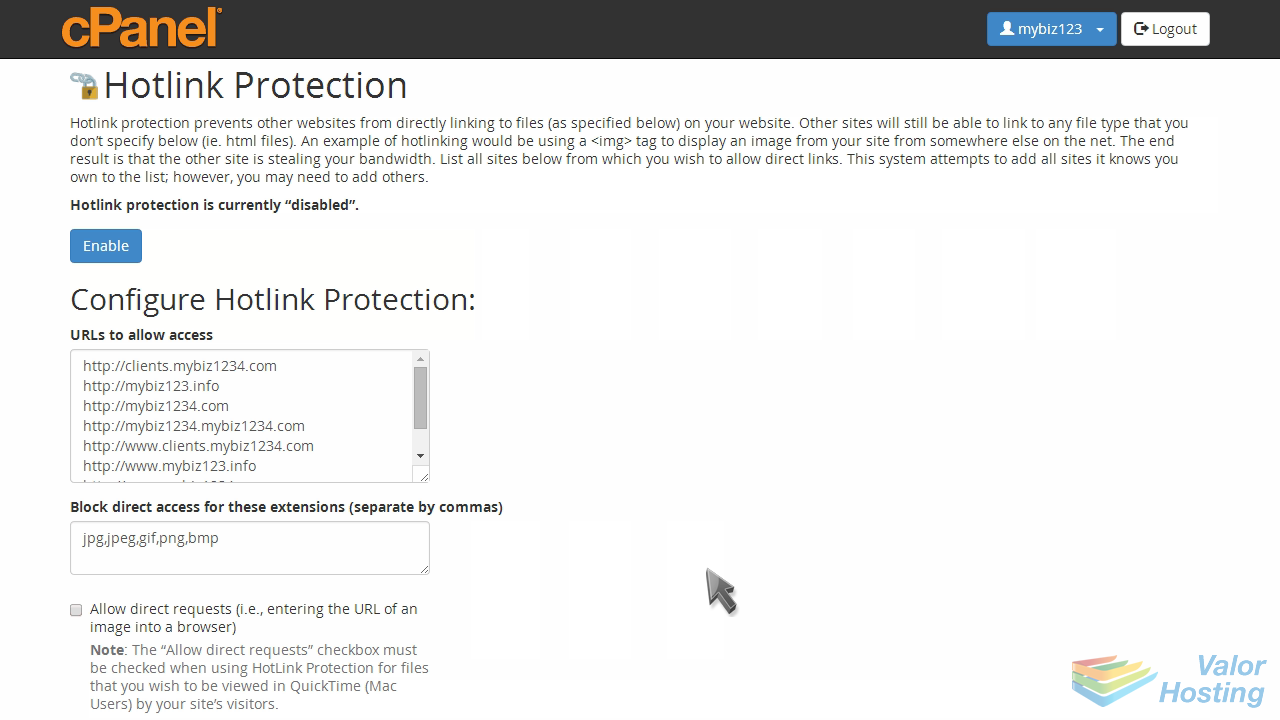
You'll want to prevent this if you have copyrighted images, or to simply save on bandwidth usage.
You'll first want to make sure your own sites are listed here, so you are able to hotlink to your images.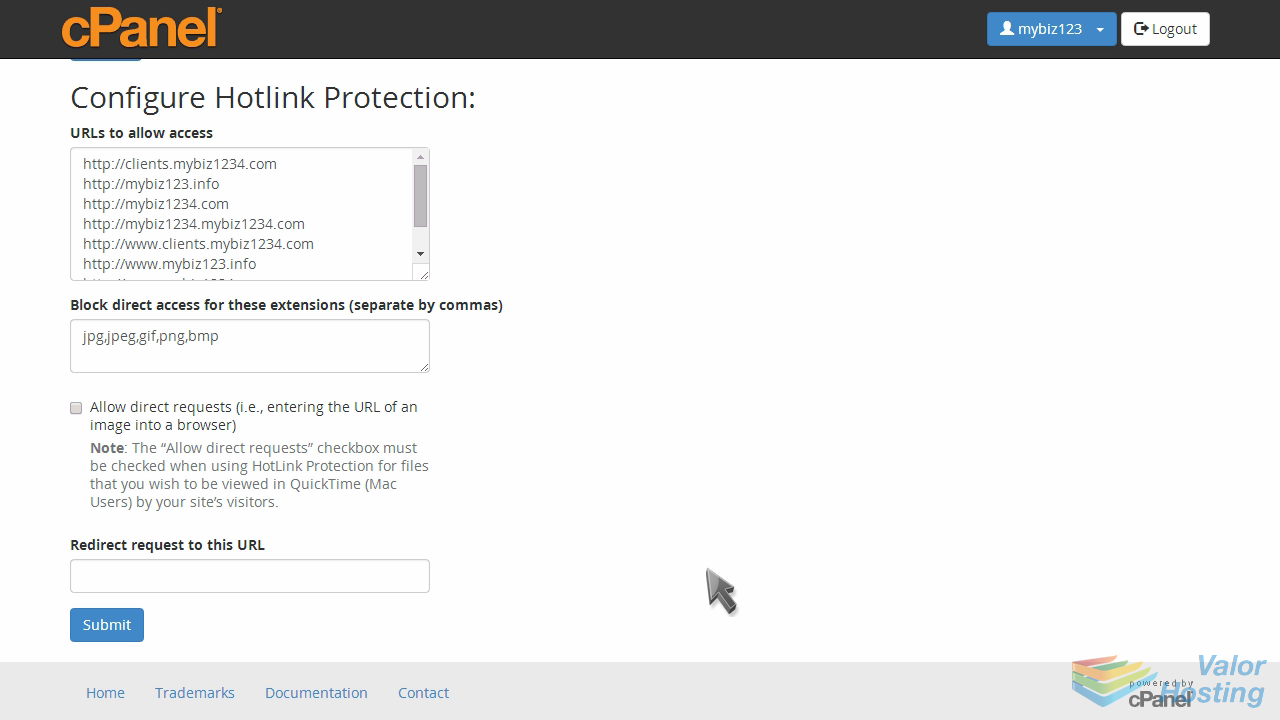
Enter all the file types you want to protect...
... and check the "Allow direct requests" box if you want to give the ability to manually enter URLs of a protected file.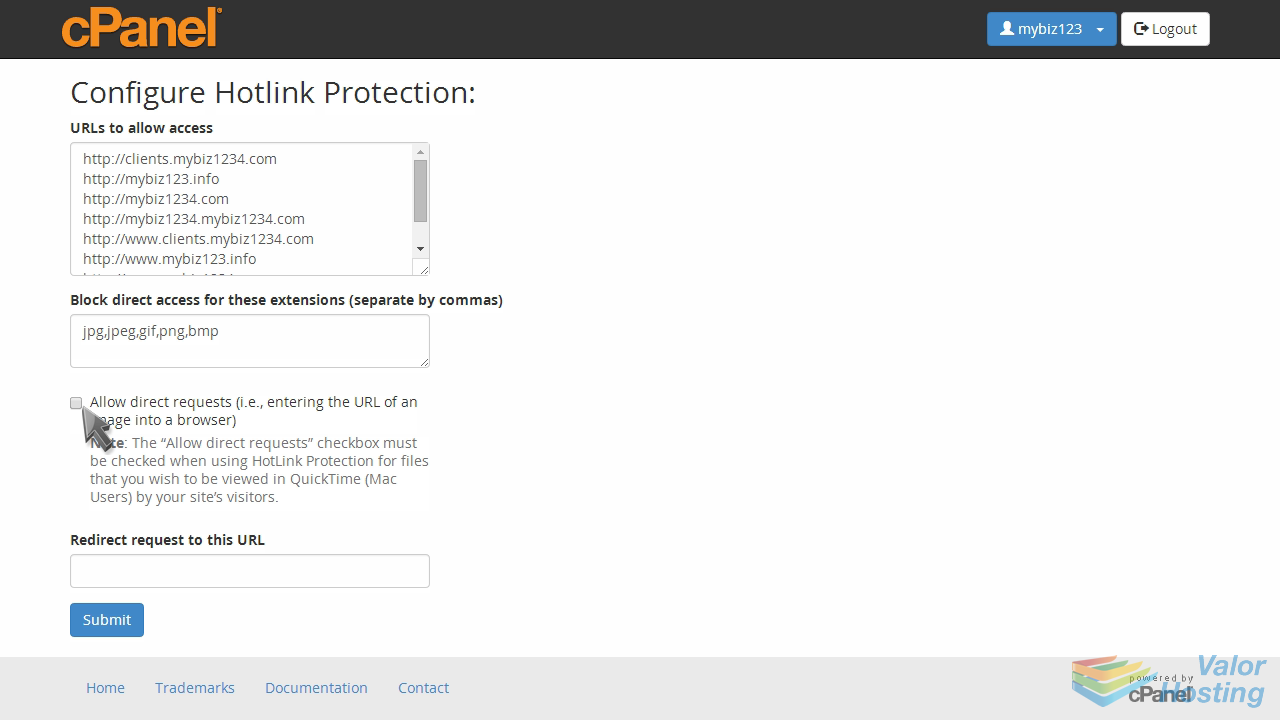
Enter the URL you want to redirect to, for anyone who tries to hotlink to your files or images.
Then click "Submit".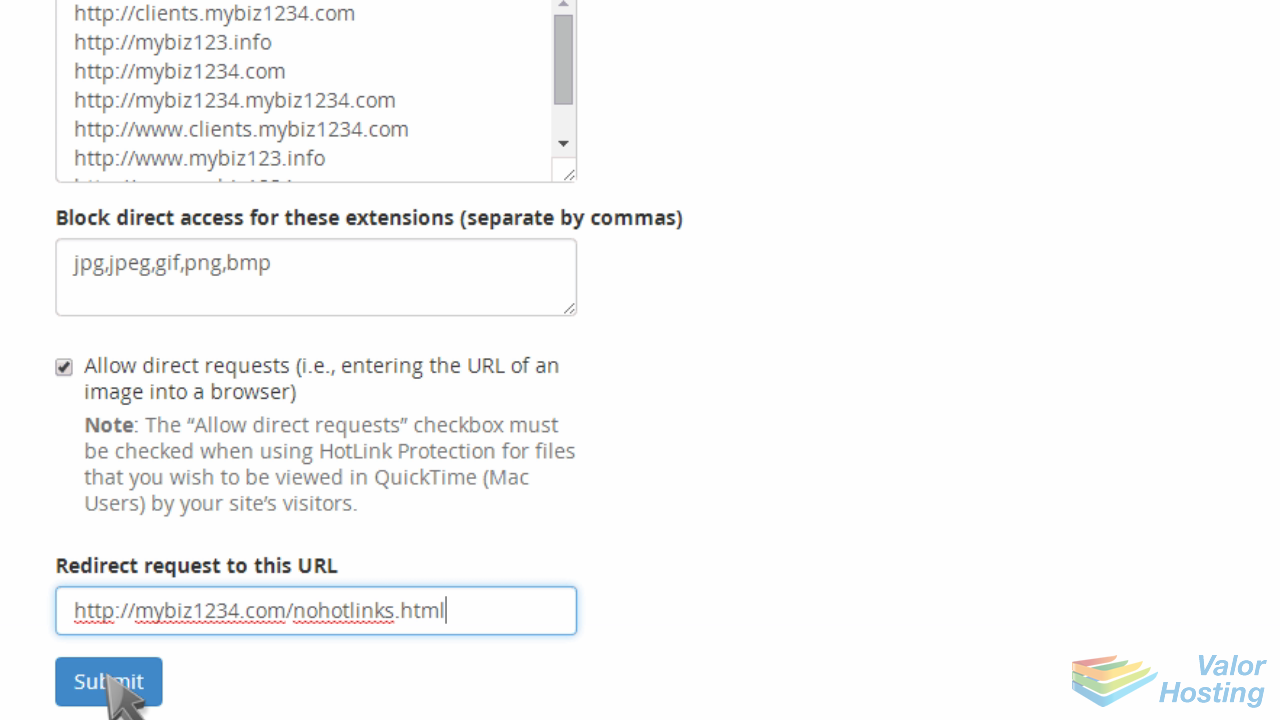
That's it! You've successfully enabled hotlink protection.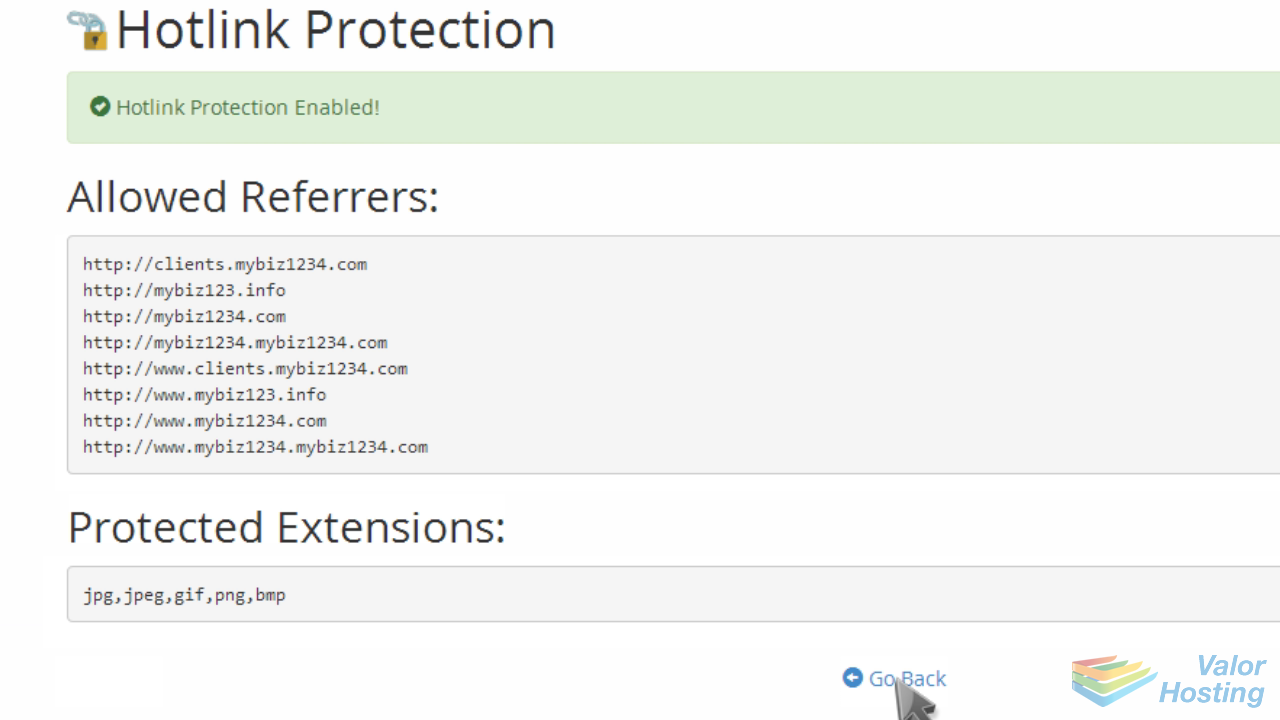
To disable hotlink protection, click the "Disable" button.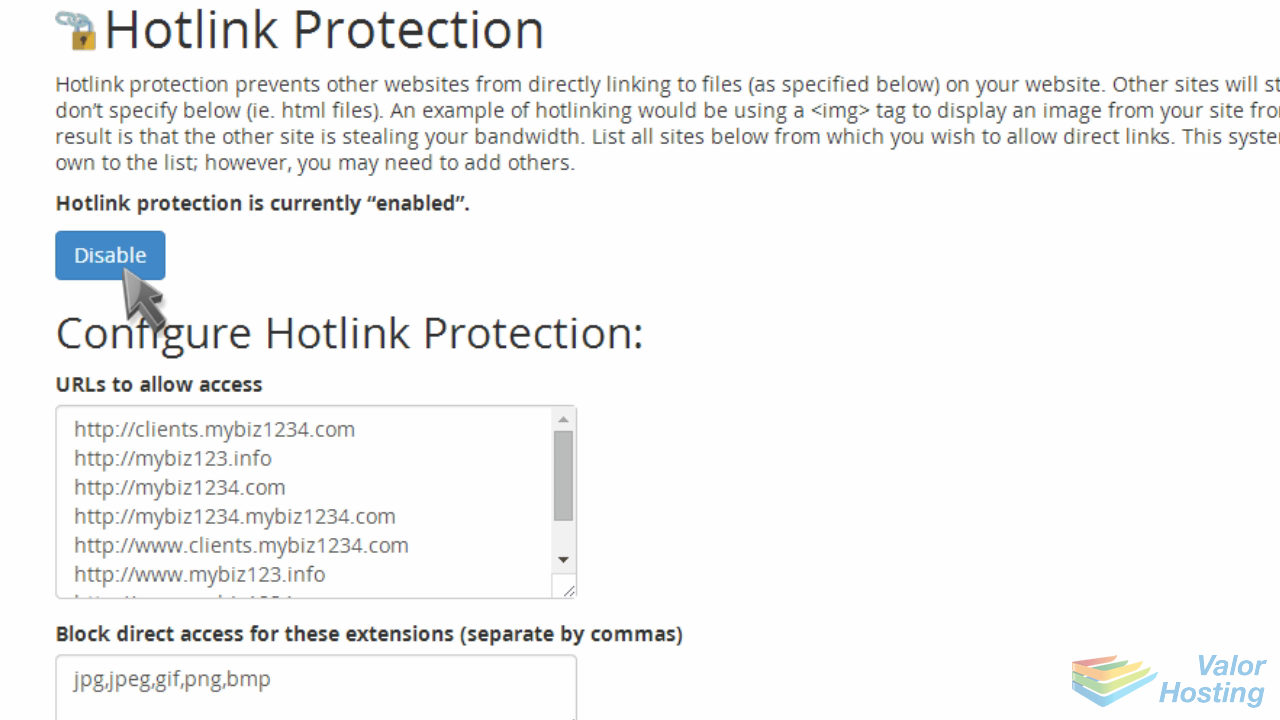
This is the end of the tutorial. You now know how to use hotlink protection to prevent hotlinking to your files.