4. How to setup an autoresponder in cPanel
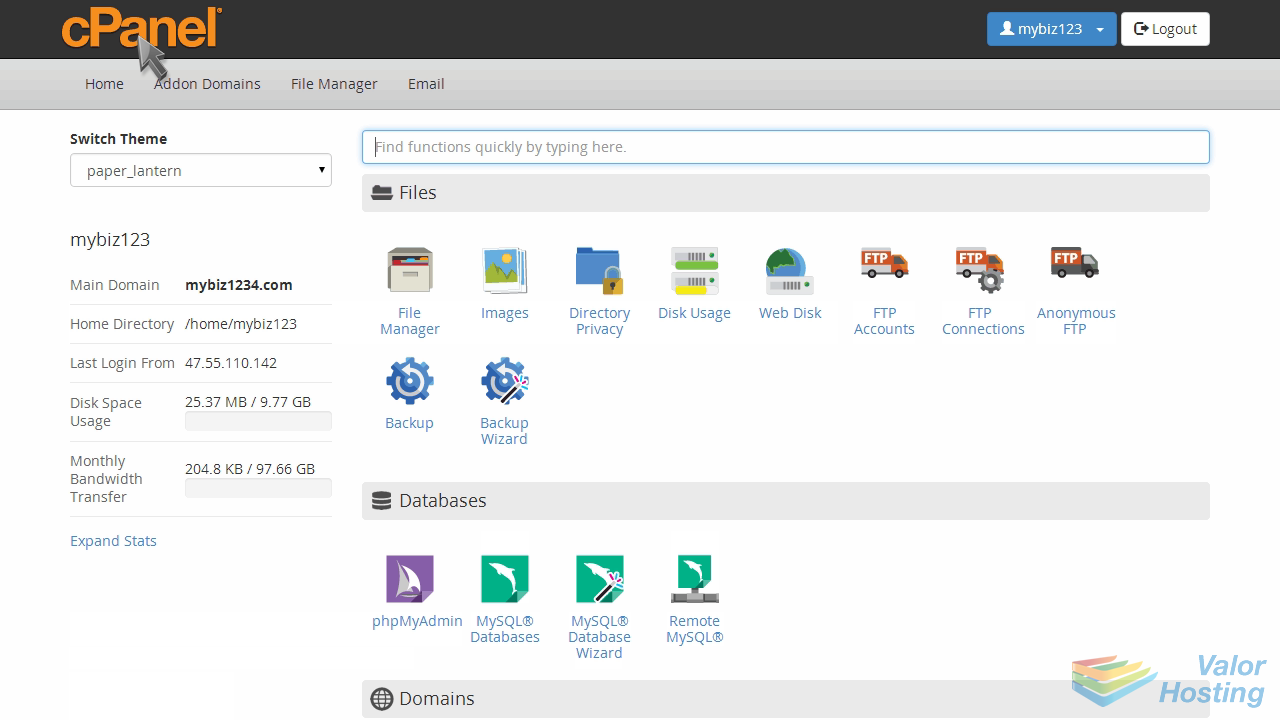
This demo assumes you've already logged in to cPanel, and are starting on the home screen.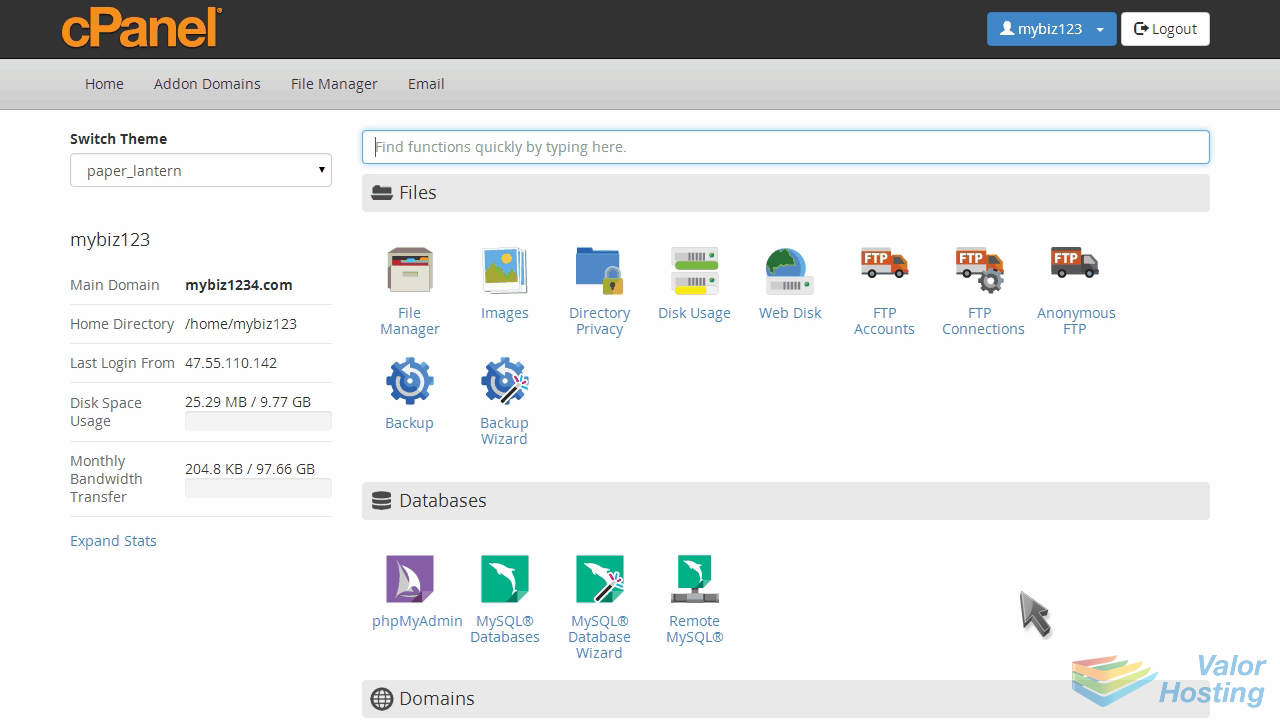
Now let's setup an autoresponder.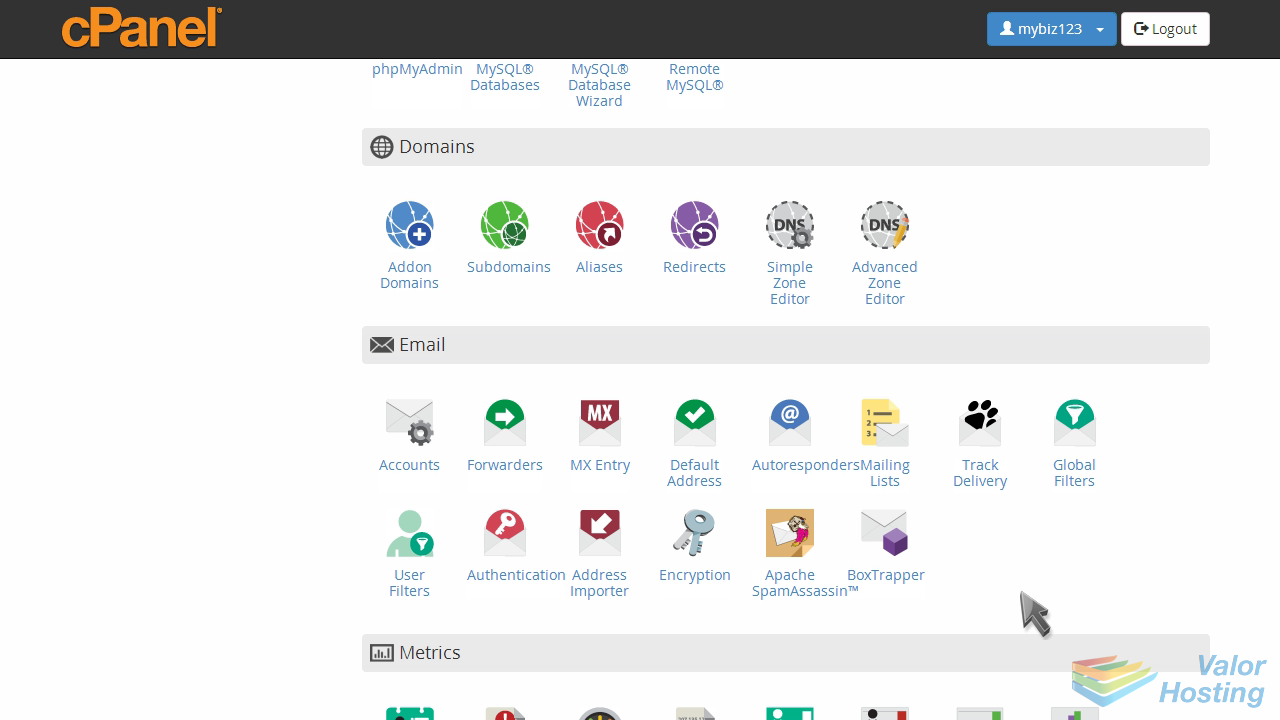
Click the Autoresponders icon.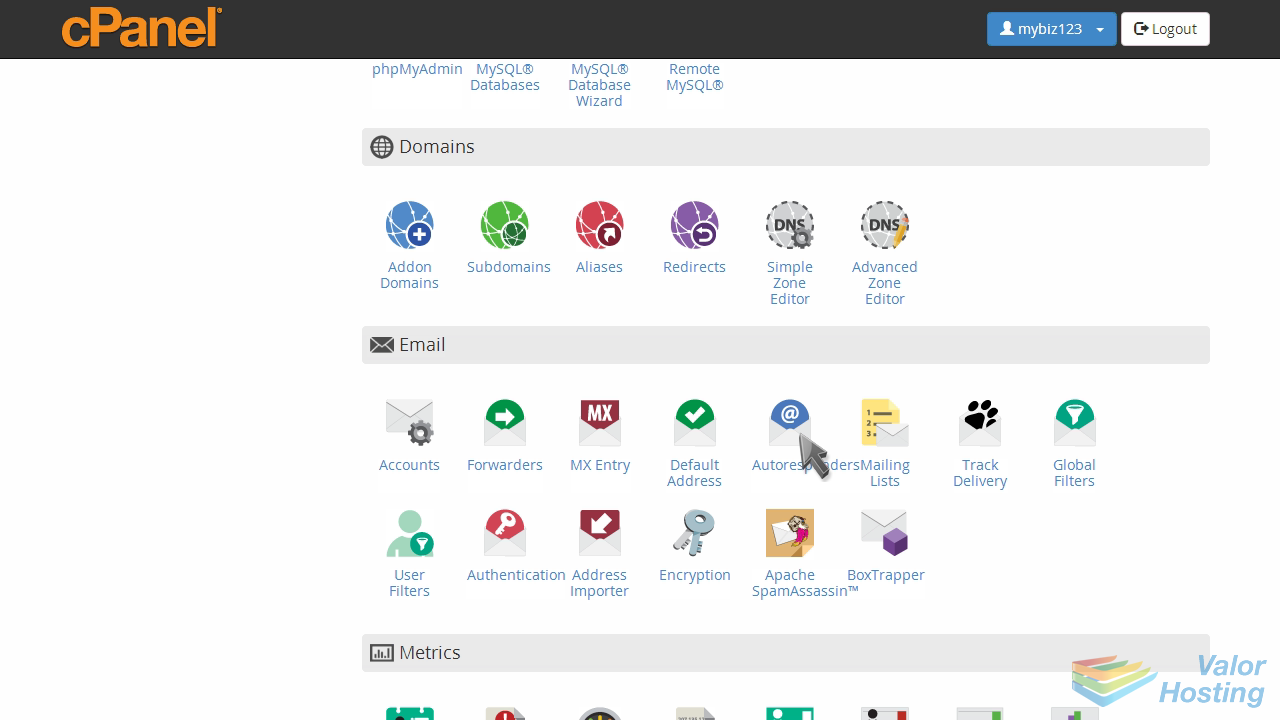
This is where you create autoresponders for your email addresses. Autoresponders send messages back automatically, to anyone who sends an email to a specified address.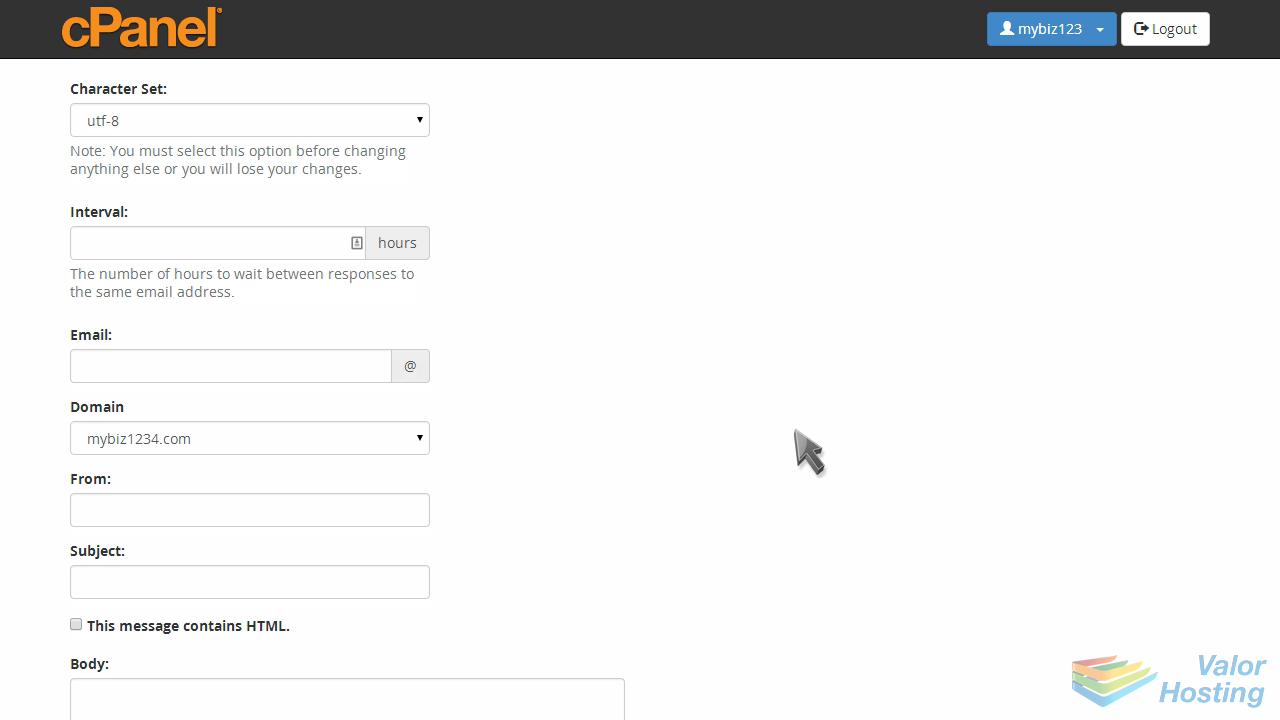
Enter an interval value, then enter an email address you want to set an autoresponder for.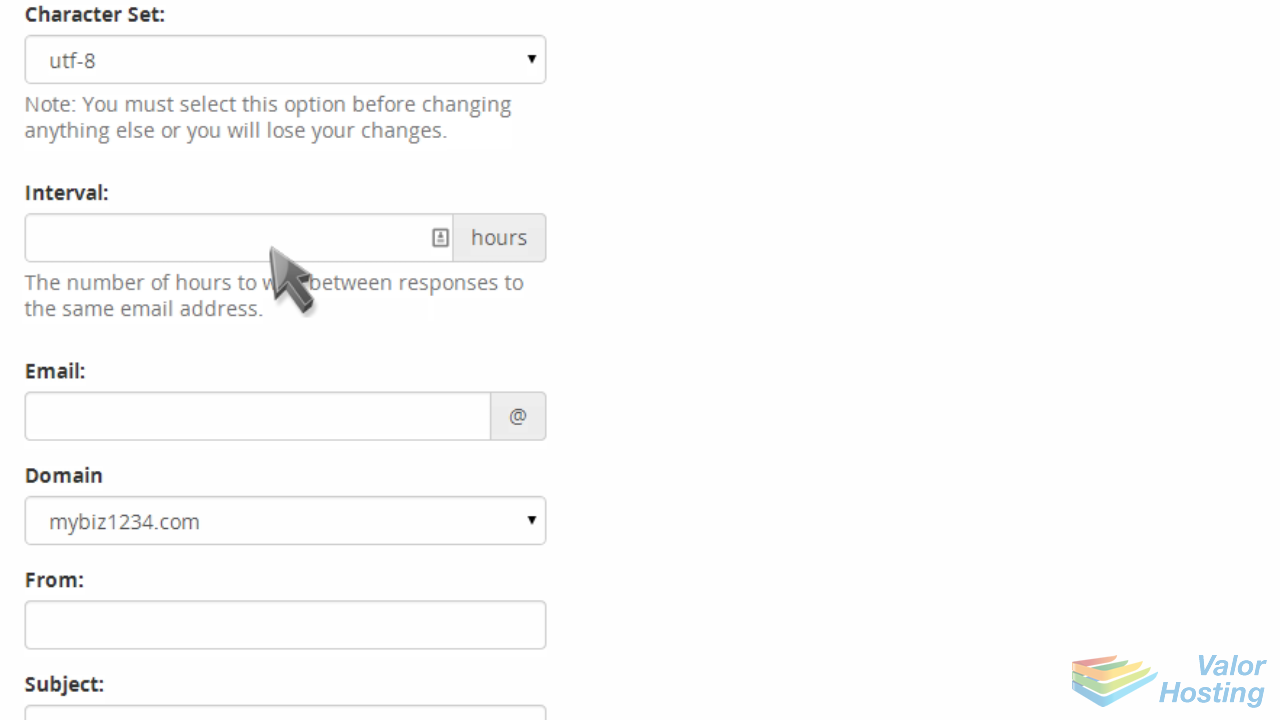
An interval of 8 hours means the autoresponder cannot send more than 1 email to an address within an 8 hour period.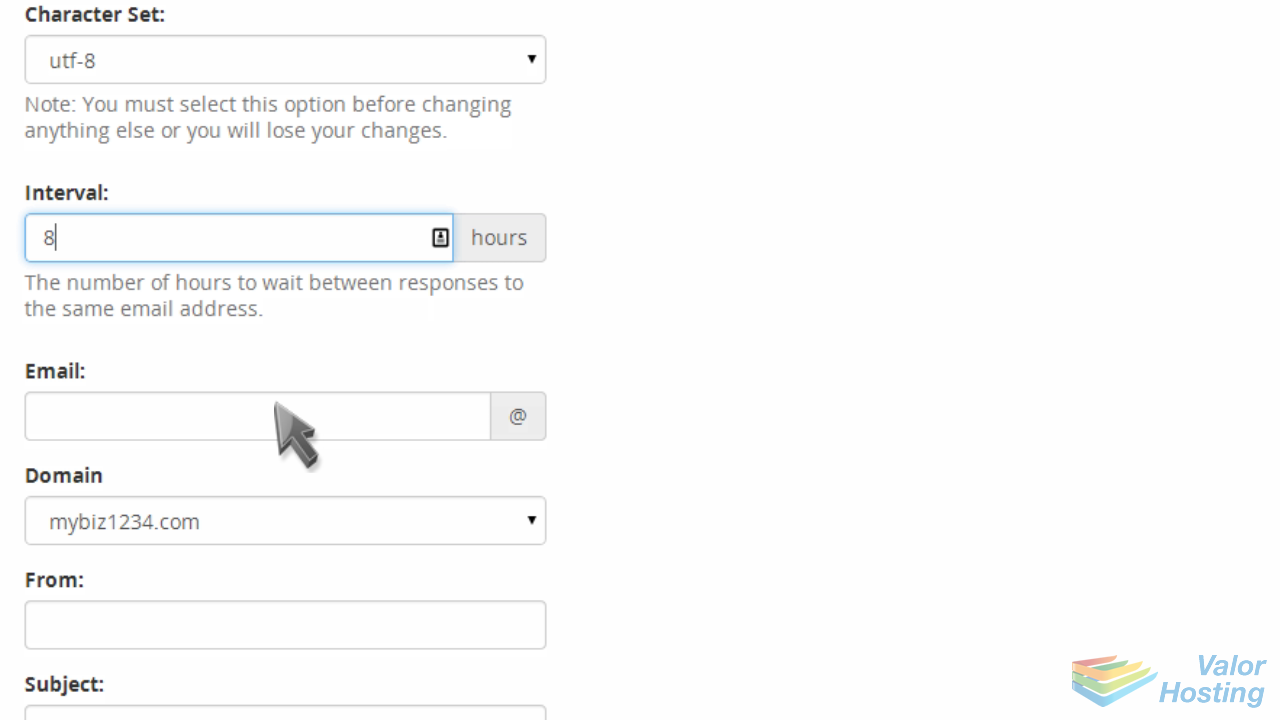
Now complete the rest of the autoresponder email.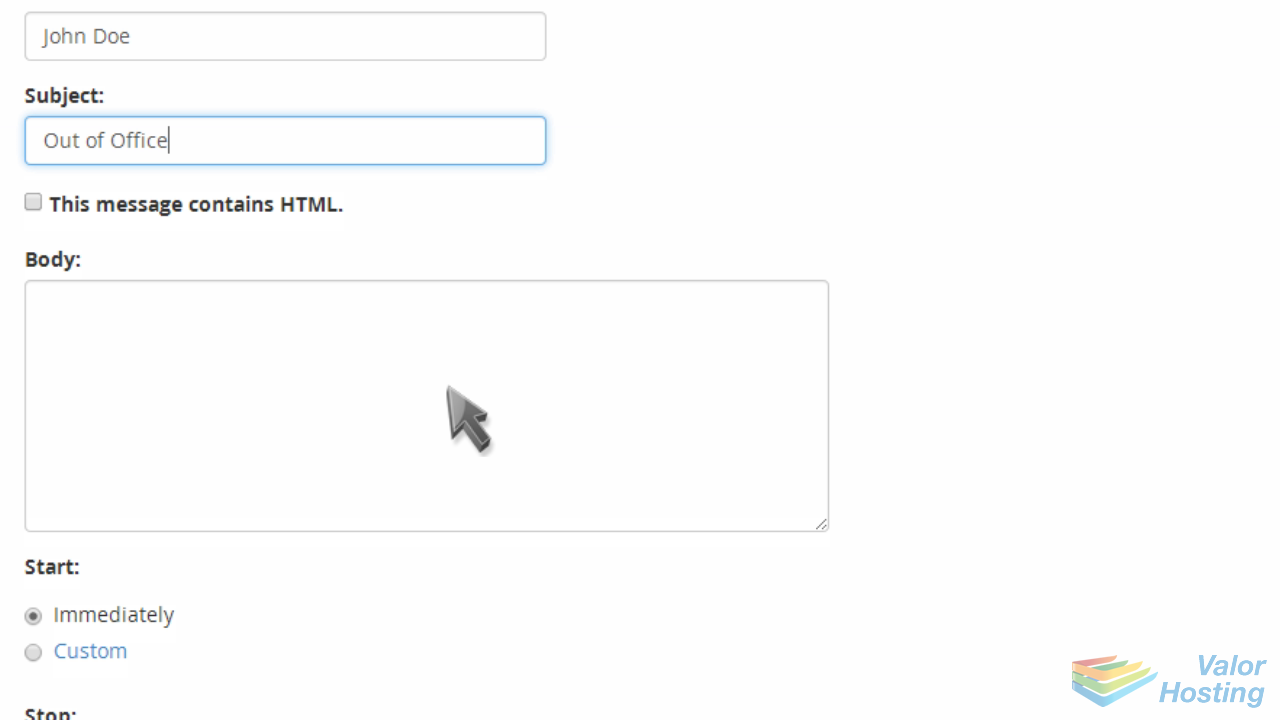
When finished, click "Create/Modify".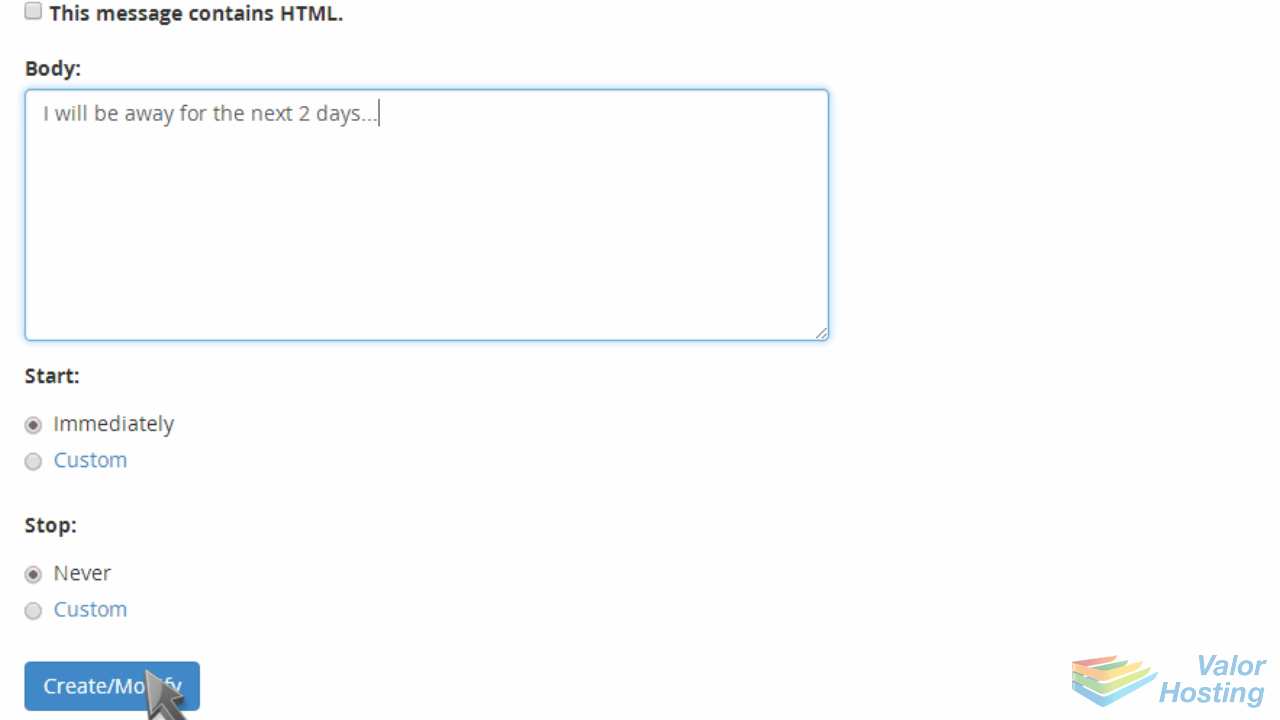
That's it! The autoresponder has been setup.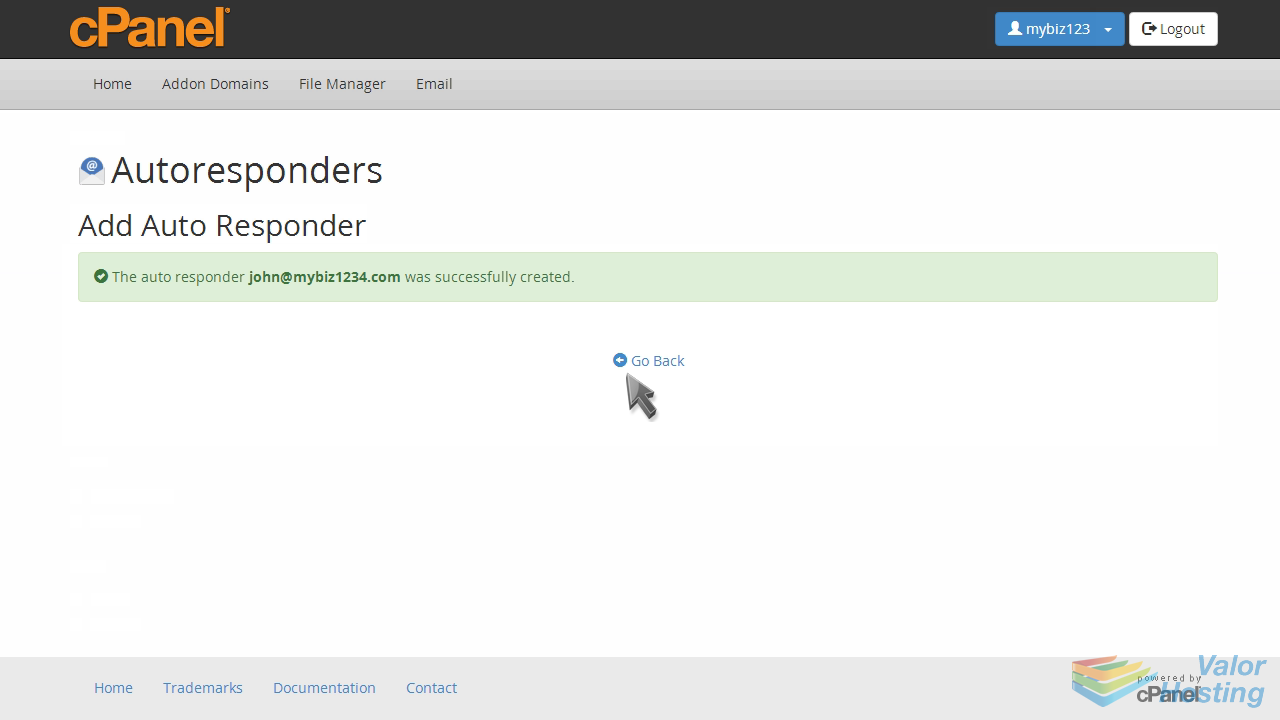
Now when someone sends an email to John, the "Out of Office" email will automatically be sent to them.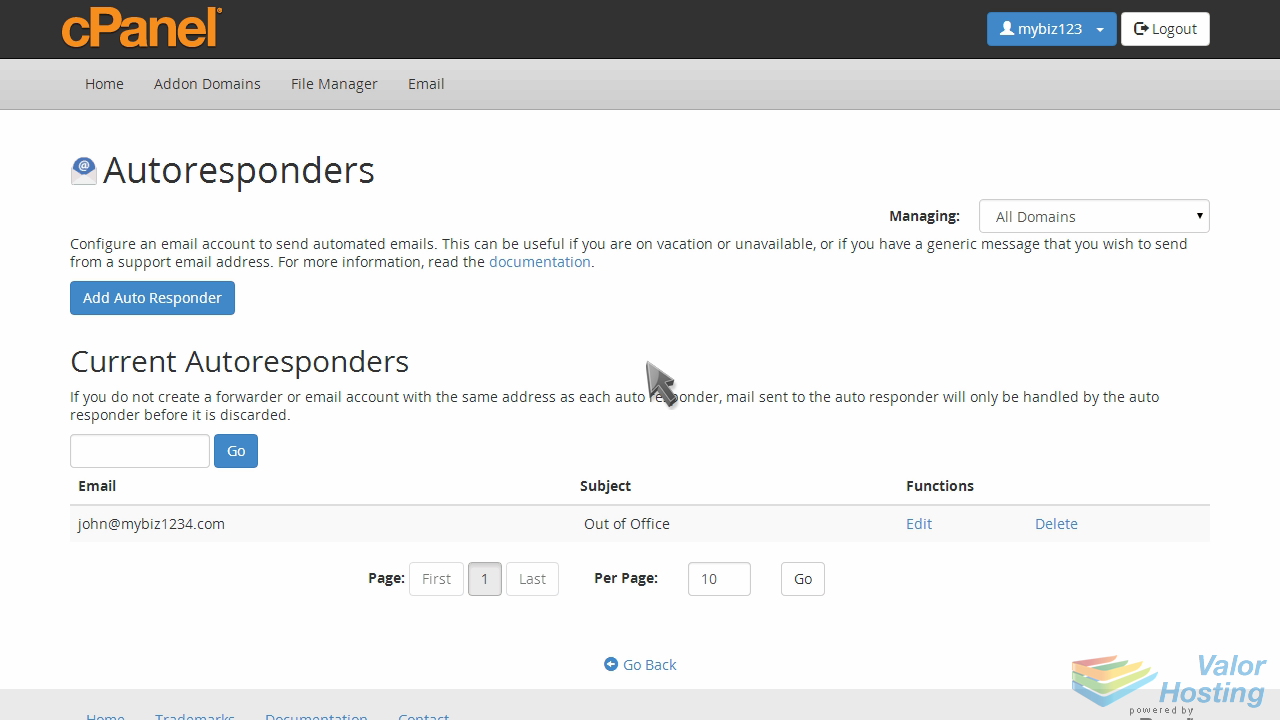
This is the end of the tutorial. You now know how to setup an autoresponder in cPanel.