
Updating DNS Nameserver series
17. How to update your nameservers at Register.com
You need to change your nameservers. Please check the email you received from us with your account details to see the correct name servers to use.
This demo assumes you have a domain name registered through Register.com, and starts from their home page.
Now let's learn how to update our domain name's Nameserver settings
Click "Log In" to sign in to your account.
Enter your User Name and Password to login.
In your Account Dashboard, hover over the Domains icon...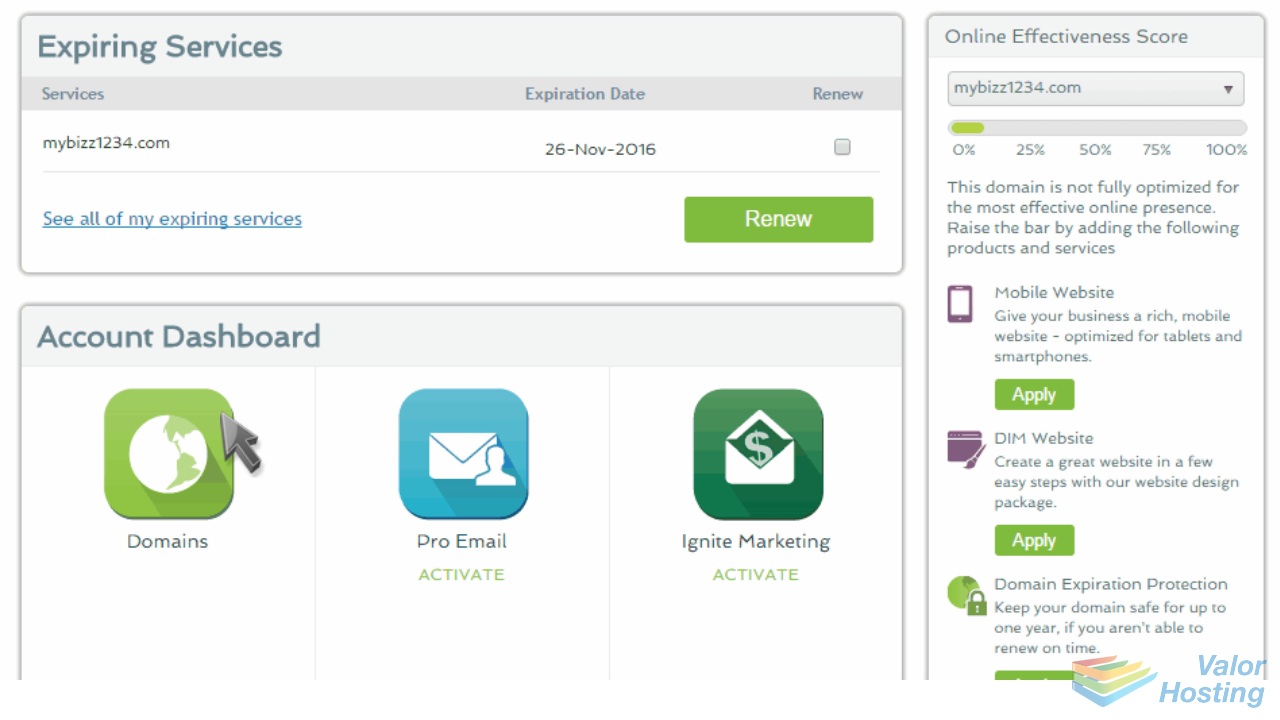
... then click "Manage".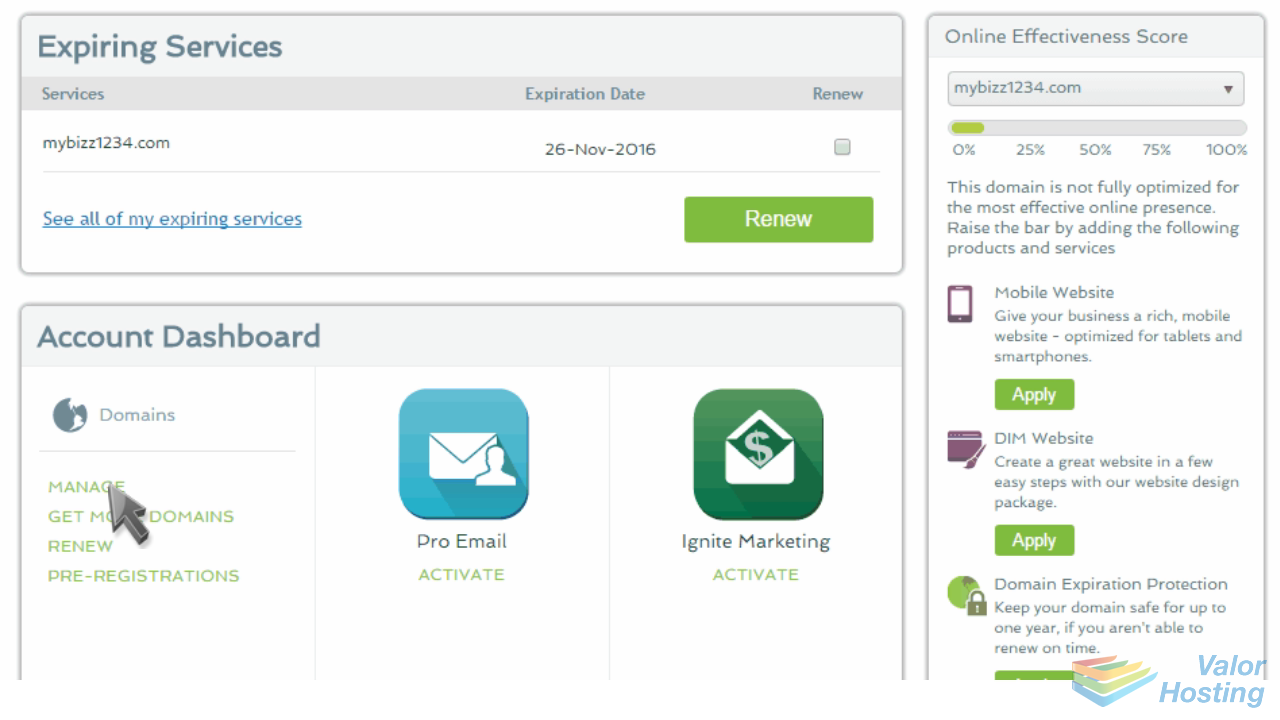
Click the "Manage" link next to the domain you want to update.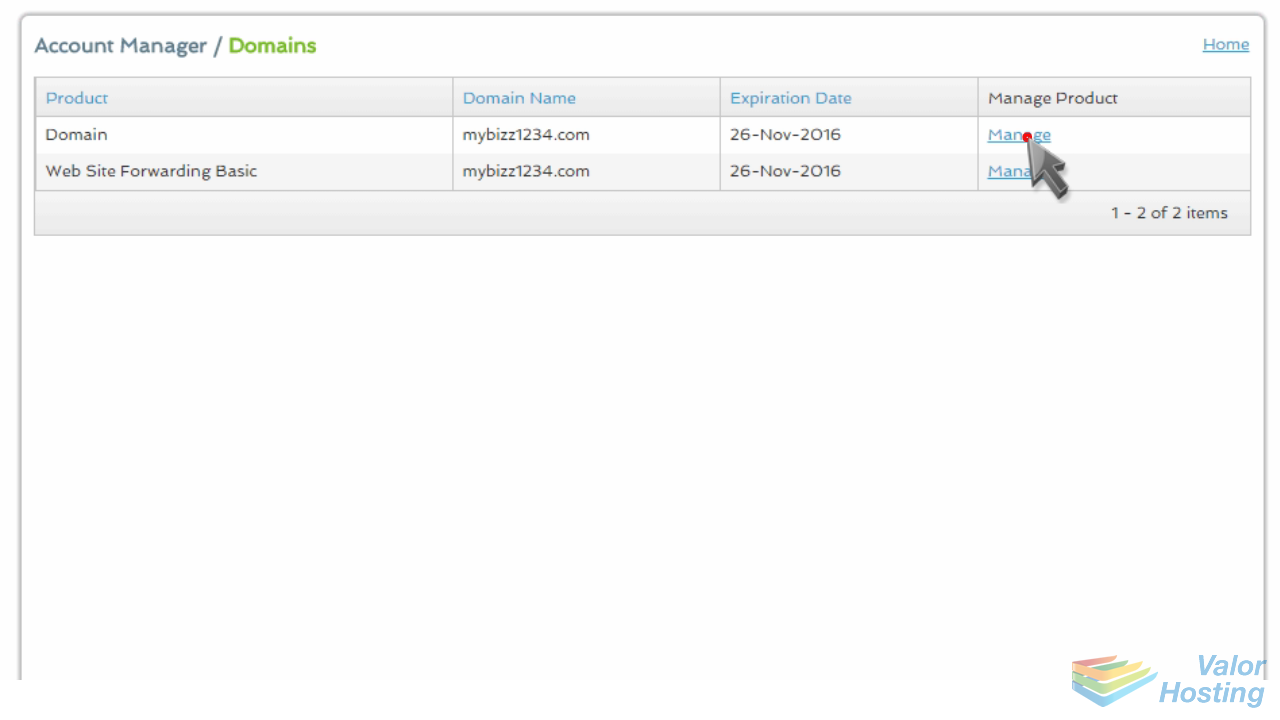
Then in the Domain Name System Servers section, enter your new nameservers.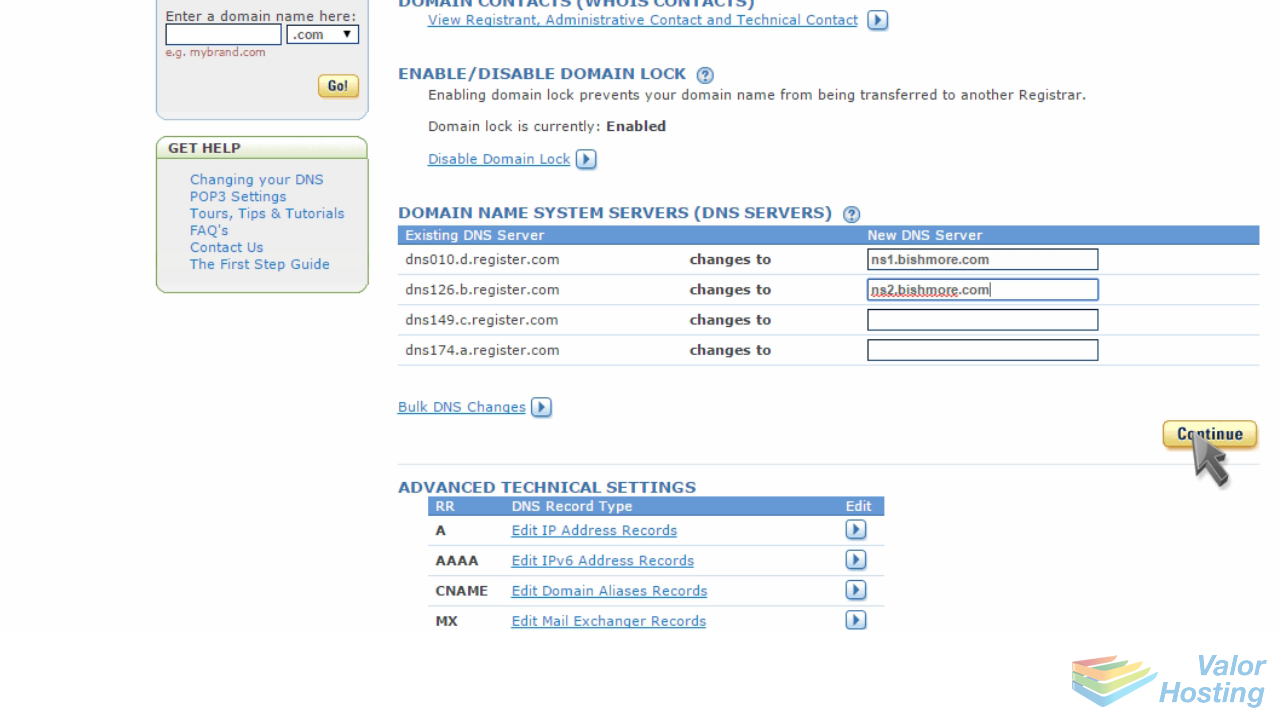
Click "Continue" to confirm the change.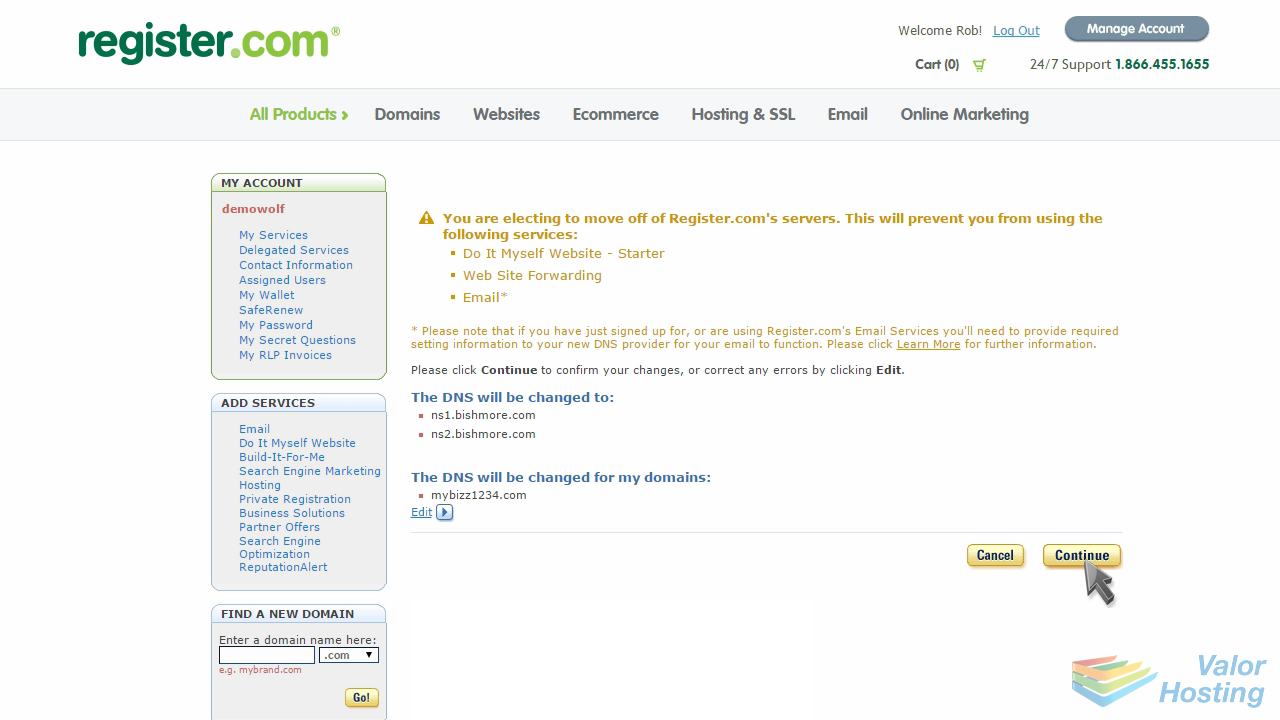
That's it! The domain name's nameservers have been updated.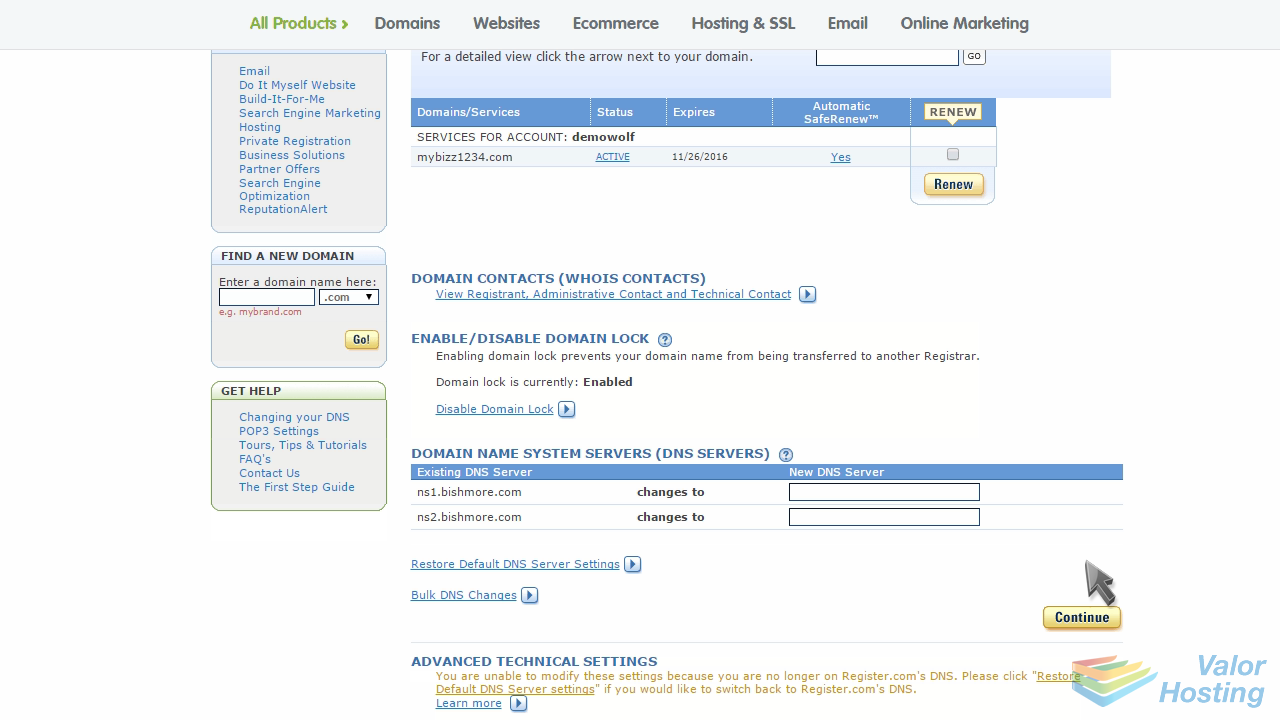
Please note that it could take up to 24 hours for your new nameservers to propagate and be recognized across the internet.
This is the end of the tutorial. You now know how to update your domain name's nameserver settings at Register.com.