
wpHost2go.com WordPress
How to quick install WordPress in cPanel
This demo assumes you've already logged in to cPanel, and are starting on the home screen.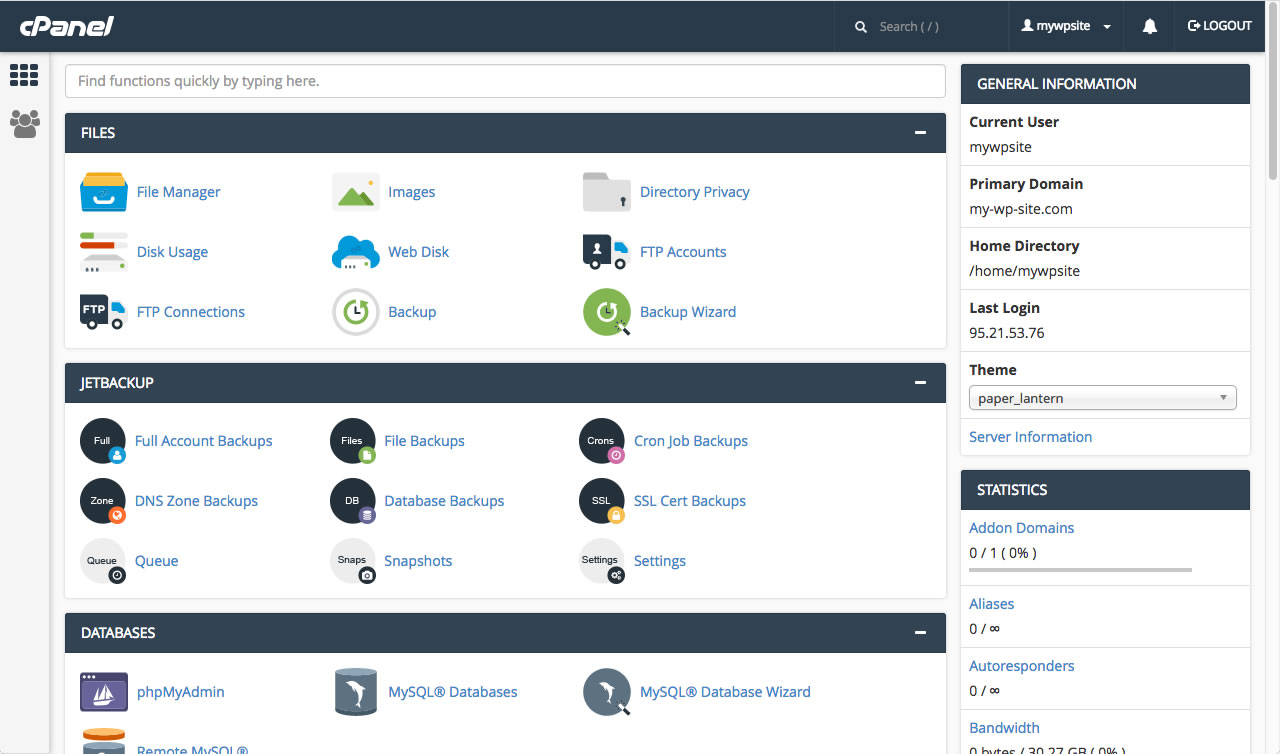
Now let's learn how to make a quick install Wordpress using the WordPress manager.
The quick install method will allocate a random user name and password.
Scroll down and click the "WordPress Manager" icon.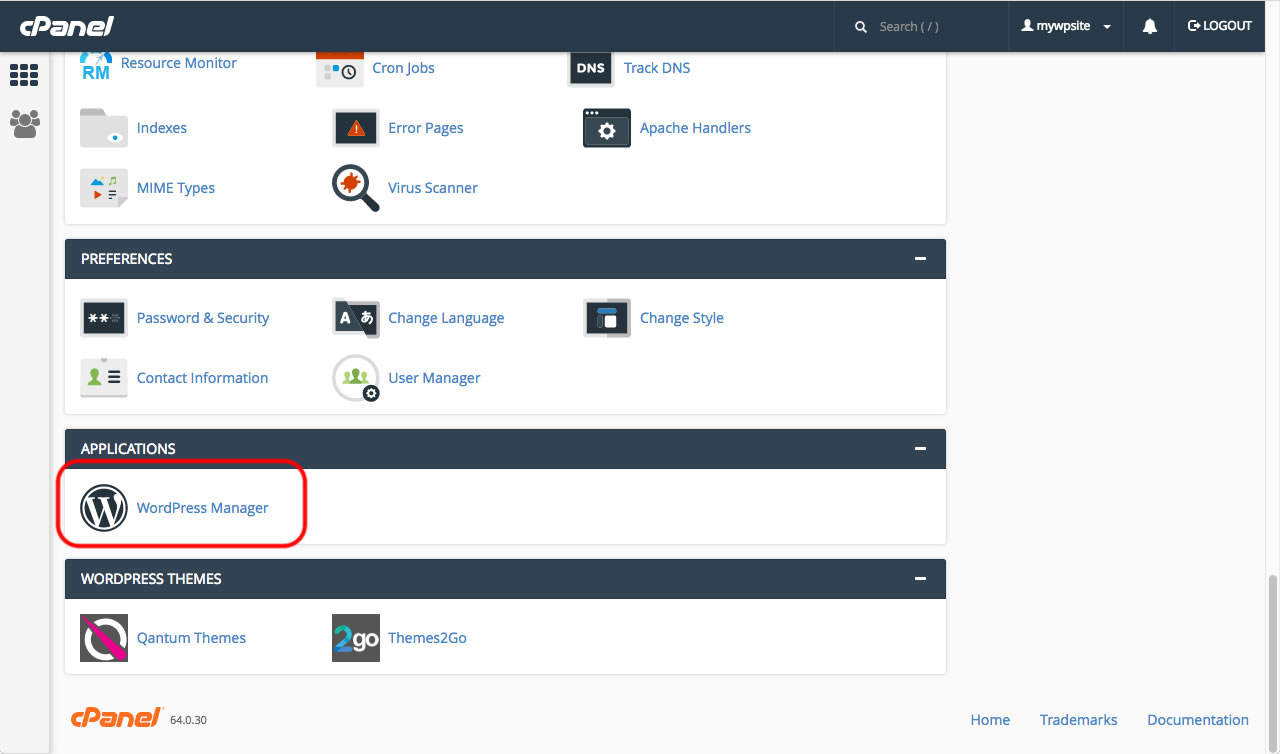
If there is currently no installation of WordPress then there will be a message to tell you that. To the right of that message, click on the link "Add an installation".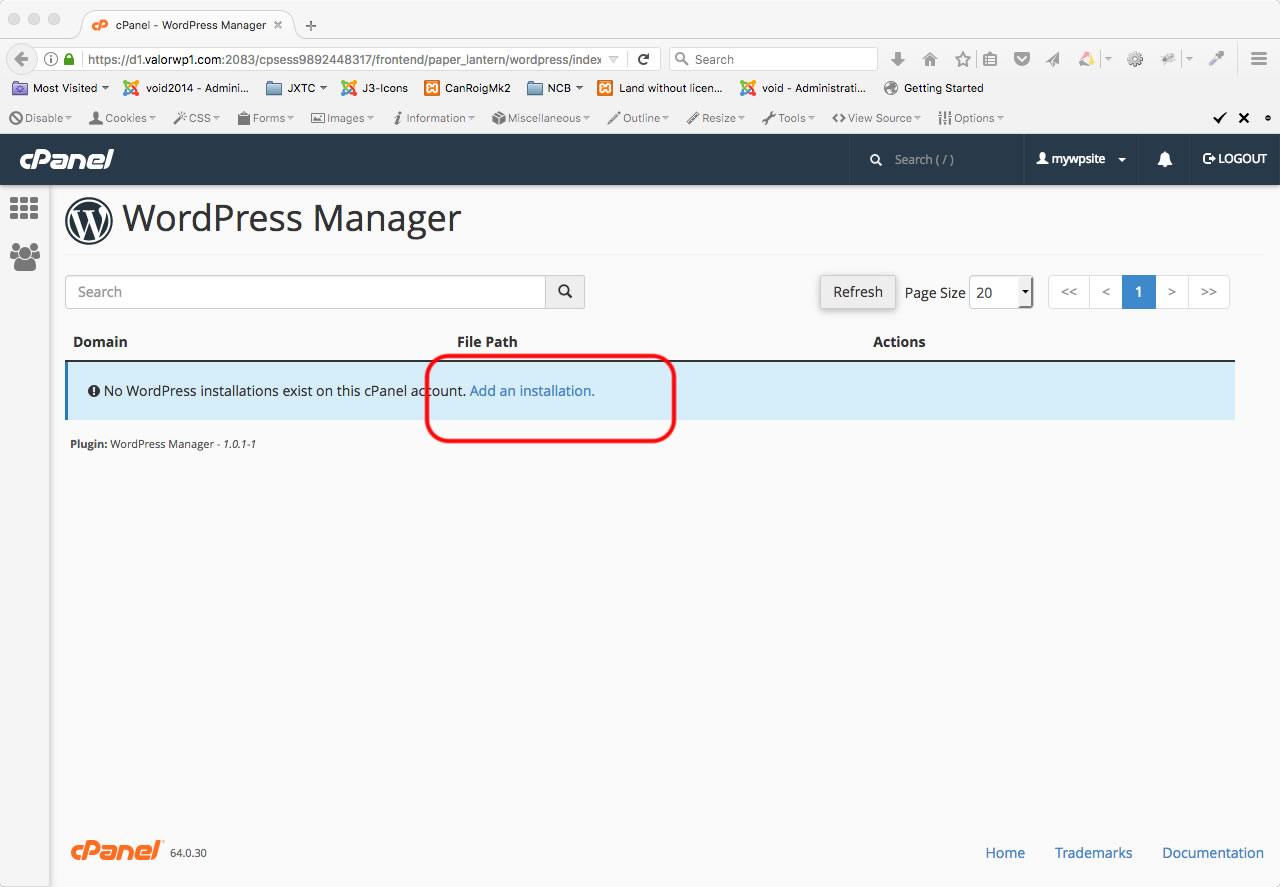
If you have more than one domain attached to this account, check that the correct domain is selected and click the "Install" button.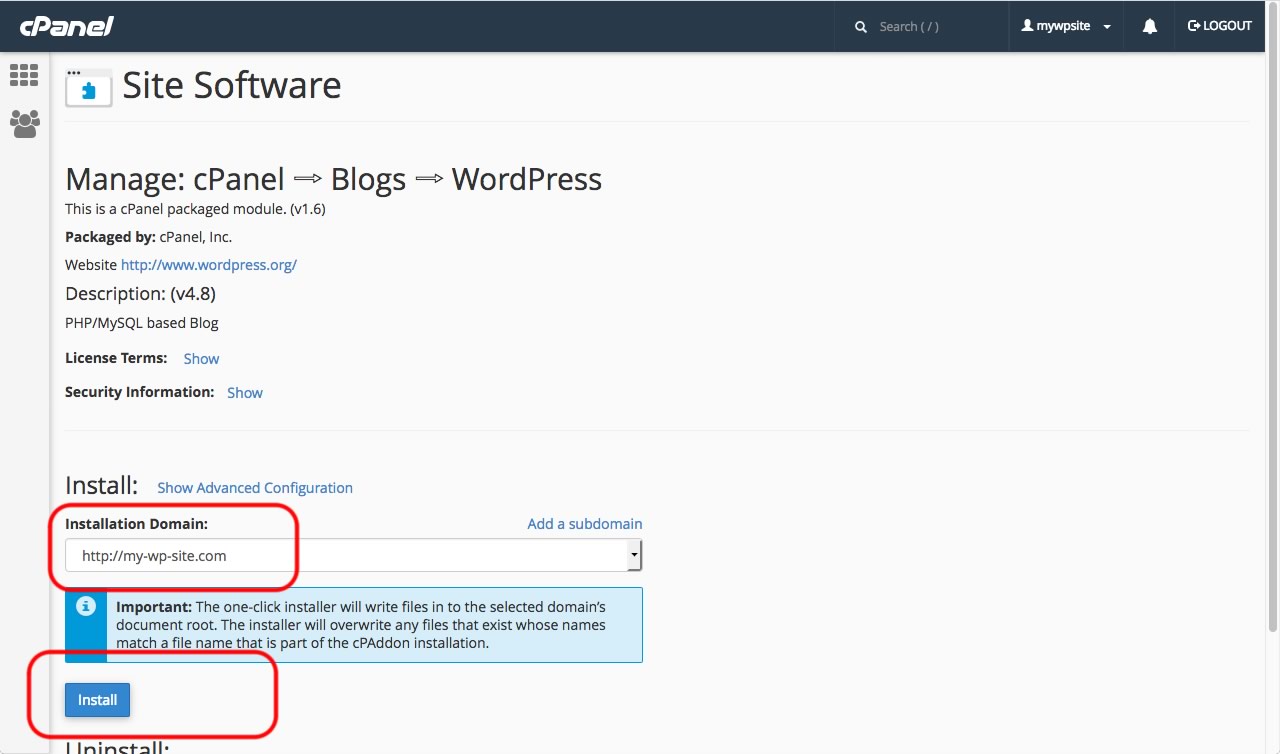
Wordpress will then be installed, after which you will then be told your username and password. Record this information in a safe place where you can copy and paste into the browser when you need to login.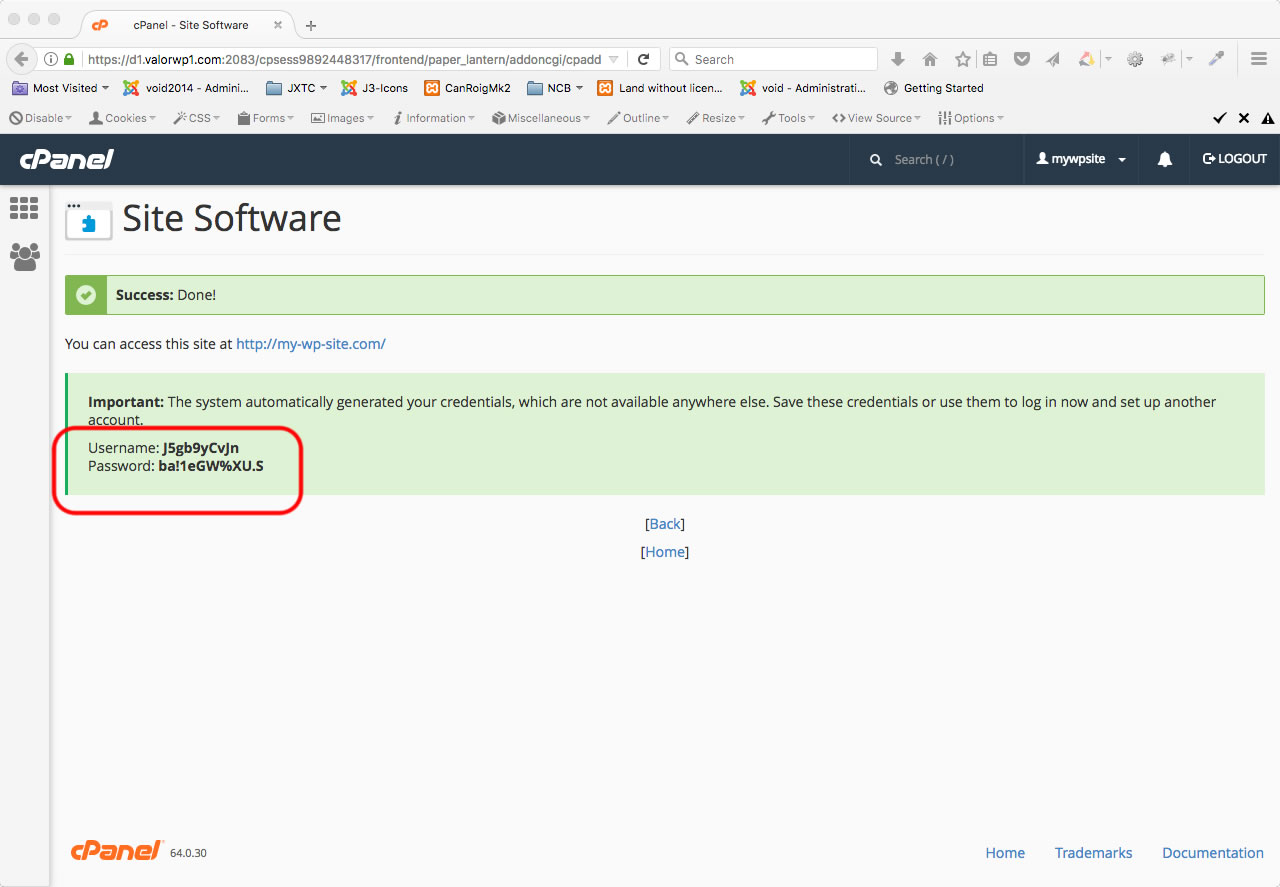
That's it! Your Wordpress website has now been installed. 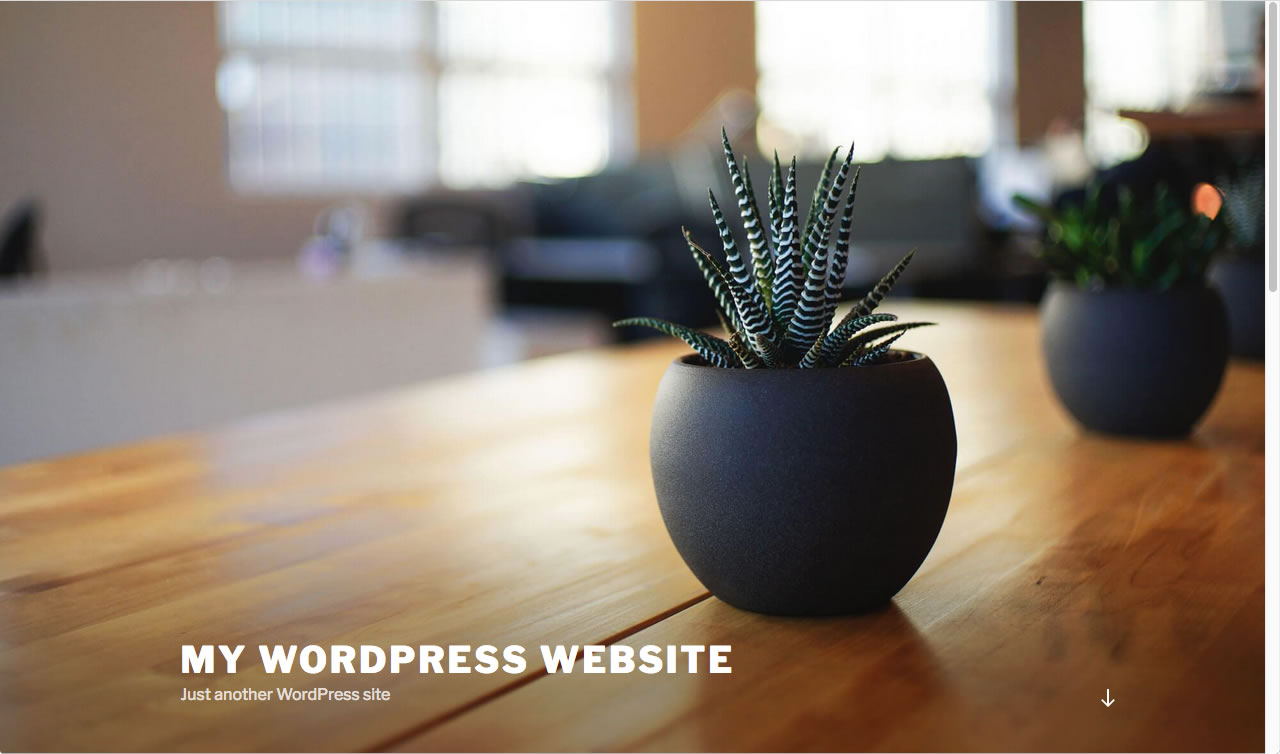
You can access the admin area of the website by adding "⁄wp-admin" to the end of your website address.
This is the end of the tutorial. You now know how to make a quick install of WordPress.