
wpHost2go.com WordPress
How to quick uninstall WordPress in cPanel
This demo assumes you've already logged in to cPanel, and are starting on the home screen.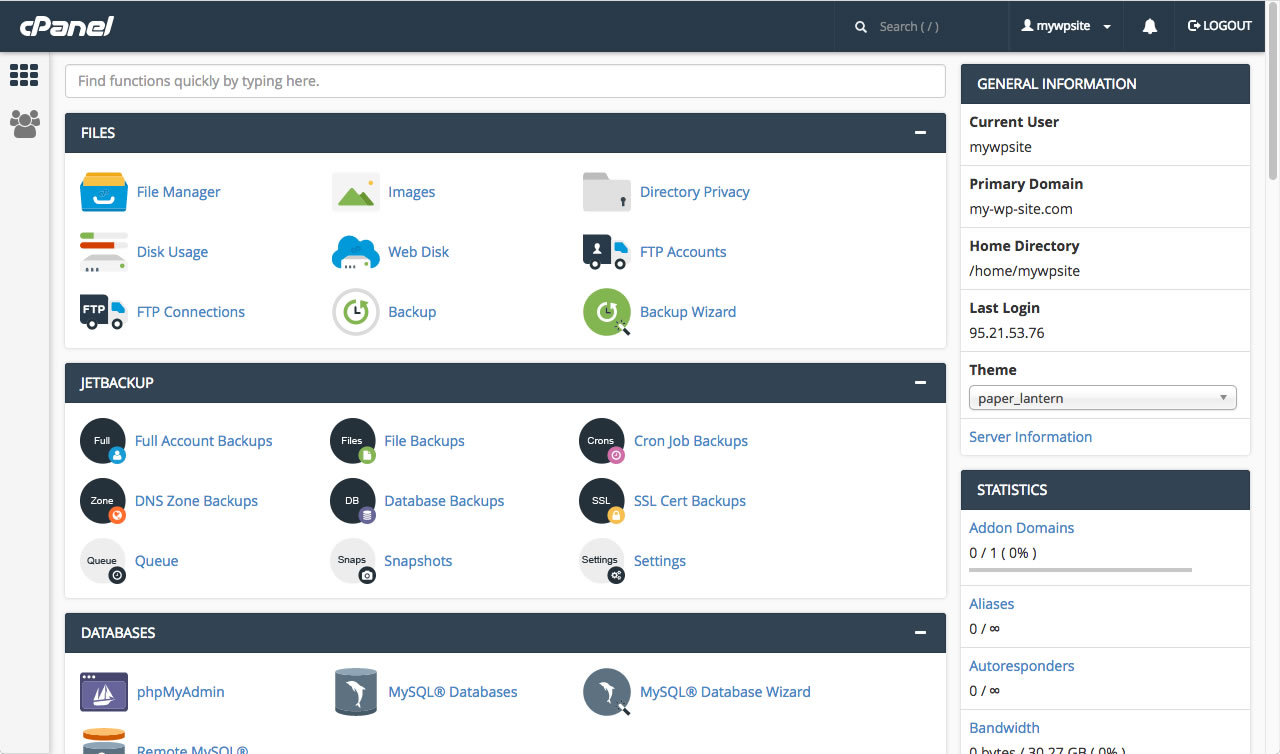
Before we start, you should be aware that the deletion will delete all your files and contents of the website. If there is anything that you wish to keep, make sure that you have a backup before you continue.
Now let's learn how to uninstall Wordpress. The uninstall option is hidden in WordPress Manager. Instead, we need to scroll to the "Software" section and click on "Site Software".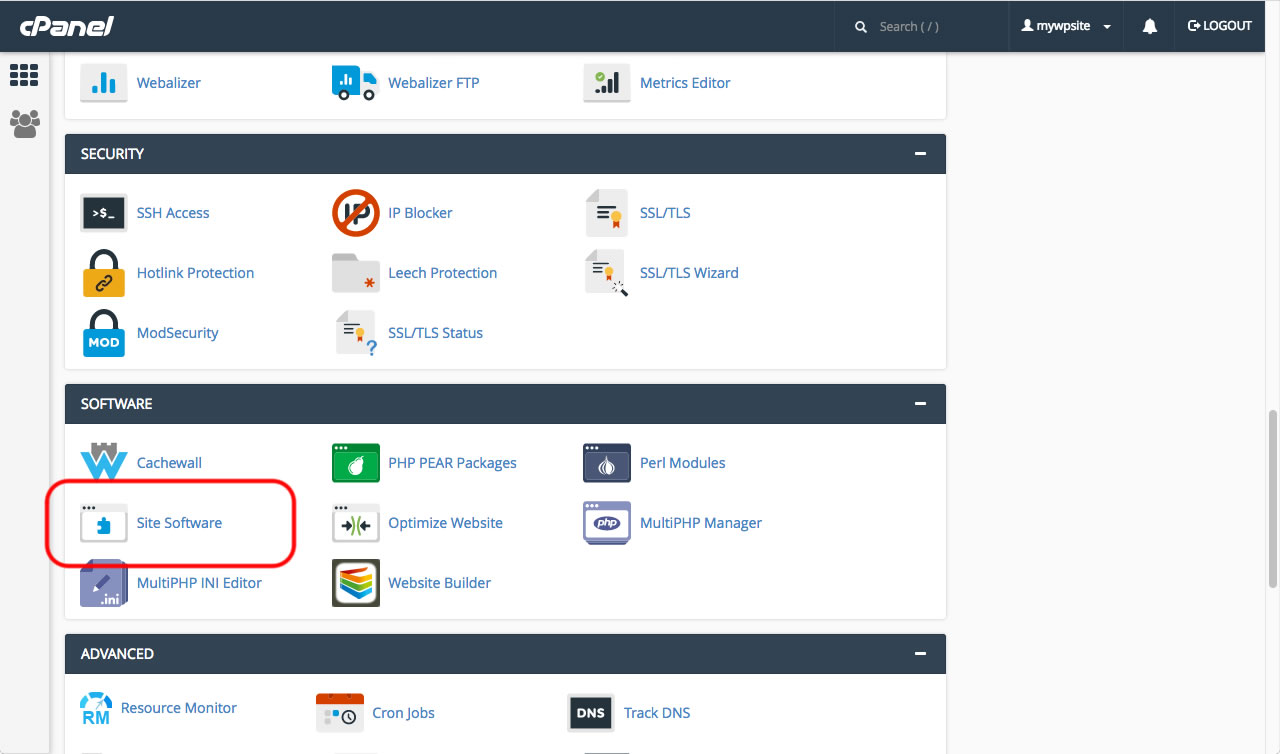
On the next page, click on "WordPress".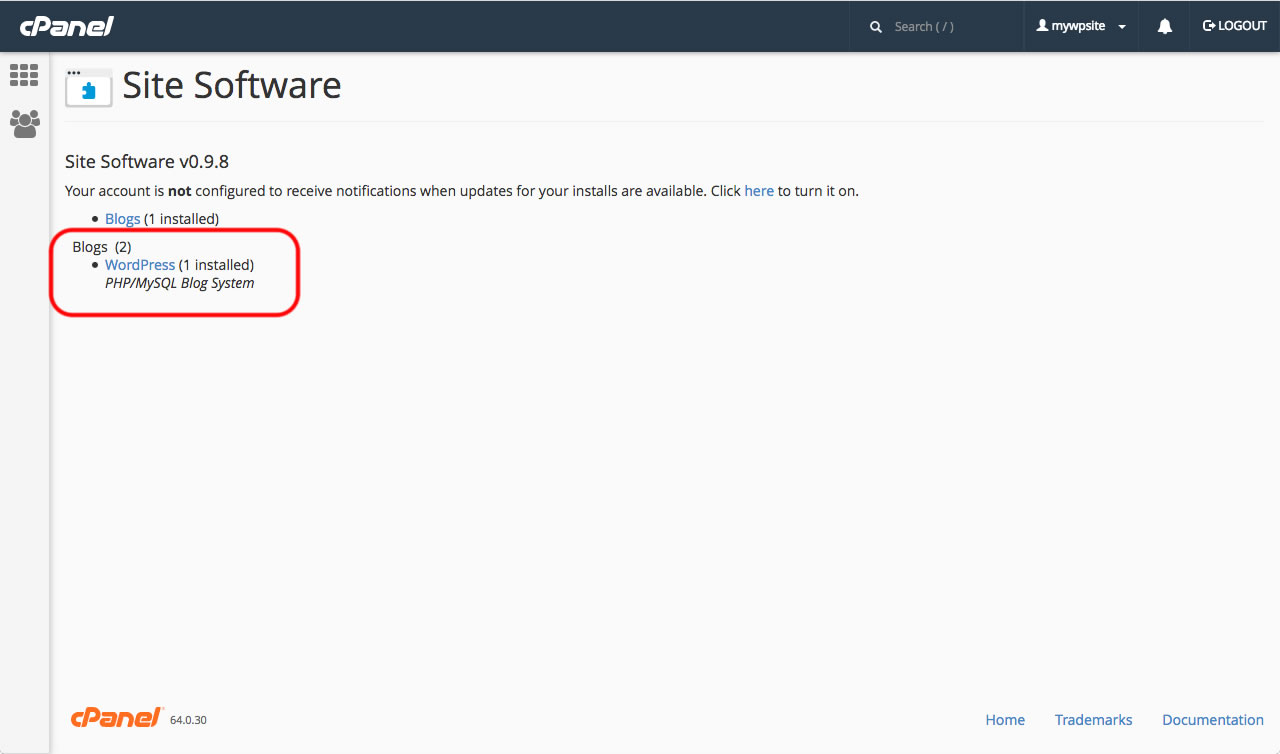
The next page starts with allowing you to install WordPress.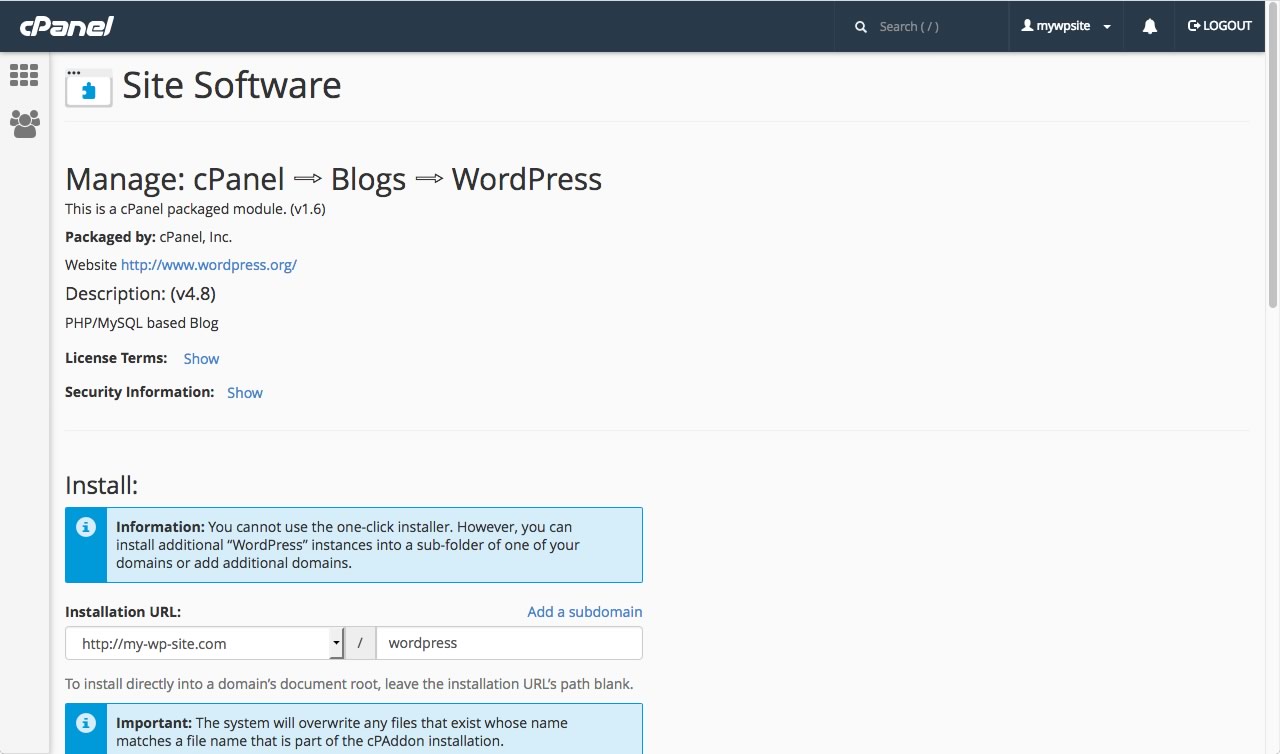
Scroll down and look for the heading "Uninstall". Underneath, make sure that the correct domain name is selected, and then click on "Uninstall".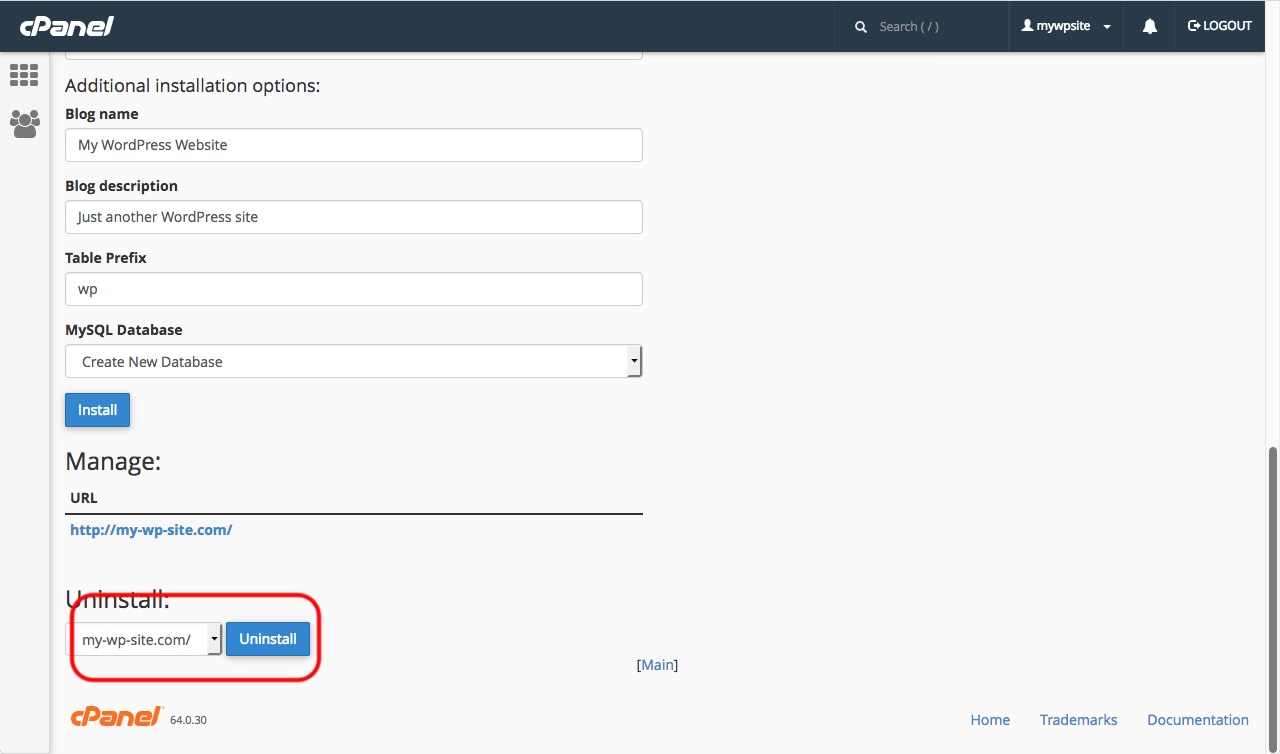
A warning message will be displayed. Click on "Uninstall". 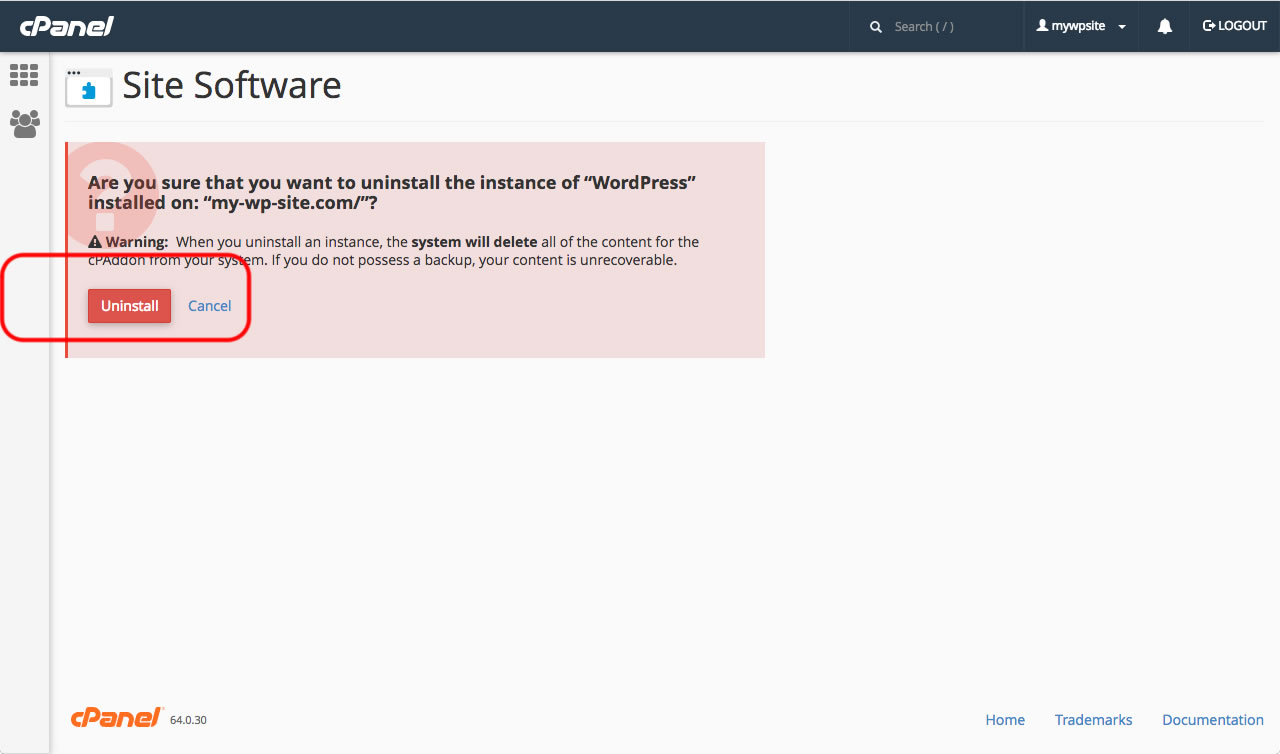
WordPress will then be uninstalled, after which you should see a success notice.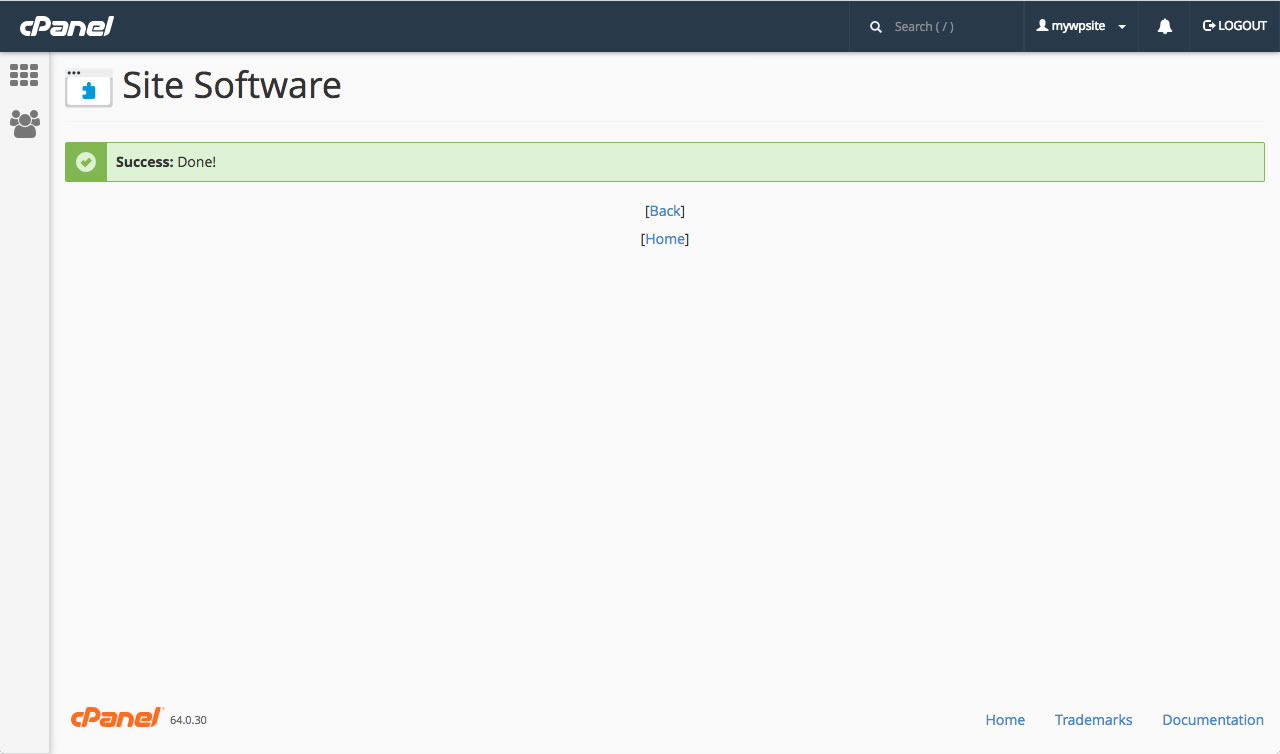
This is the end of the tutorial. You now know how to uninstall WordPress.