
wpHost2go.com WordPress
How to change the password of a WordPress instalation that was created in cPanel.
This demo assumes you've already logged in to cPanel, and are starting on the home screen. Sroll down to the W0rdPress Manager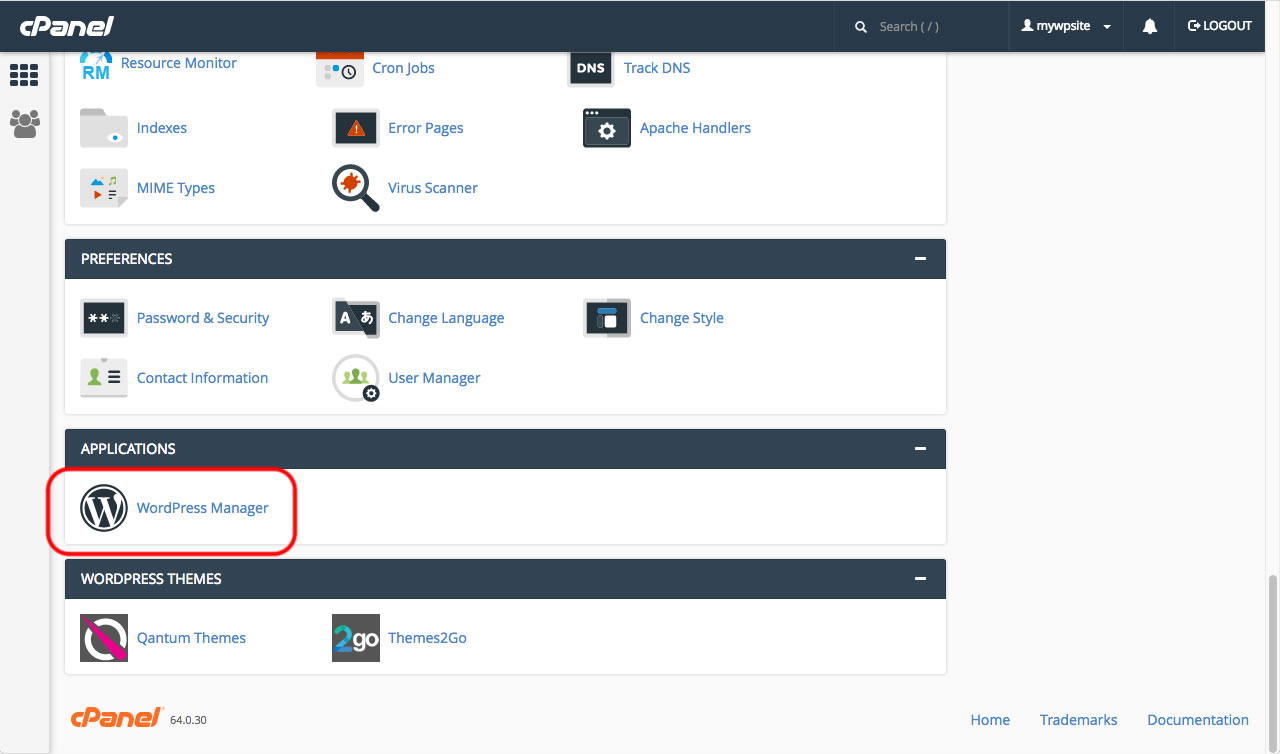
Select the correct installation of WordPress (if you have more than one installation).
Click the "Show Advanced Settings".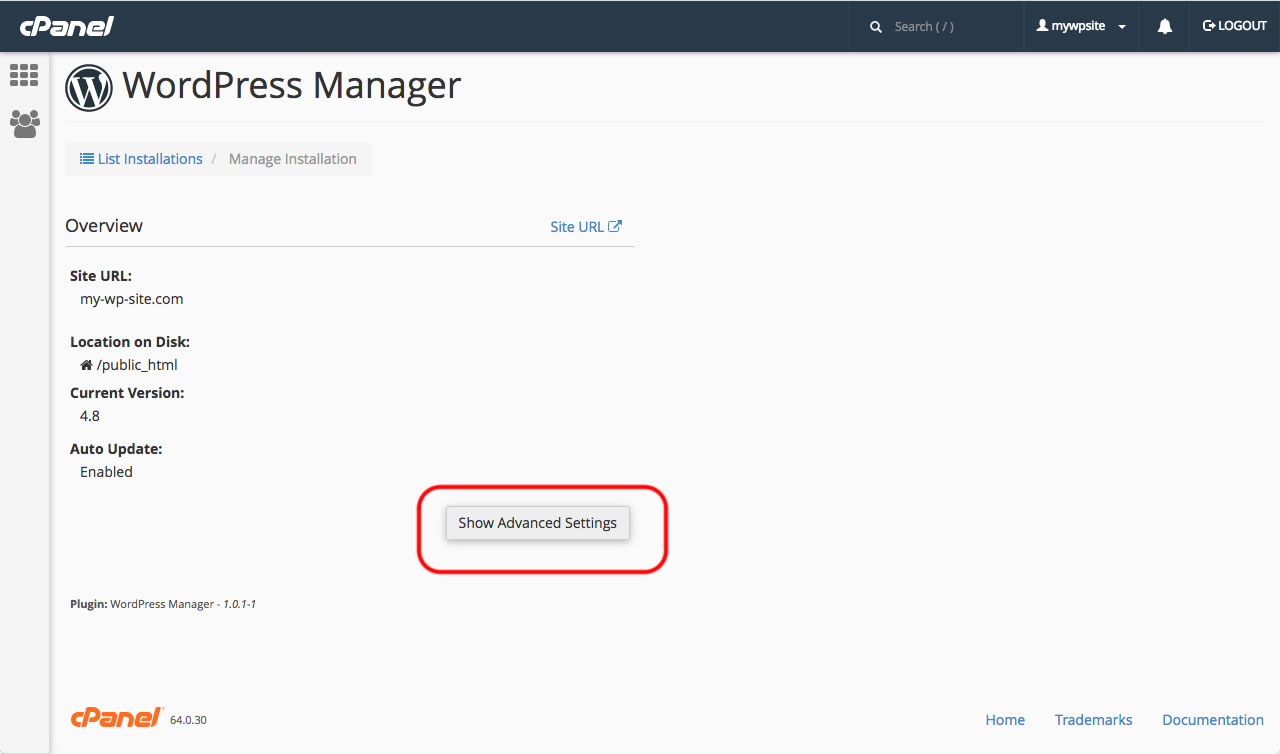
Next click on "Change Users Password".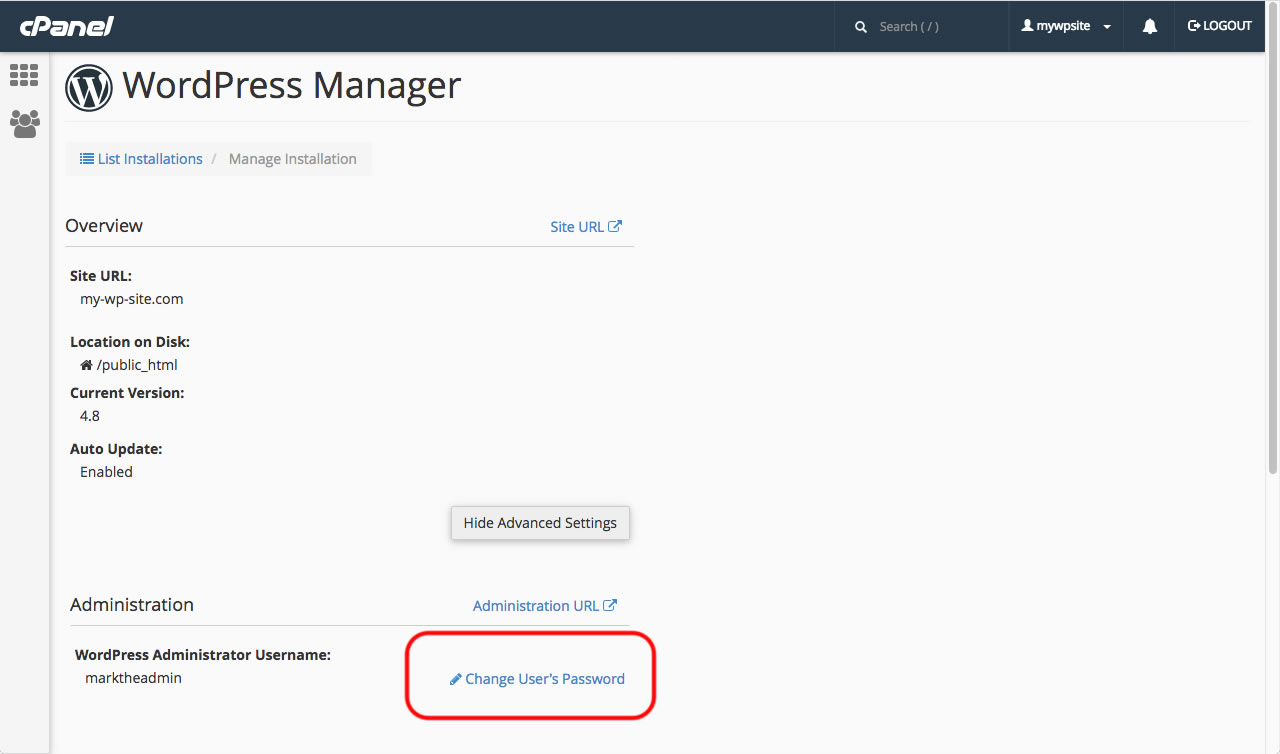
Either use the password generator or enter a password of your choice. The password must be strong enough for it to be accepted.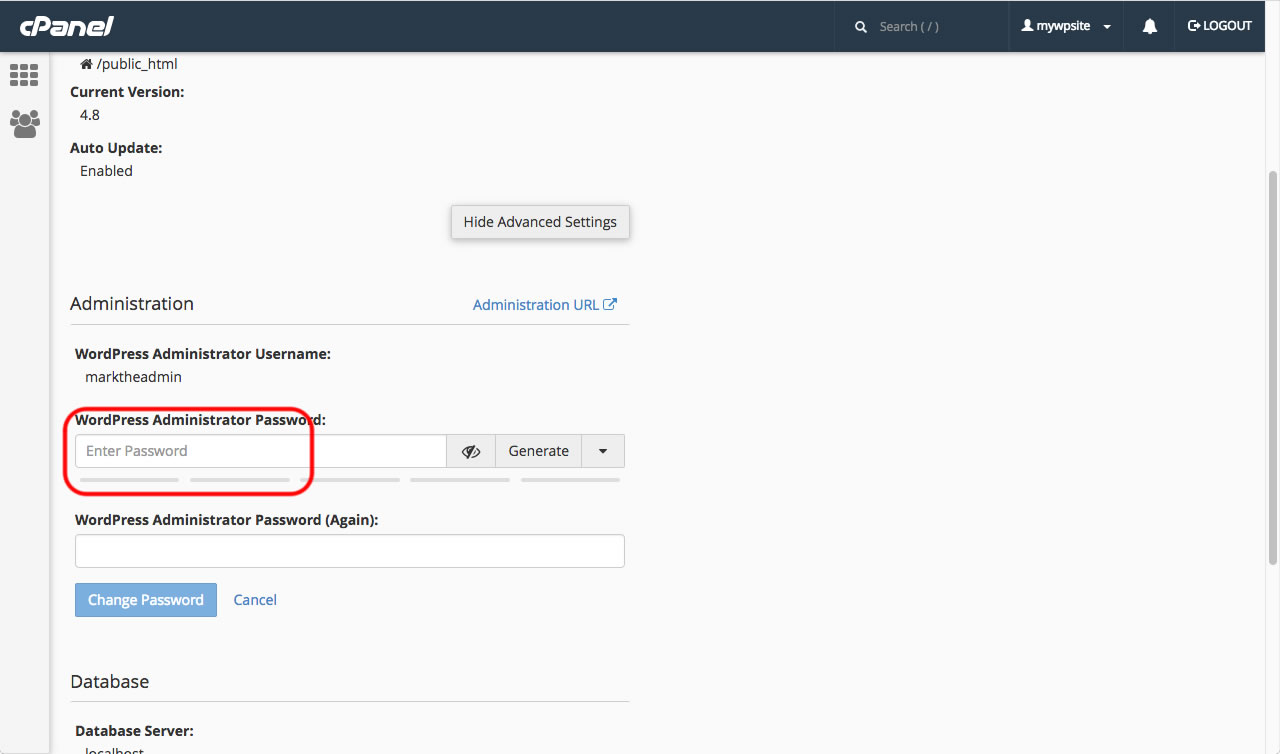
Enter the same new password again, then click "Change Password".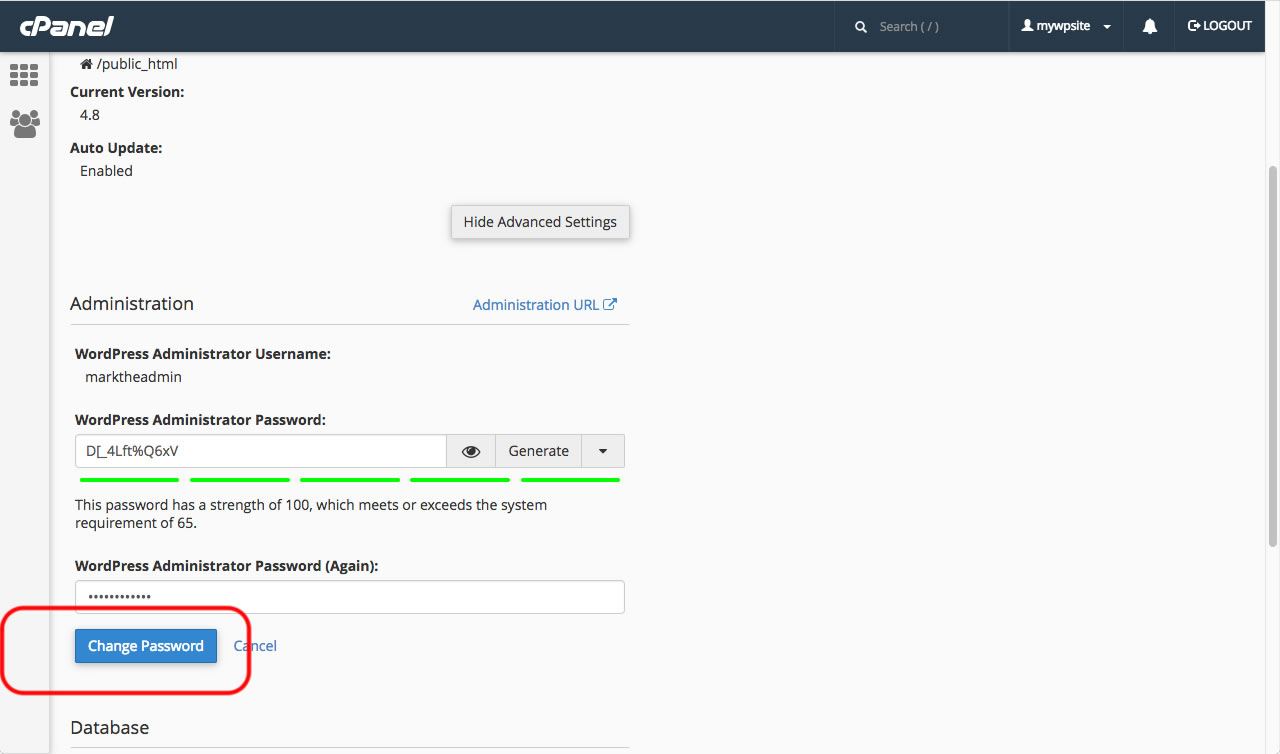
That's it! Your password has been changed.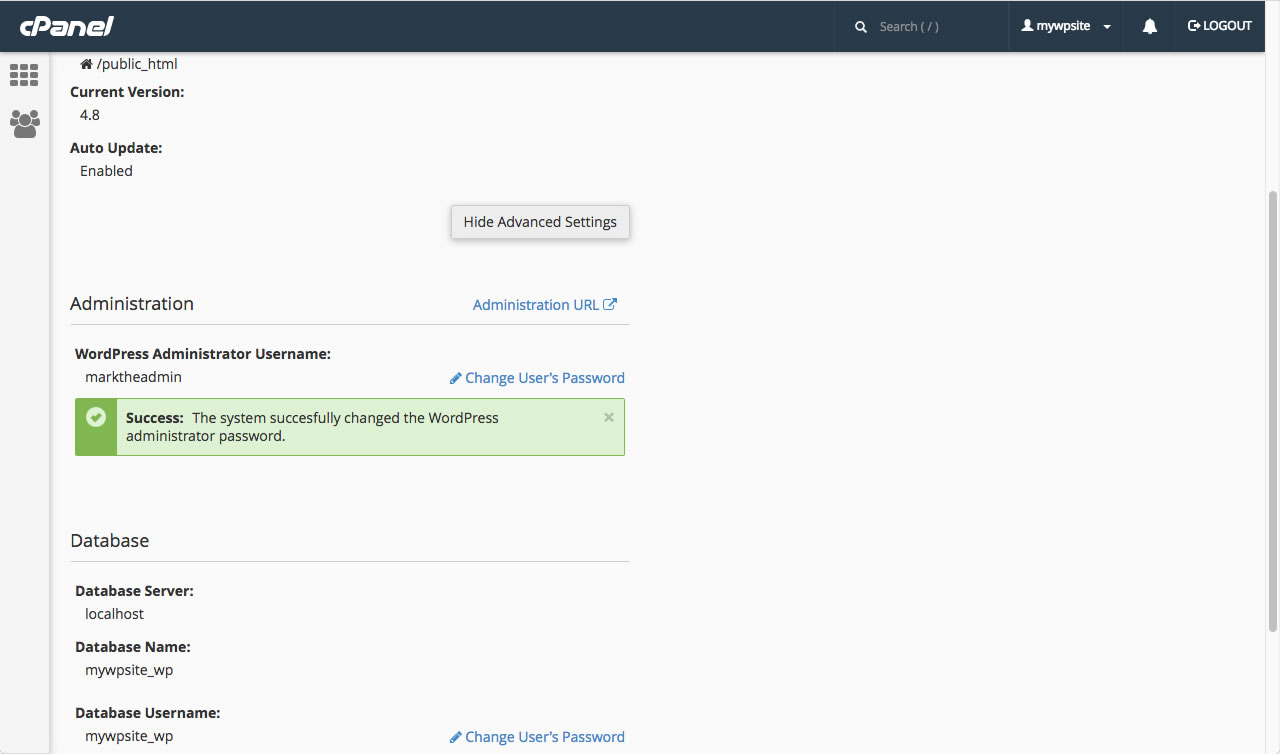
This is the end of the tutorial. You now know how how to change your password using the WordPress Manager in cPanel