wpHost2go WordPress
5. How to change your header in WordPress
This tutorial assumes you've already logged in to WordPress, and will show you how to change your header image.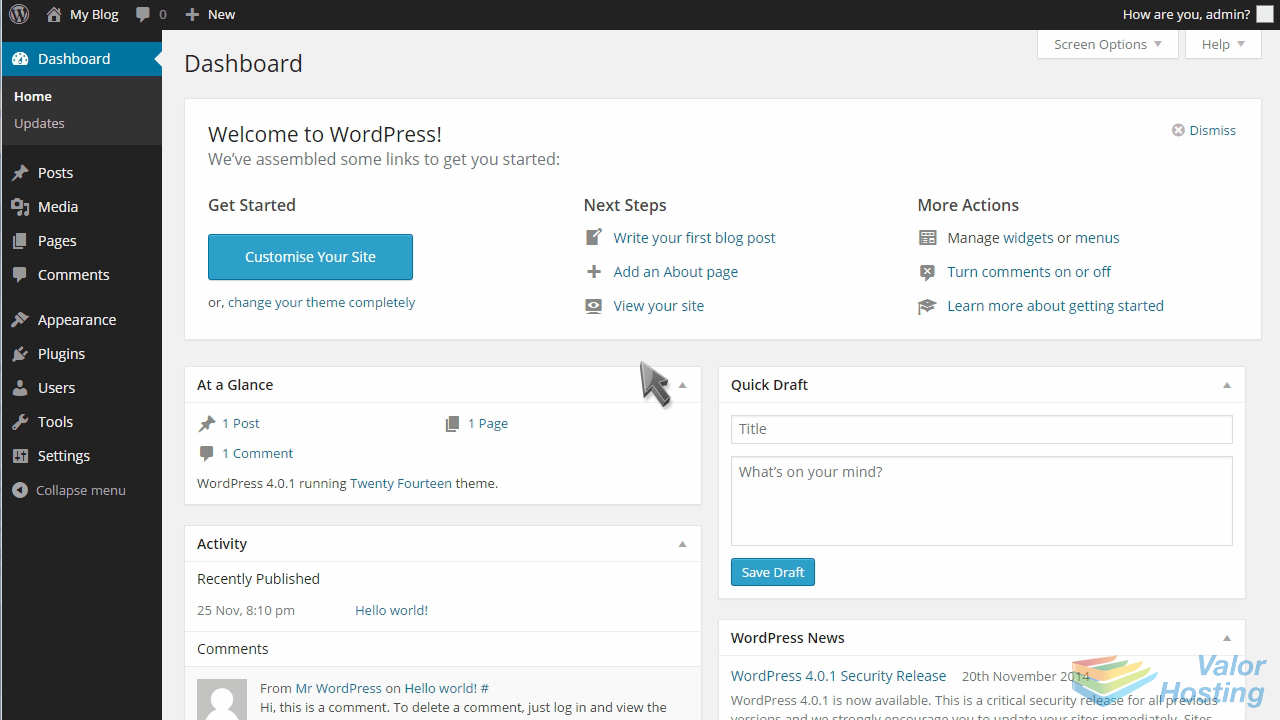
Click Appearance in the left margin.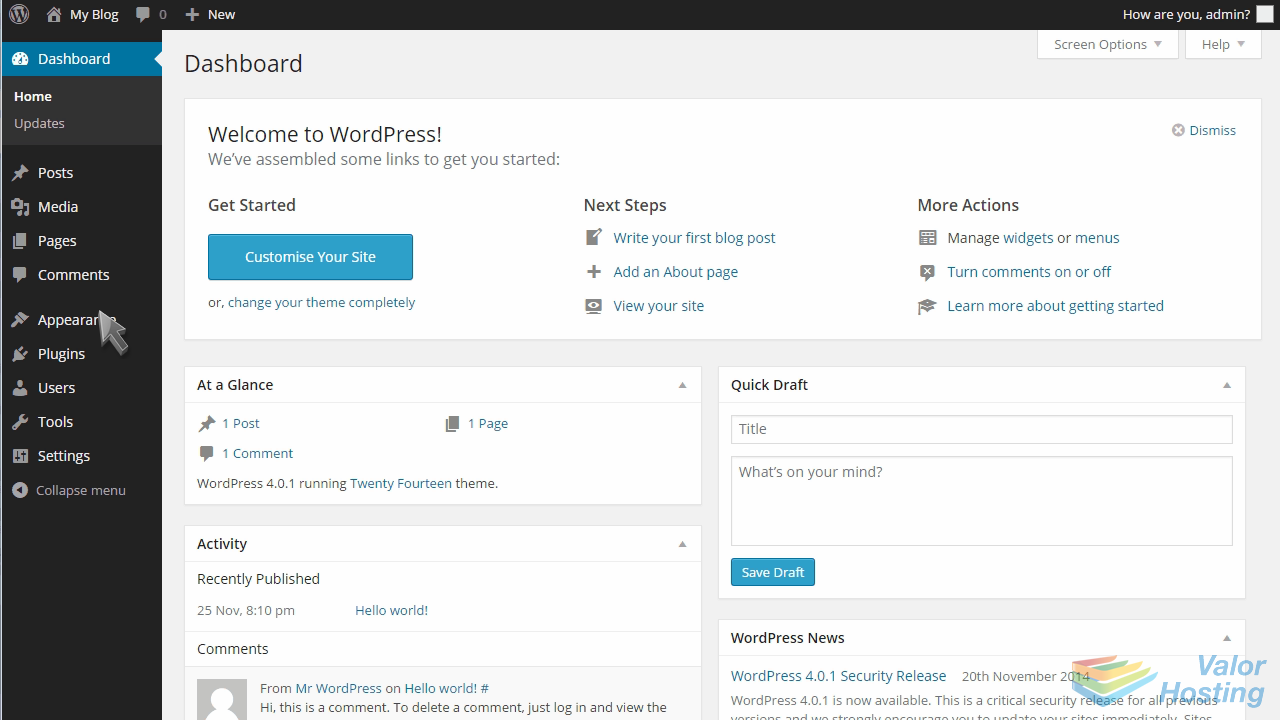
Then click Header.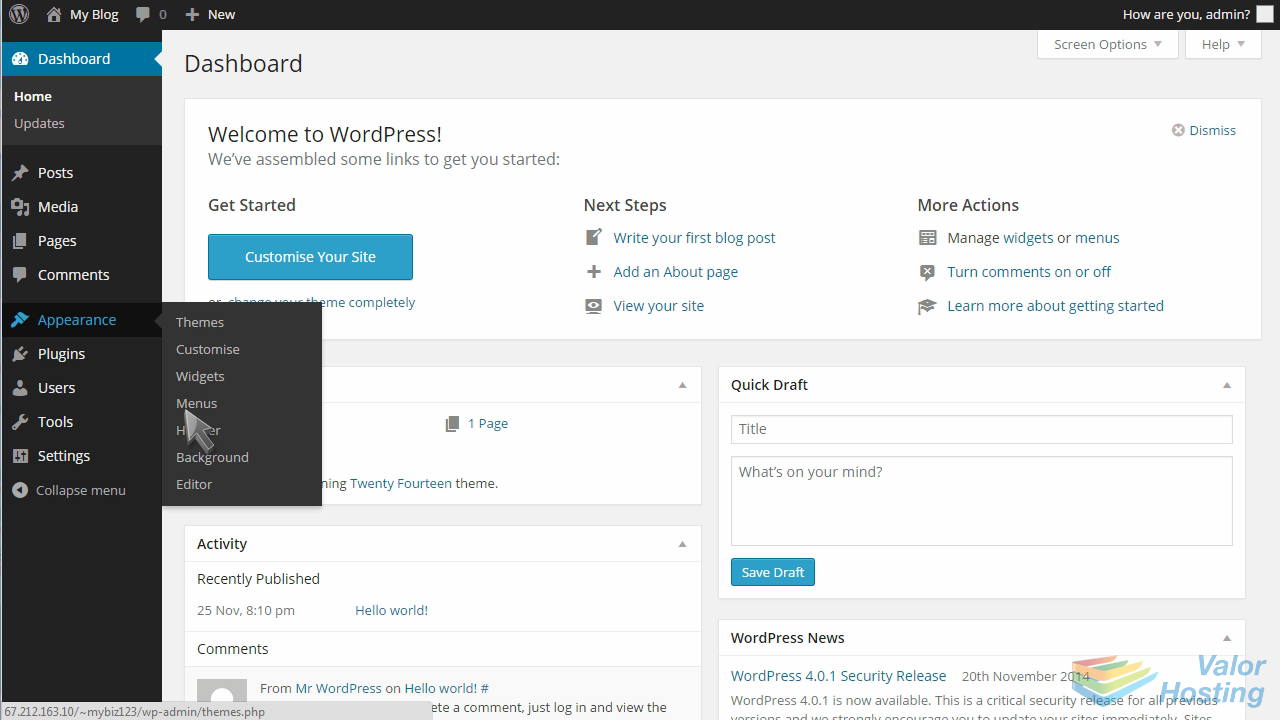
Here we can see a preview of our current header.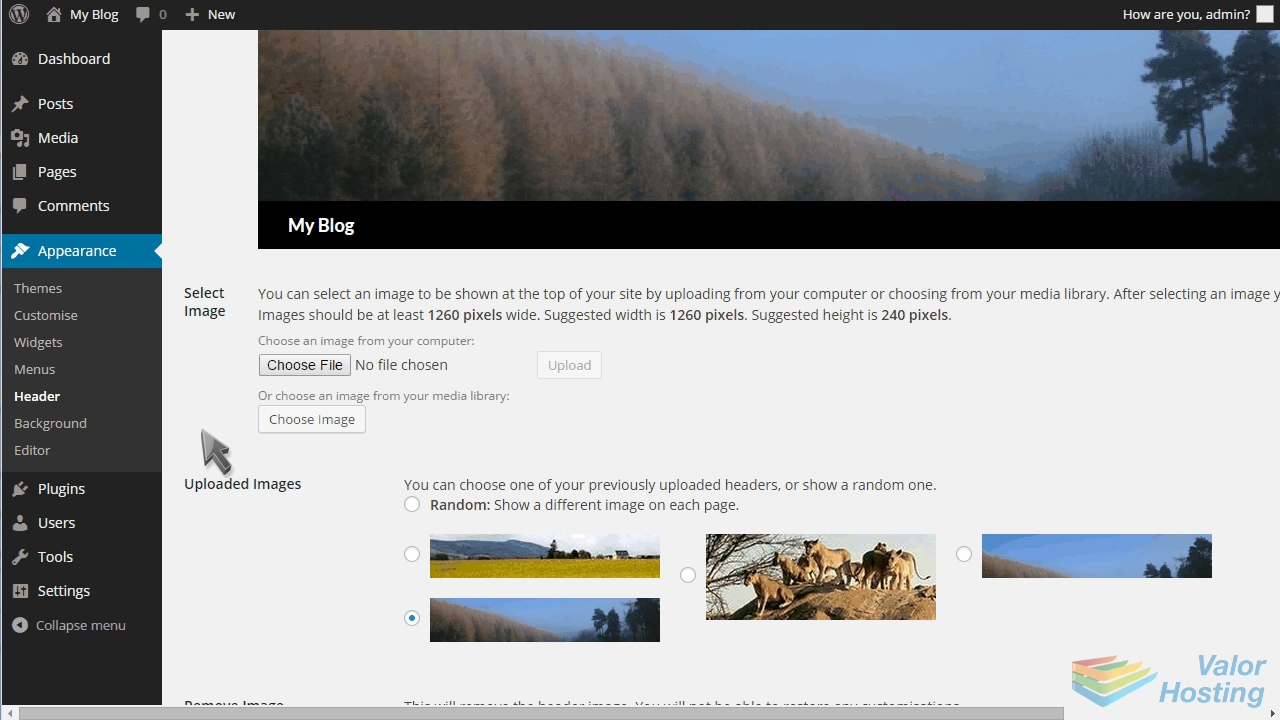
To change our header, we can either choose an already uploaded image from here...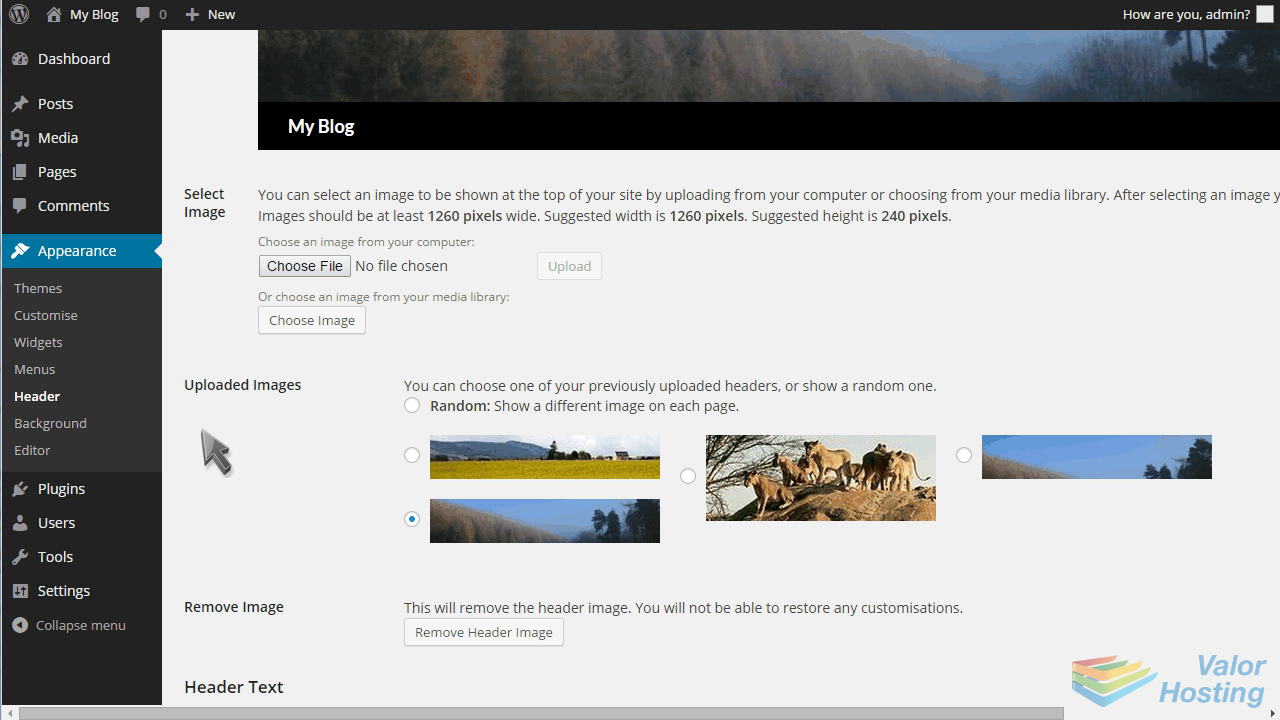
... or we can choose an image from our media library or computer.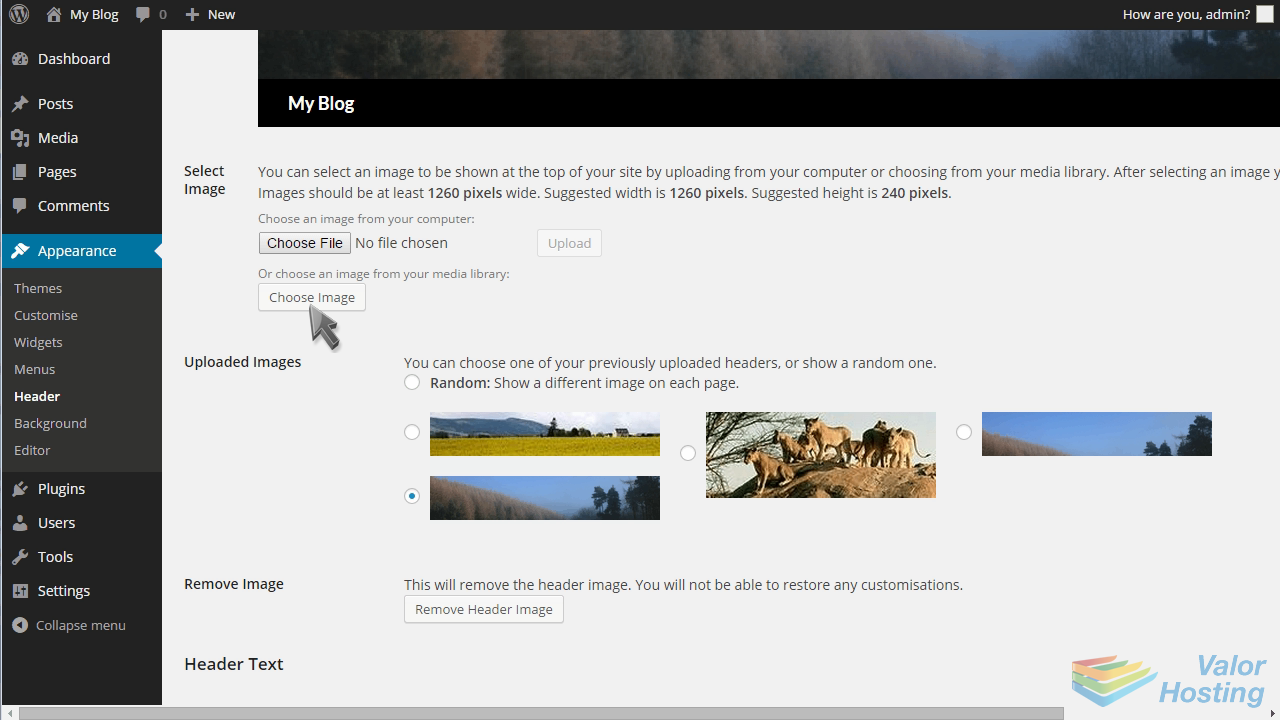
Let's upload an image from our computer.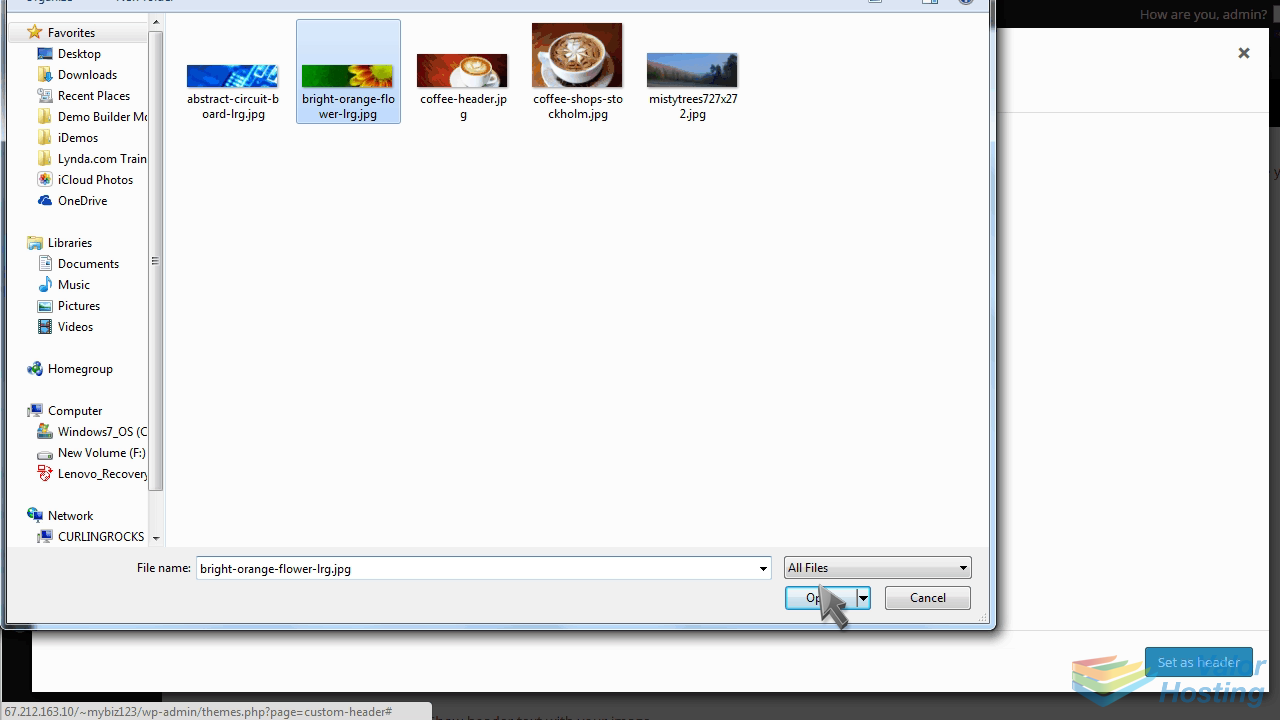
Click Set as Header.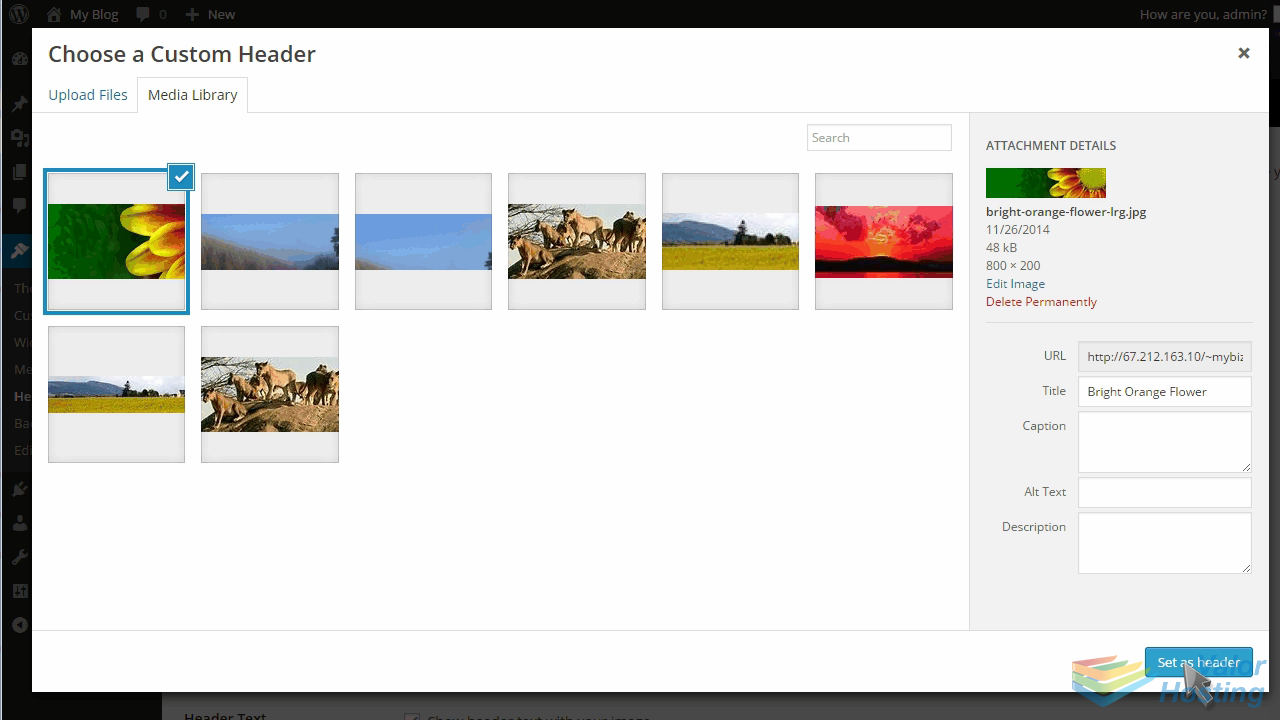
Then crop the image as desired.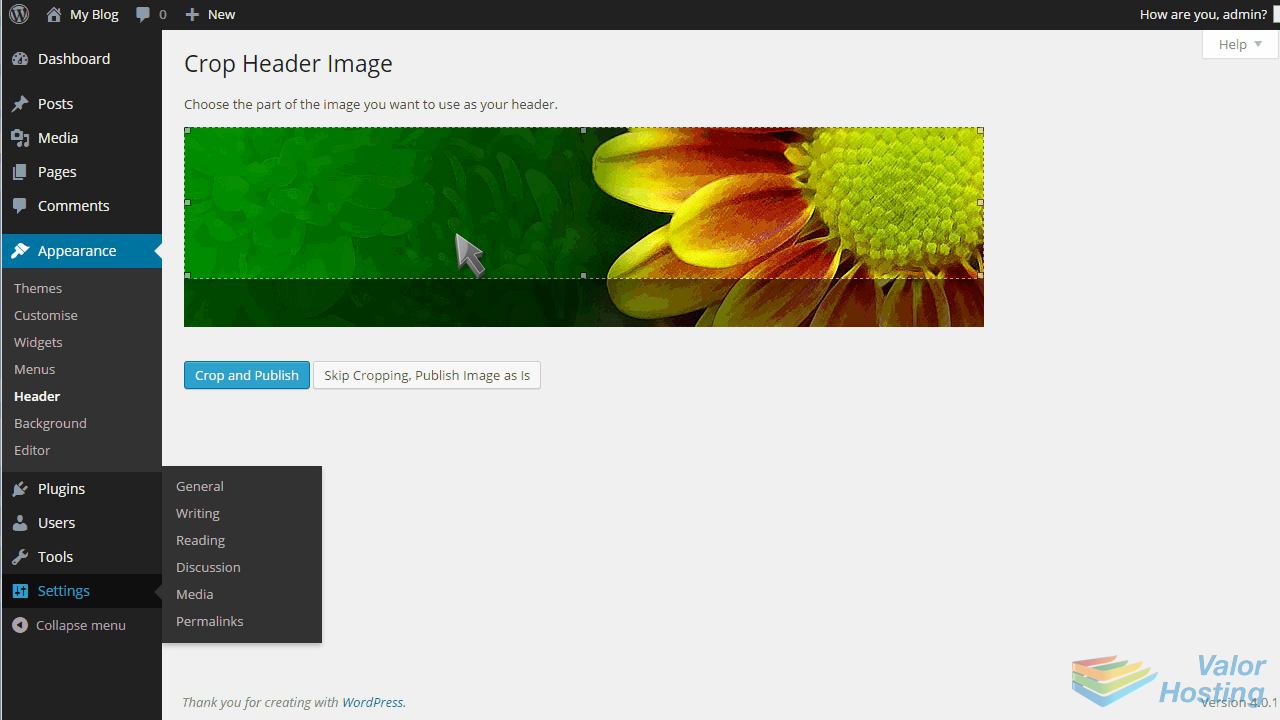
Click Crop and Publish.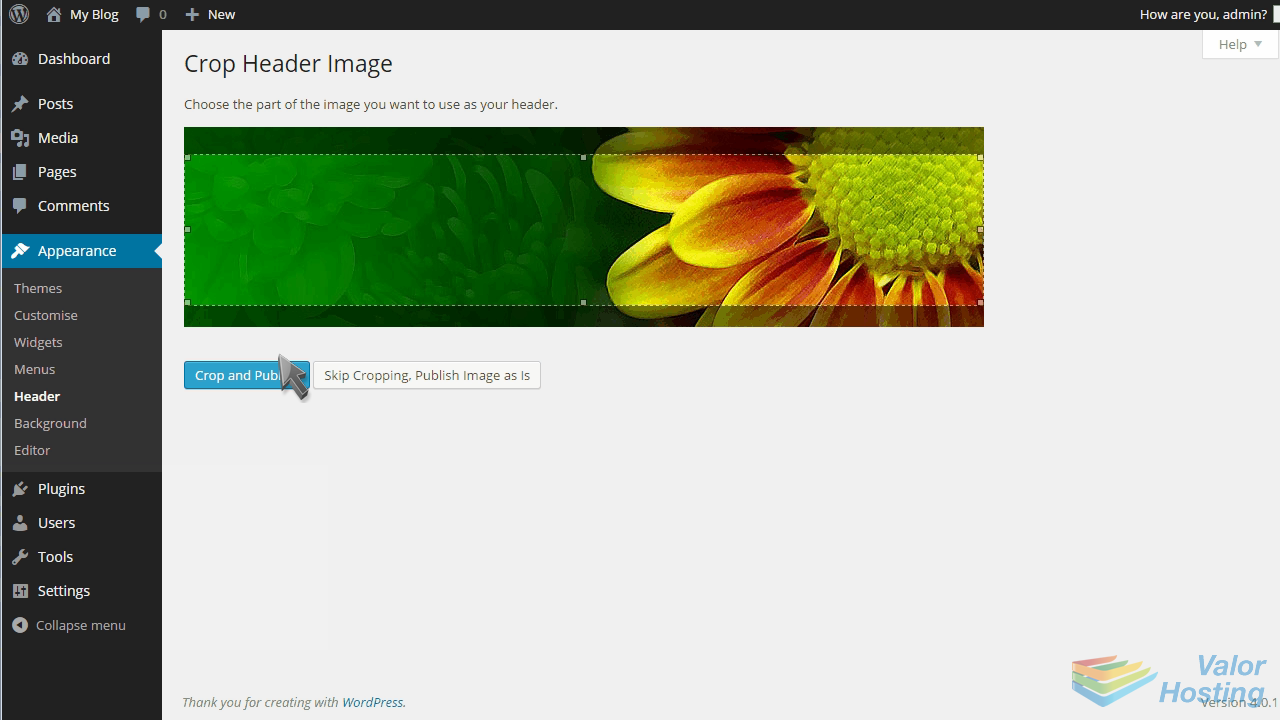
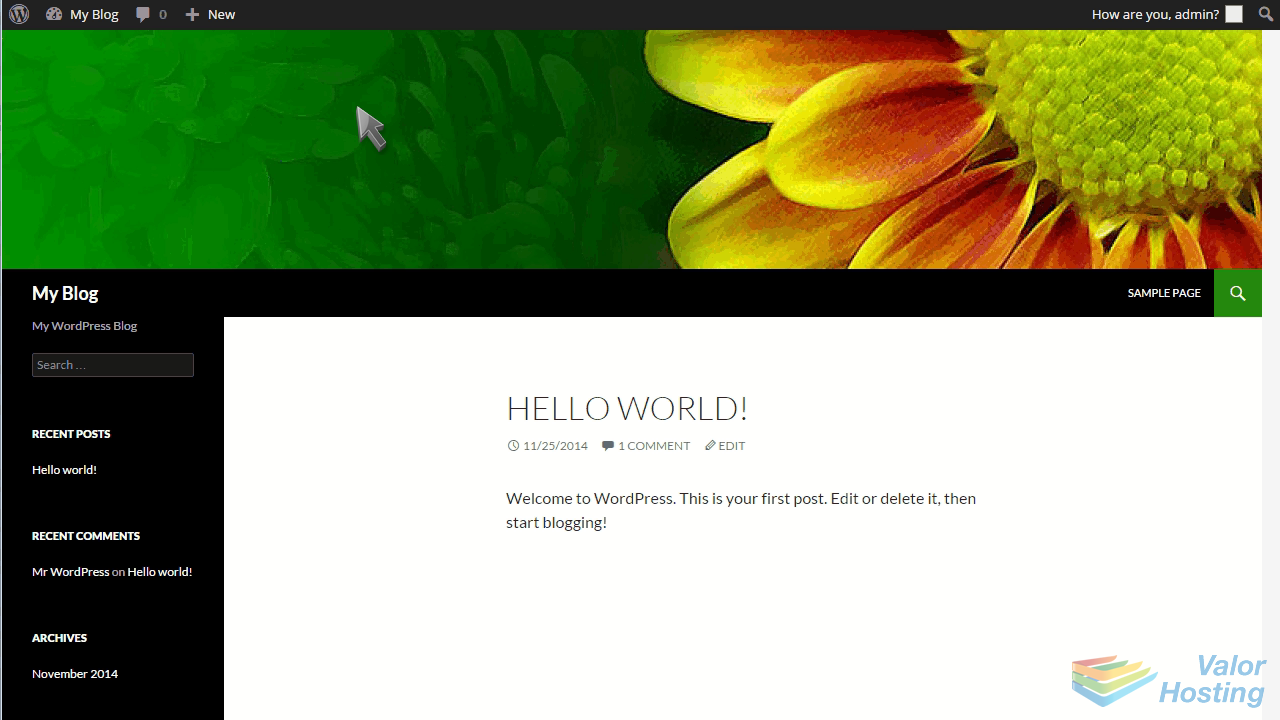
That's it! The header has been updated. We can now check our live website to see what it looks like.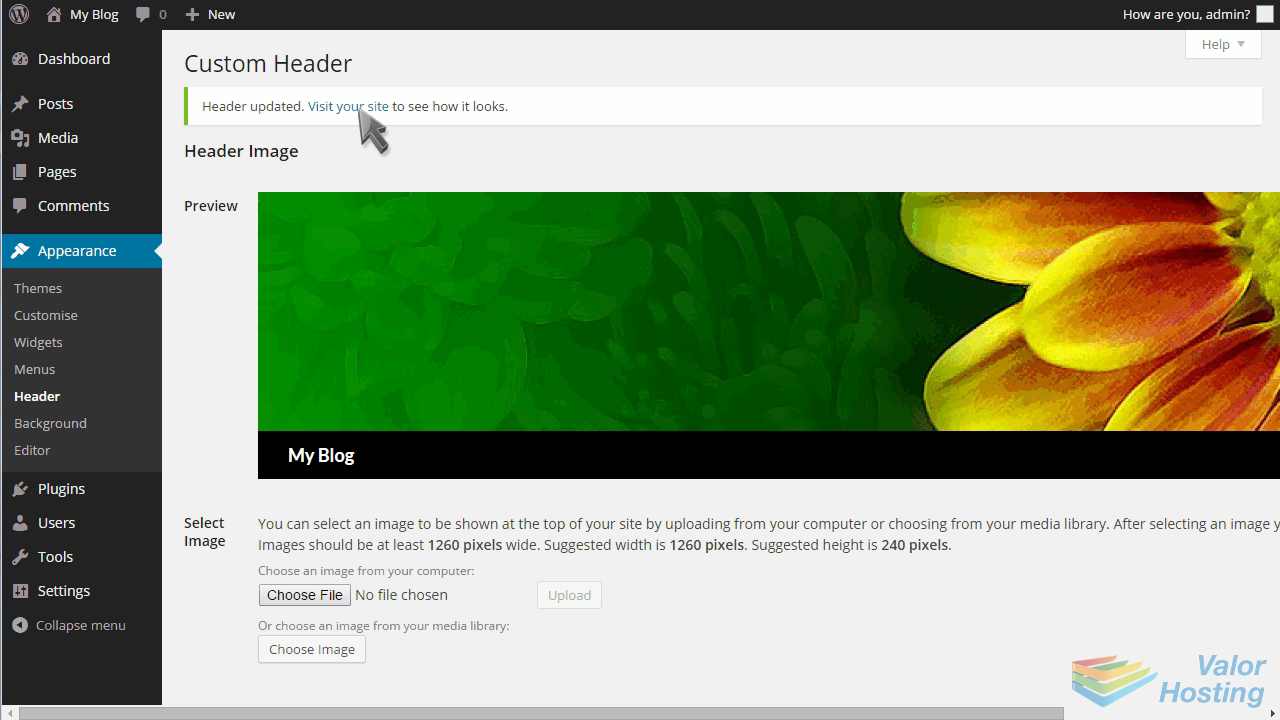
This is the end of the tutorial. You now know how to change your header in WordPress.