
wpHost2go WordPress
8. How to manage users in WordPress
This tutorial assumes you've already logged in to WordPress, and will show you how to manage users.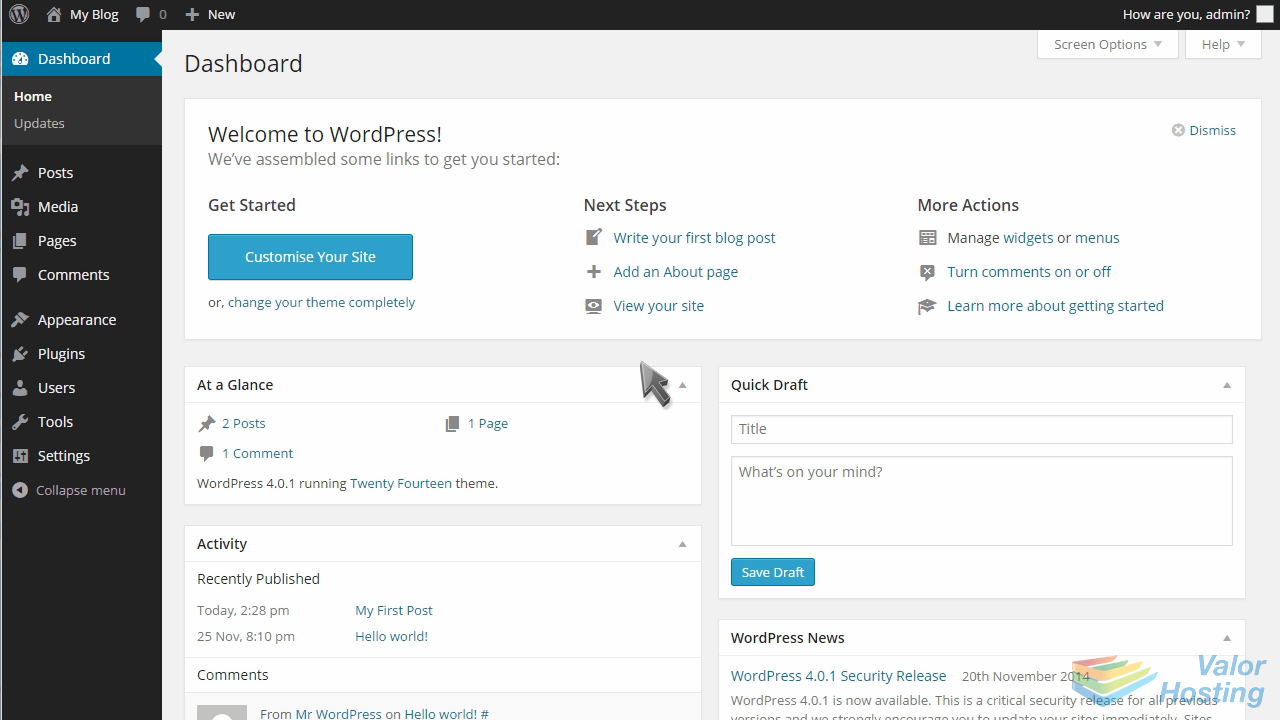
Click Users in the left margin.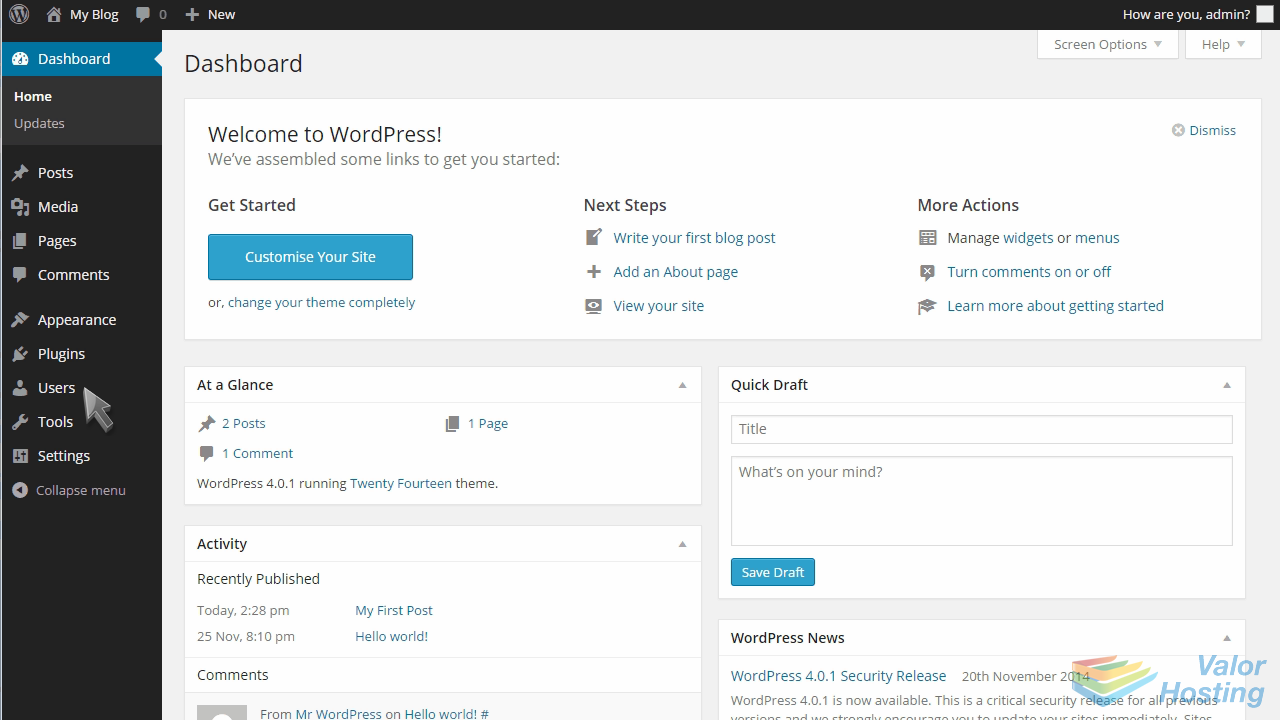
Then click Add New.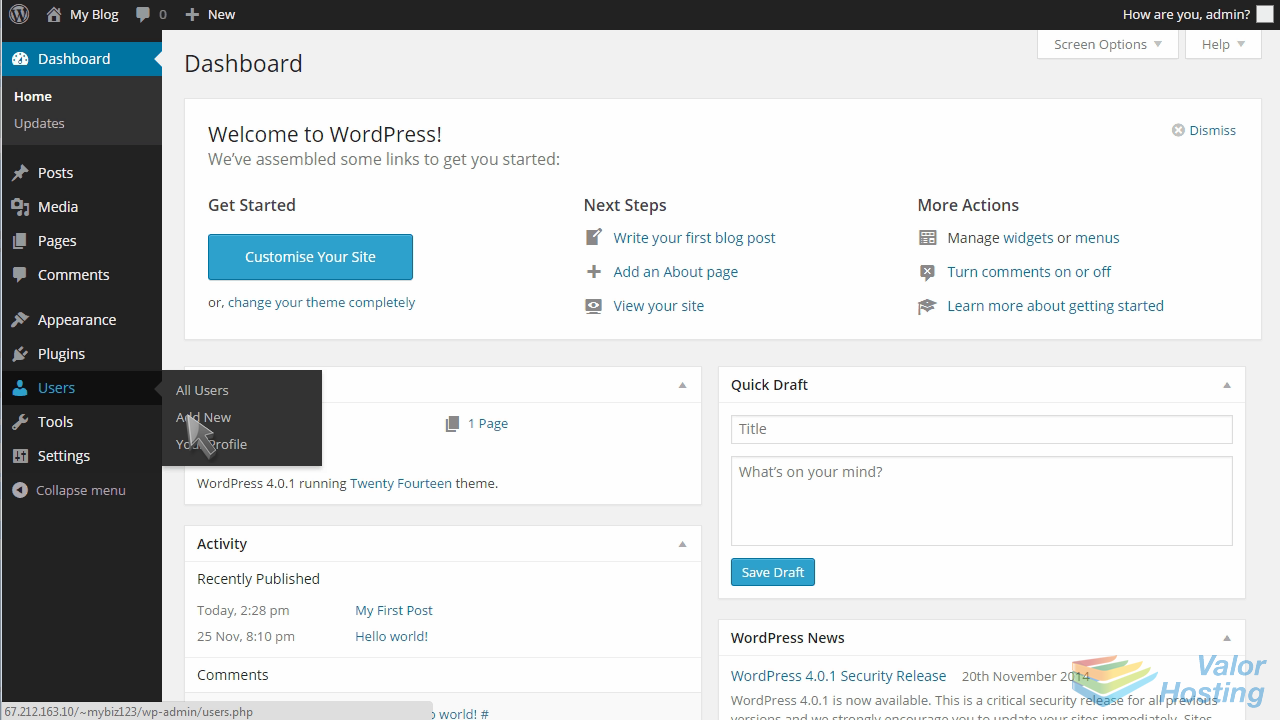
Enter a username and email address for the new user.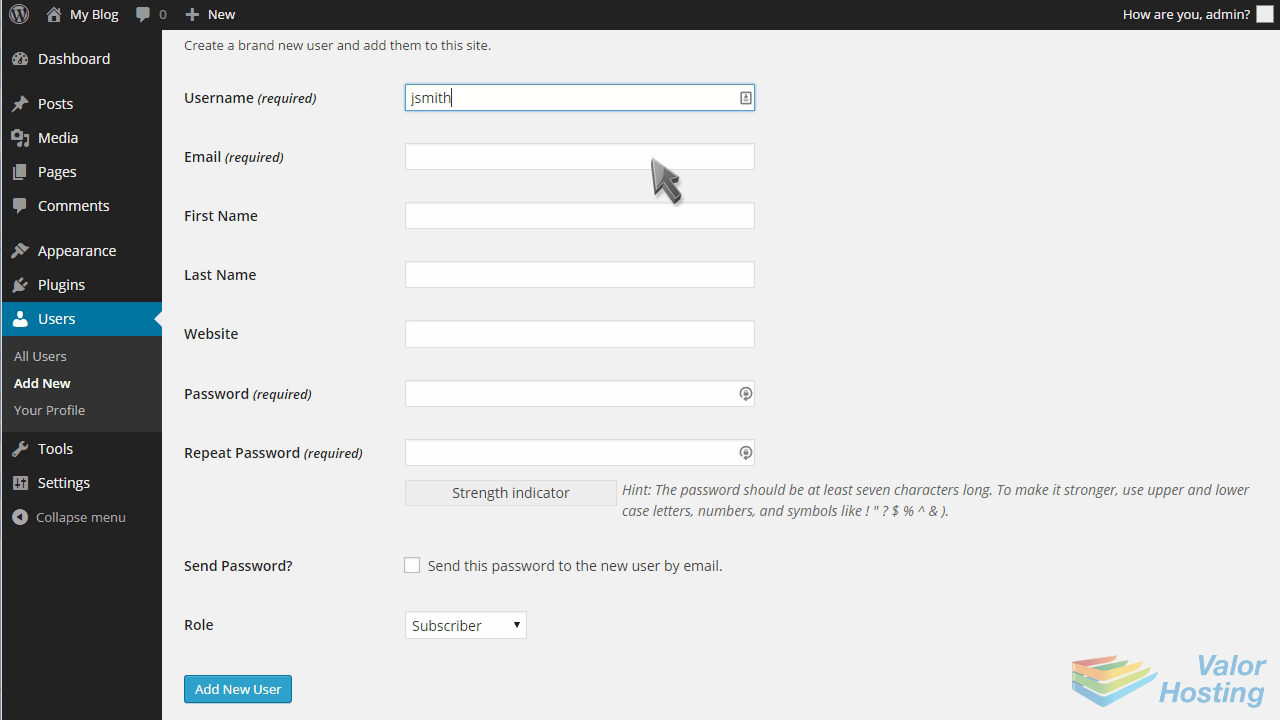
Then enter the user's first and last name.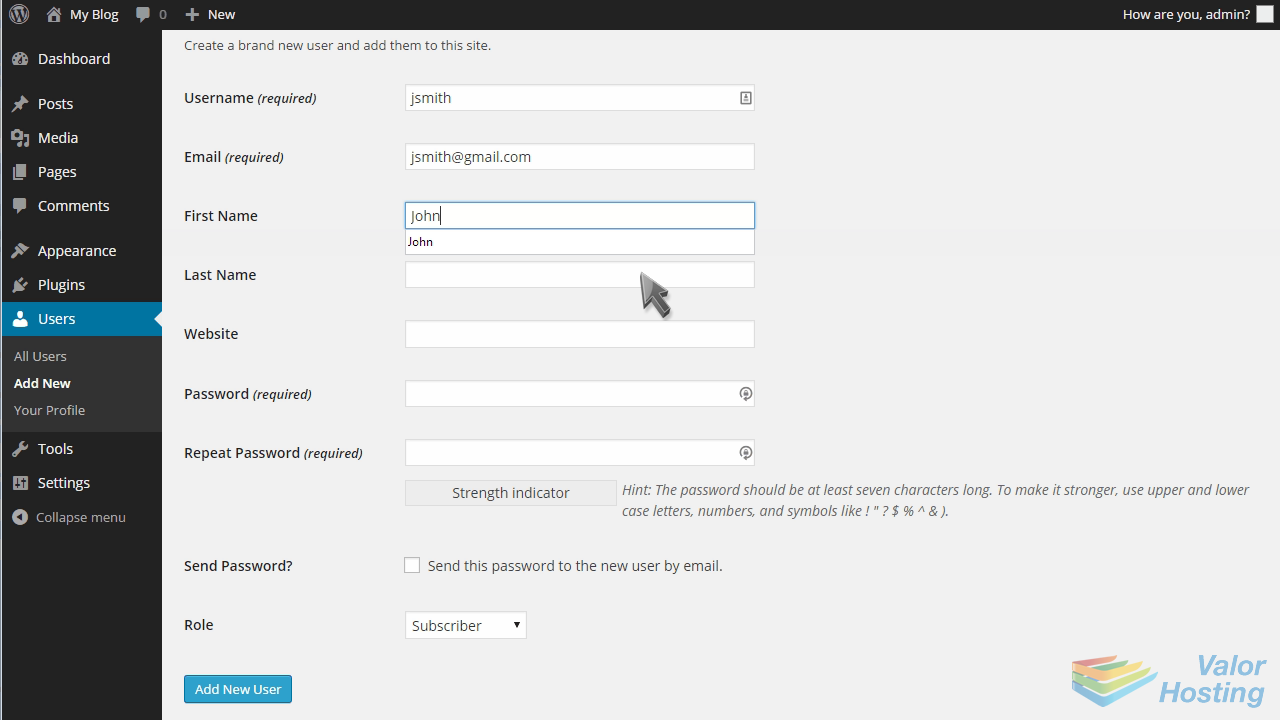
Enter and confirm a password.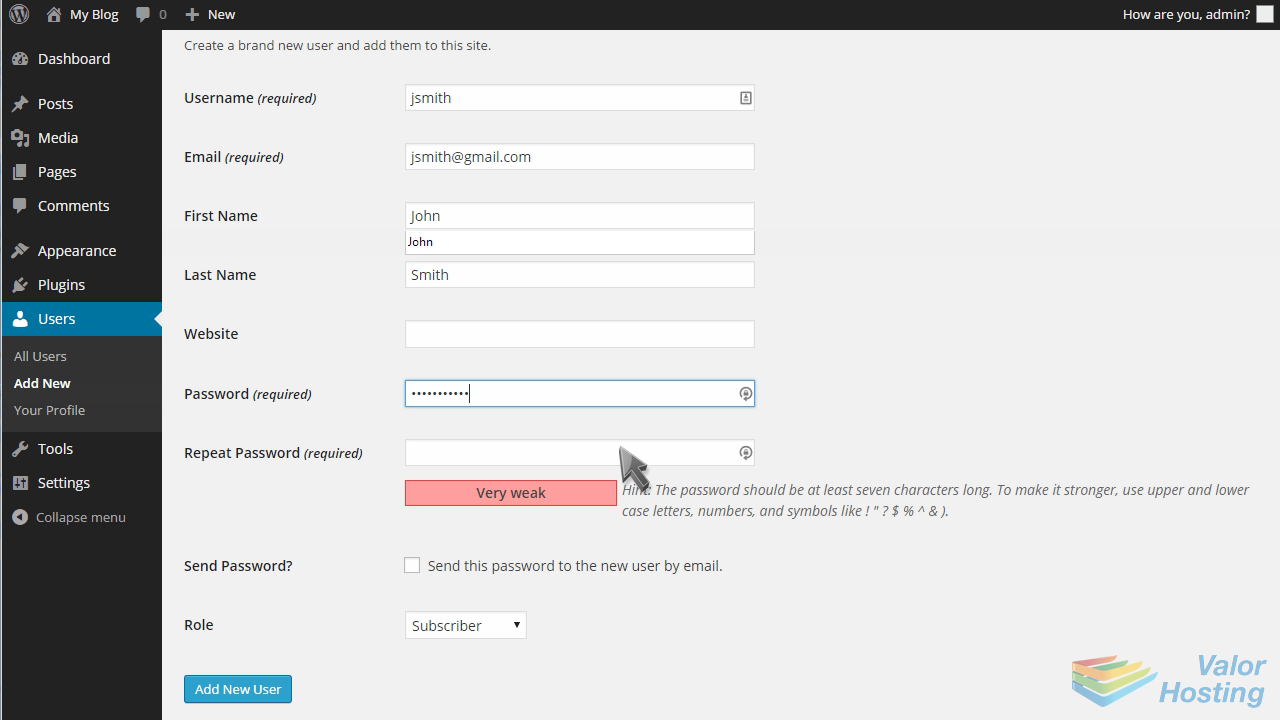
Then click Add New User.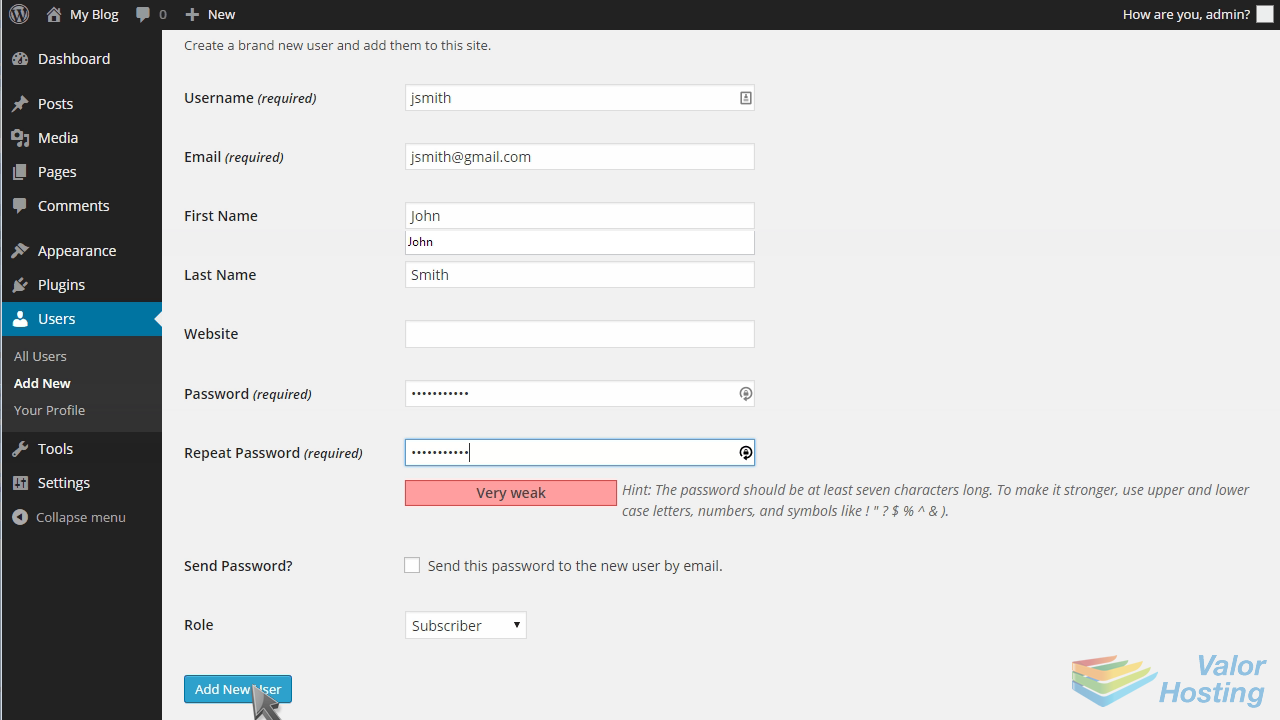
That's it! The new user has been setup successfully.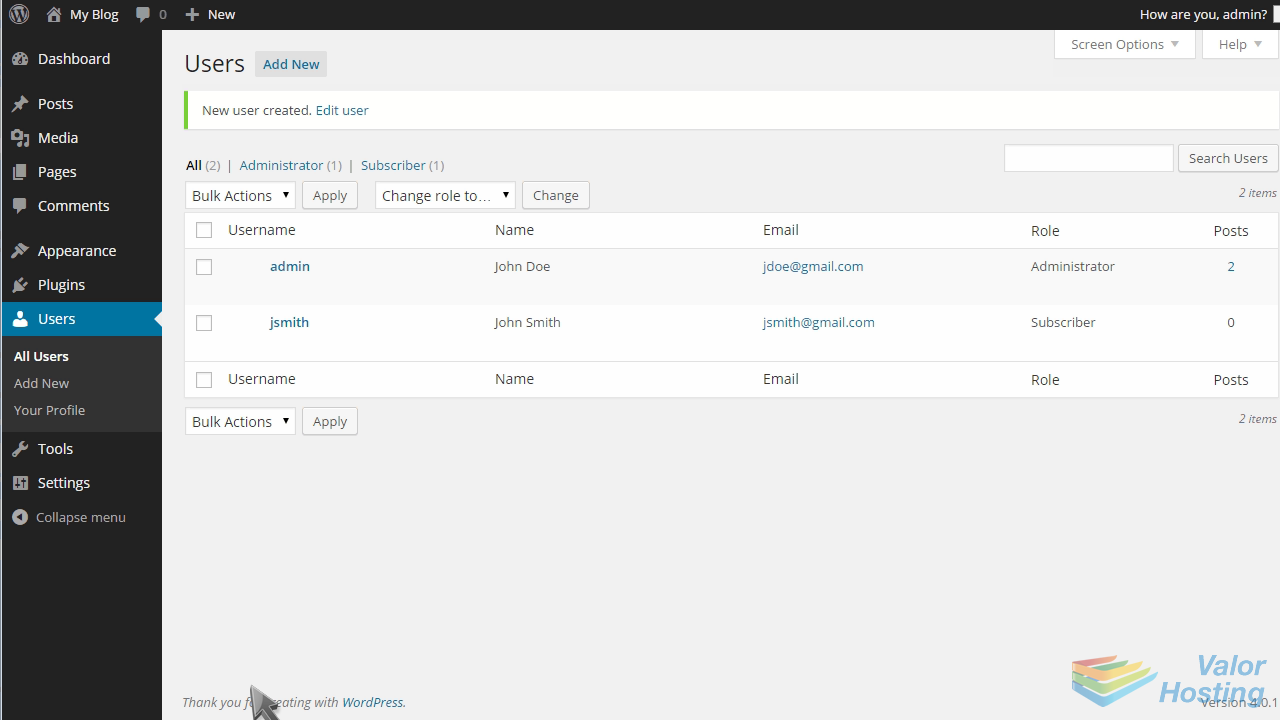
From here you can edit or delete users as well.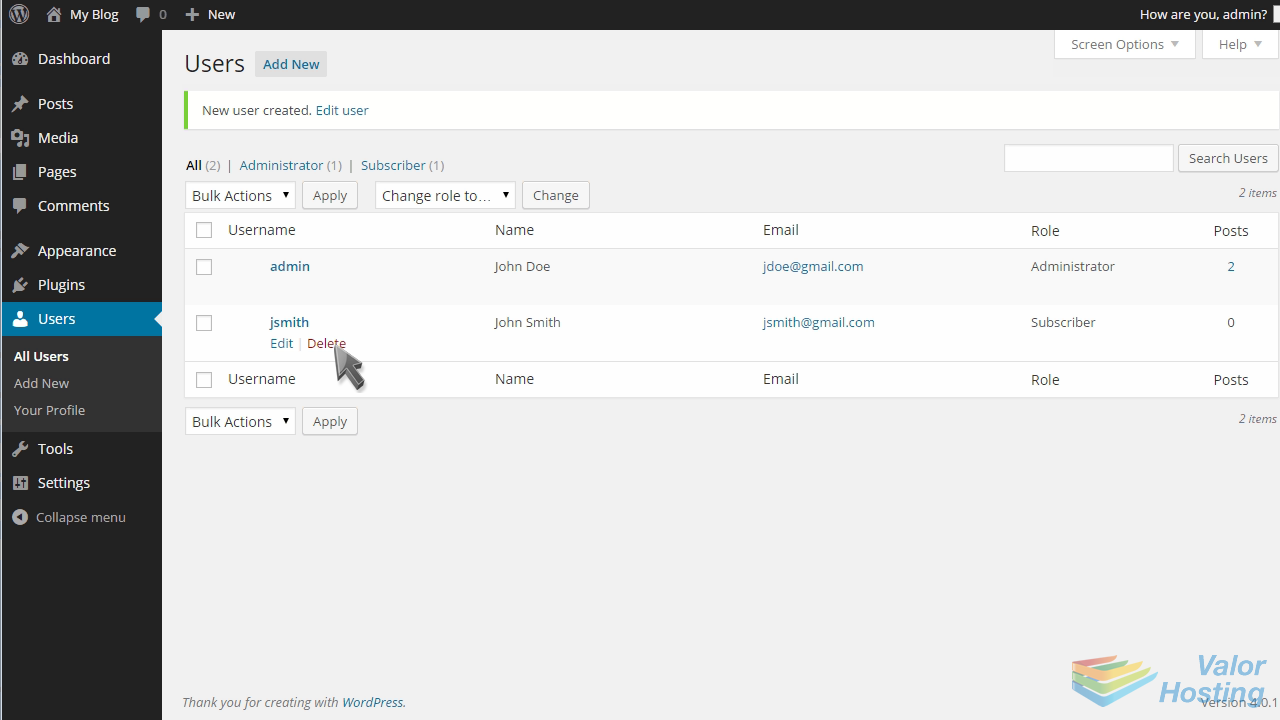
When deleting a user, you must decide whether to delete all their content, or assign it to another user.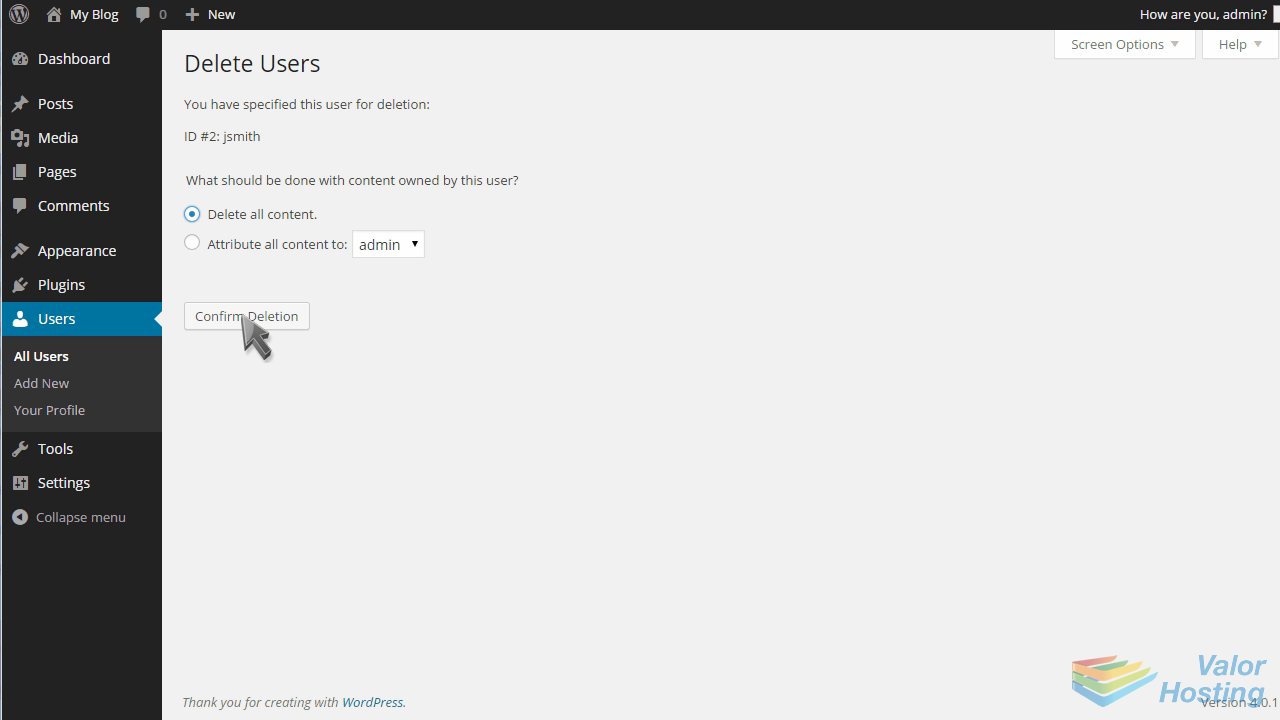
The user we just created has now been deleted.
This is the end of the tutorial. You now know how to manage users in WordPress.