
wpHost2go WordPress
9. How to manage pages in WordPress
This tutorial assumes you've already logged in to WordPress, and will show you how to manage pages.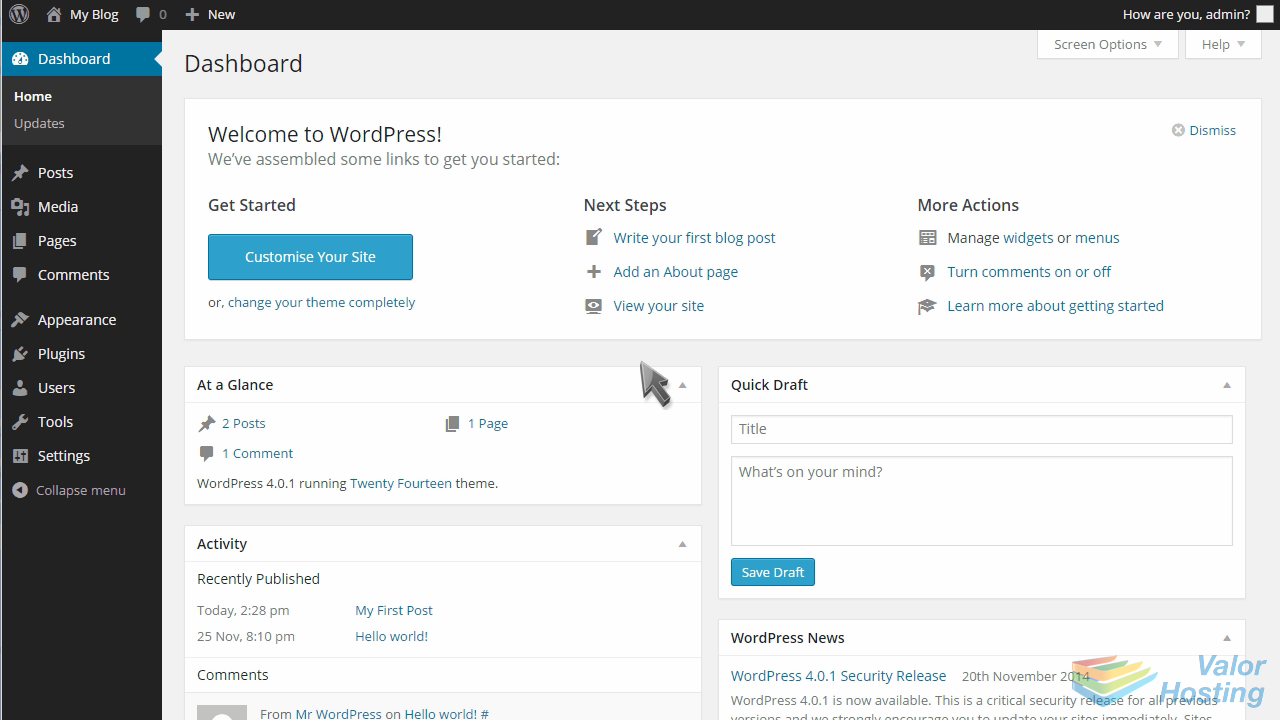
Click Pages in the left margin.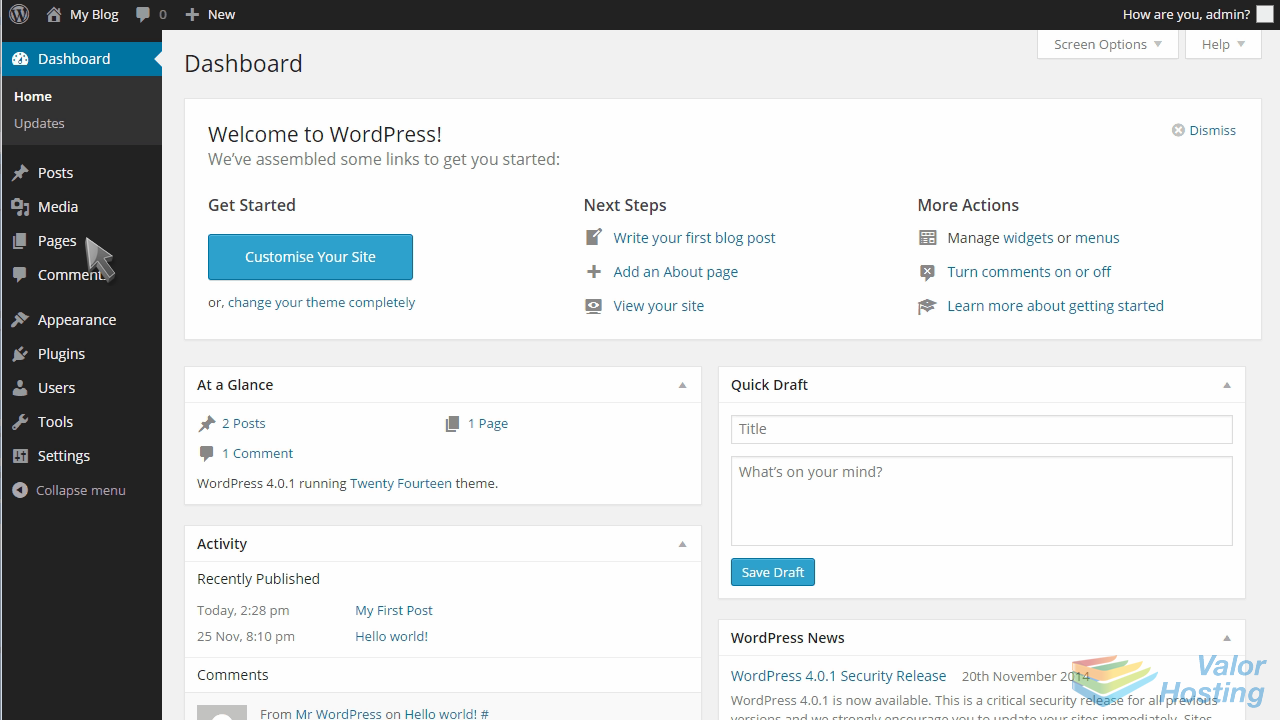
Then click Add New.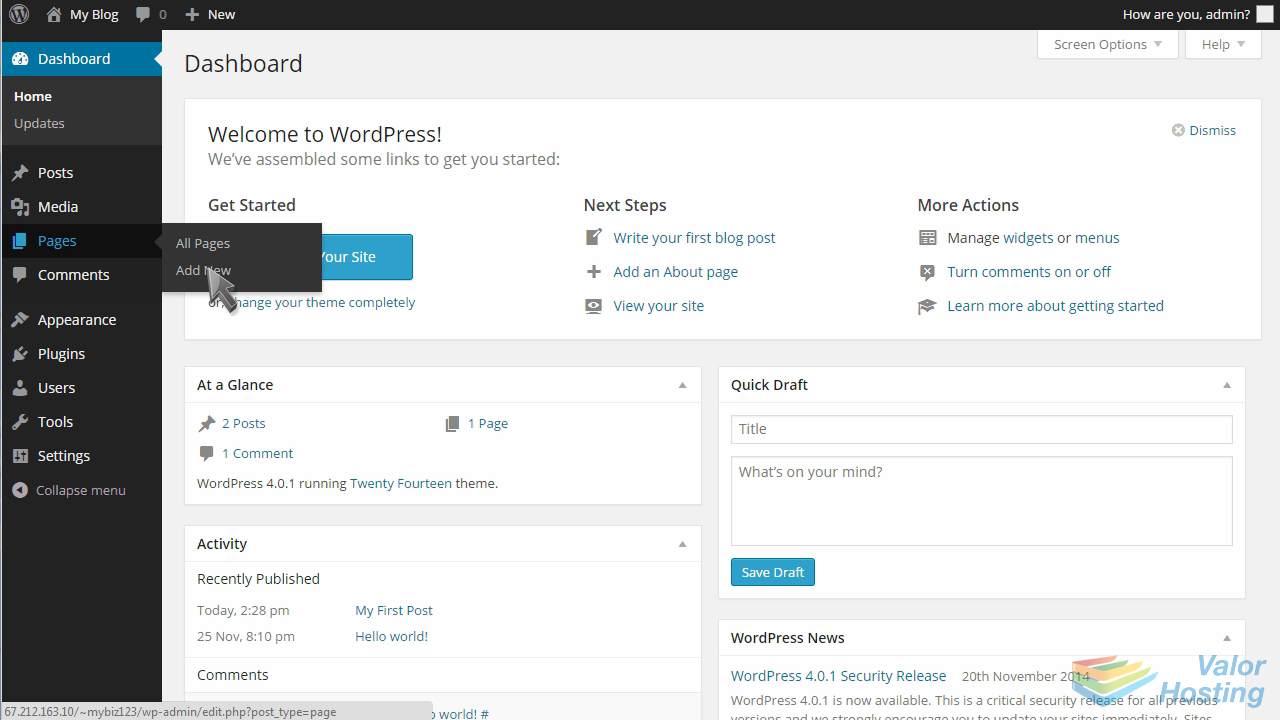
Enter a title for the new page.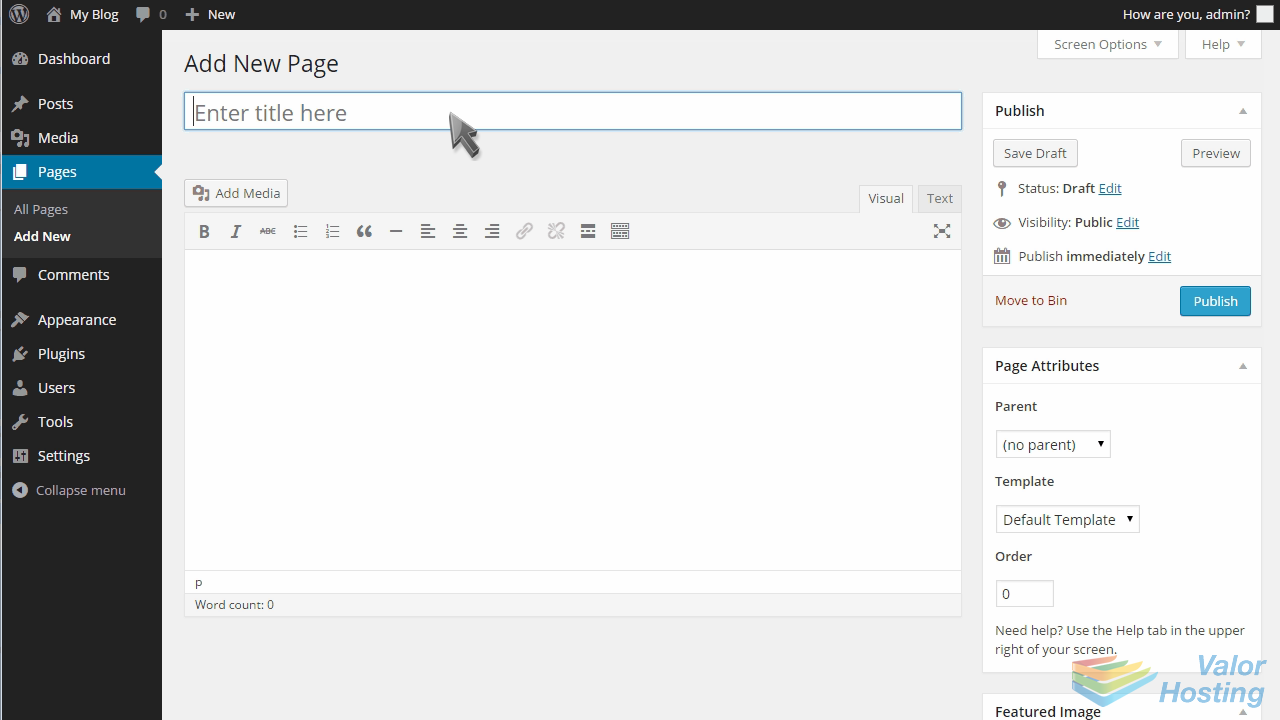
Then enter the page content.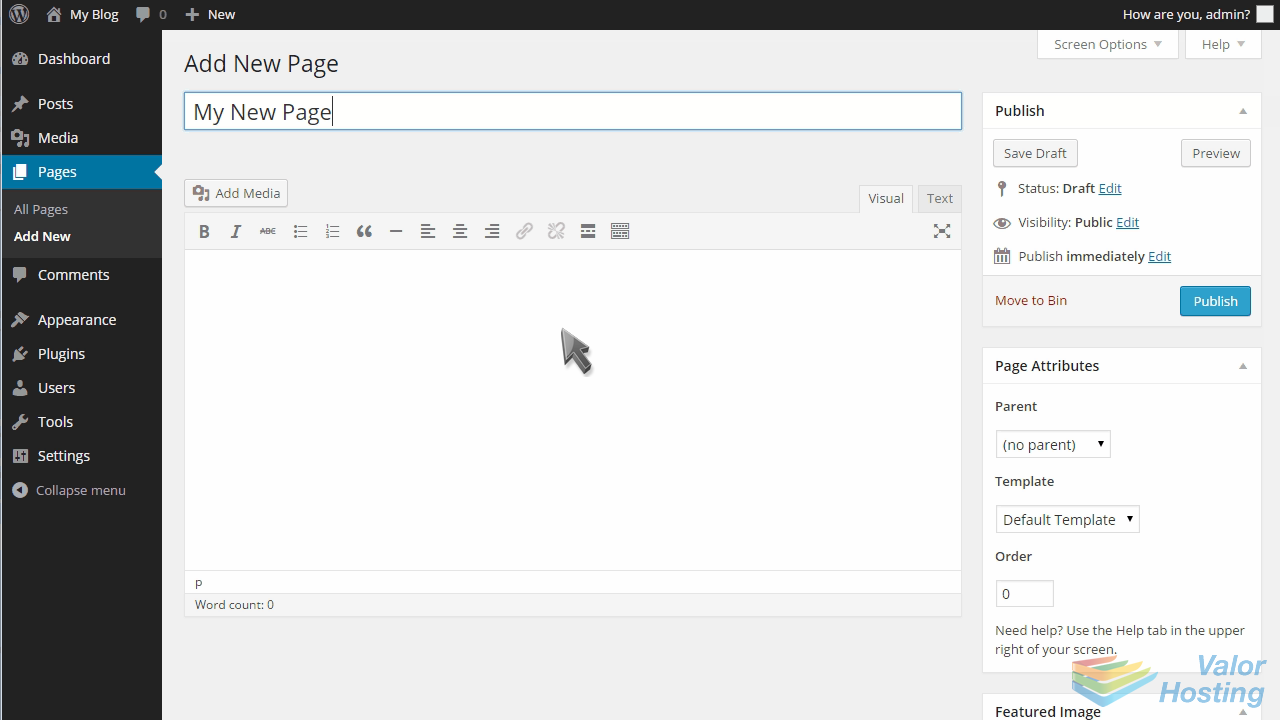
You can select a parent page here...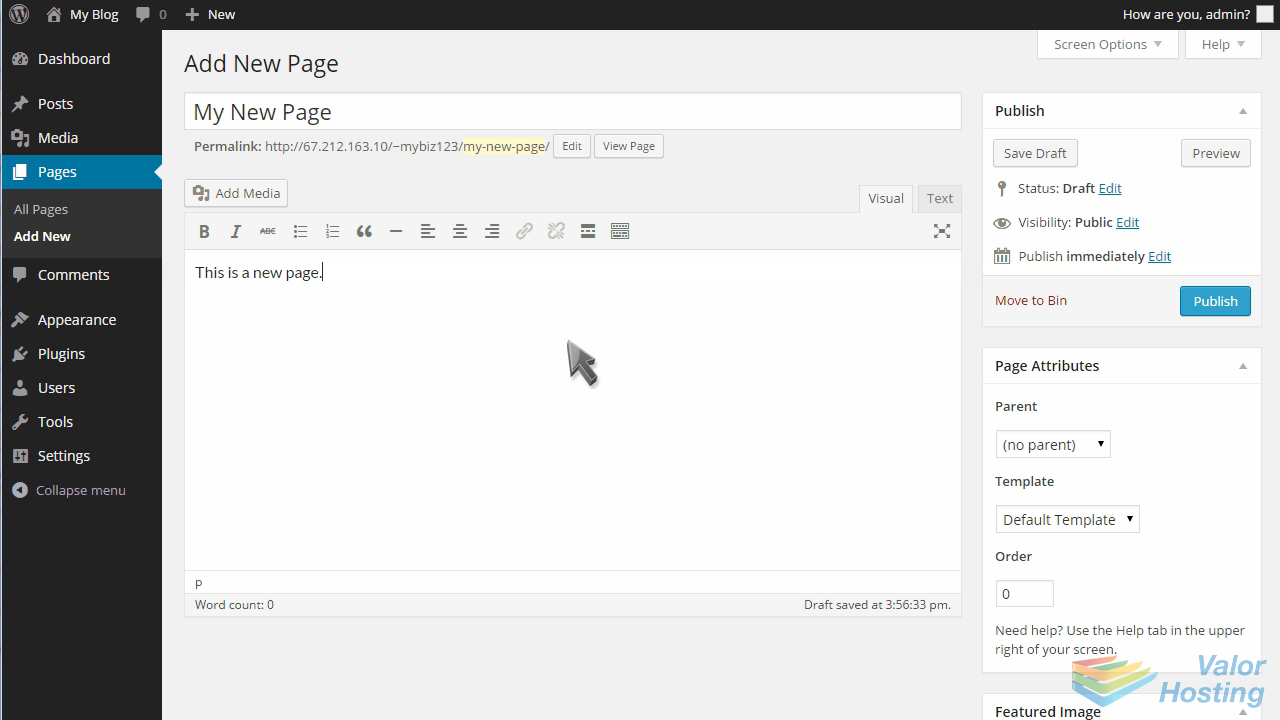
... or assign a specific template to the page.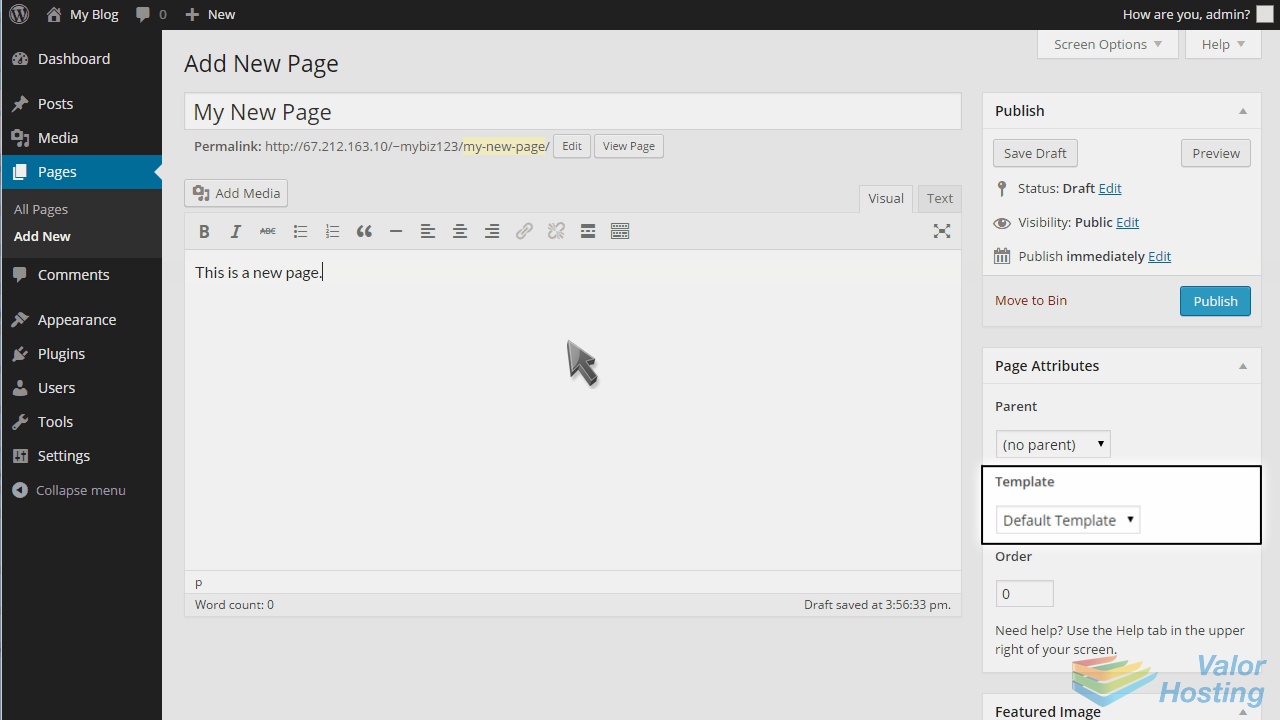
When ready, click Publish.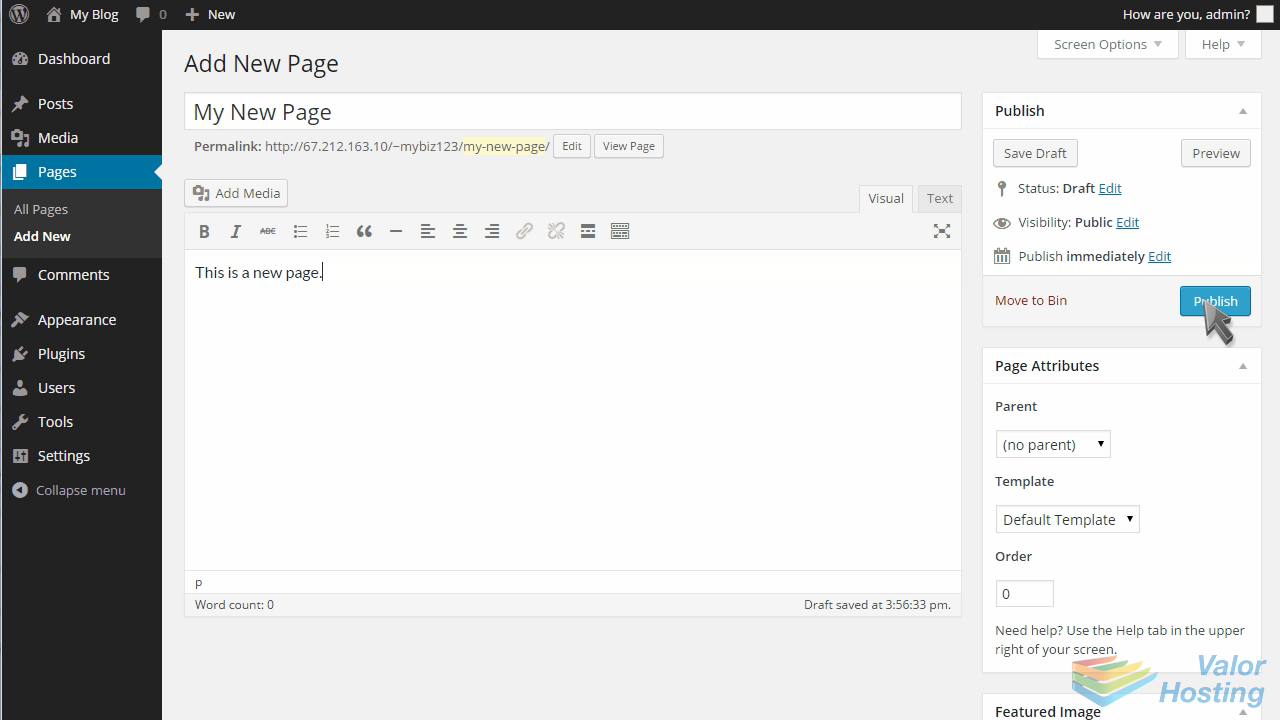
To view a list of all your pages, click "All Pages".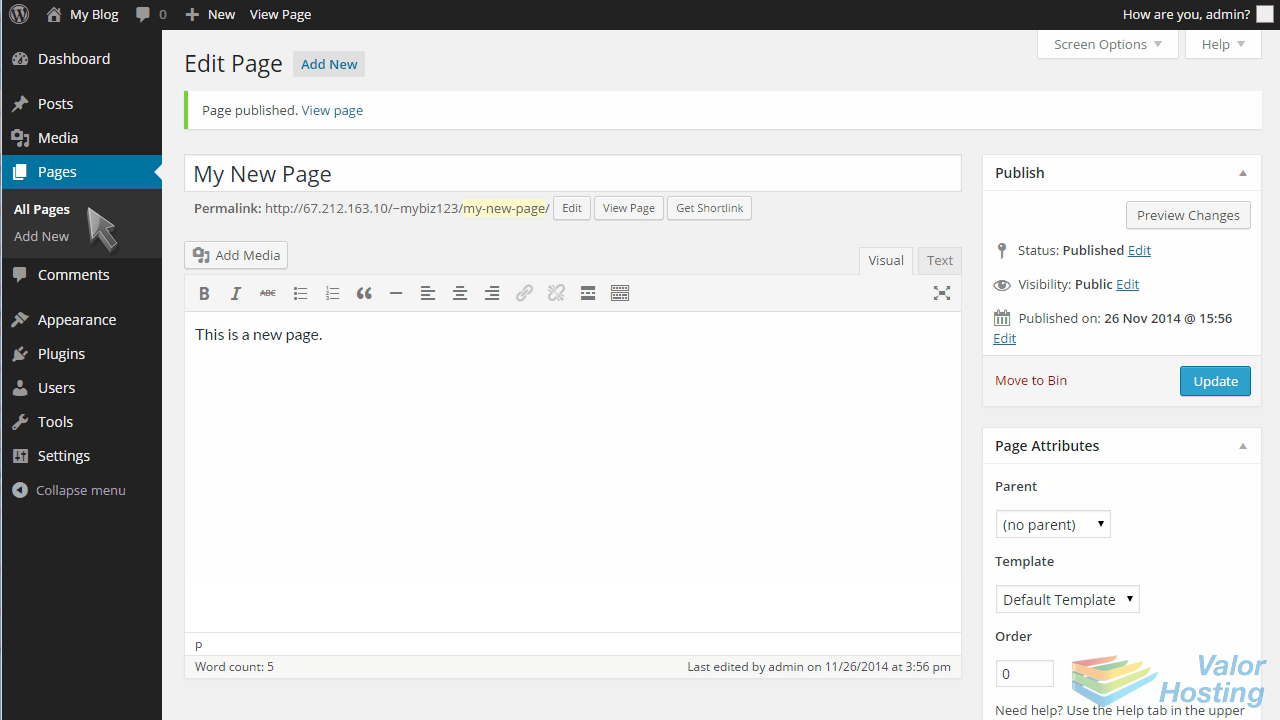
From here you can click to view a page live.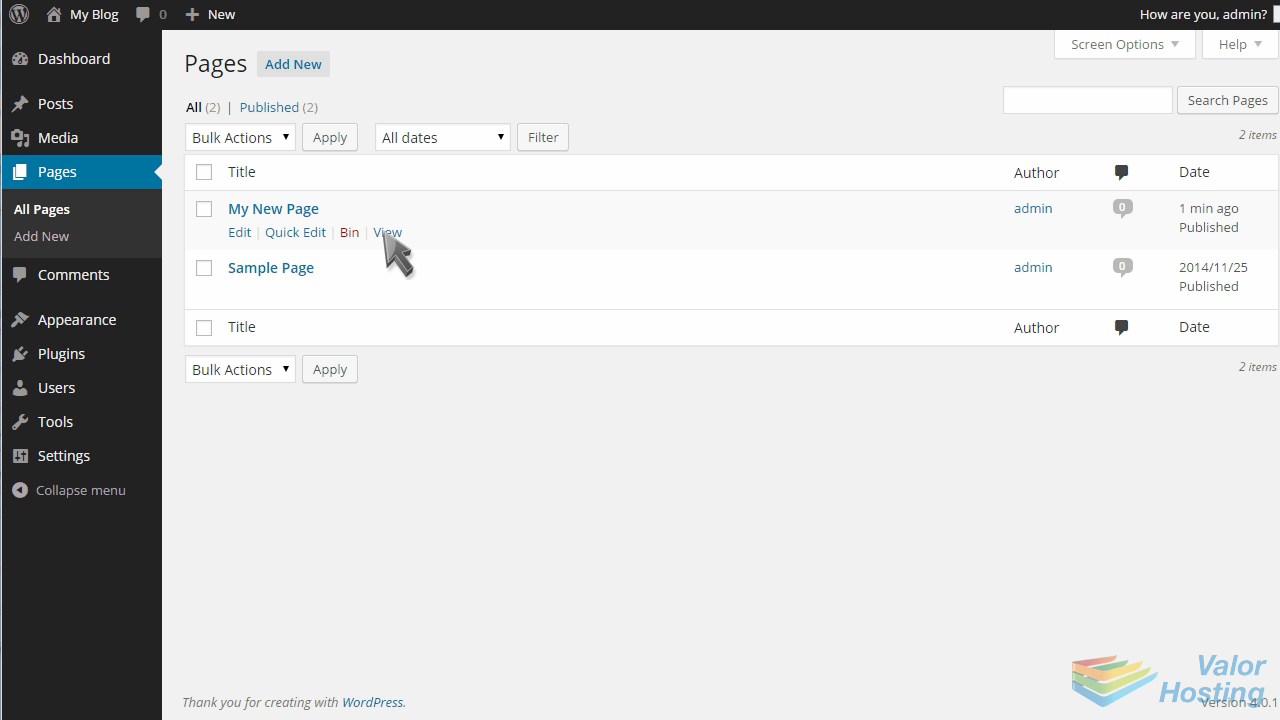
Here's what our new page looks like.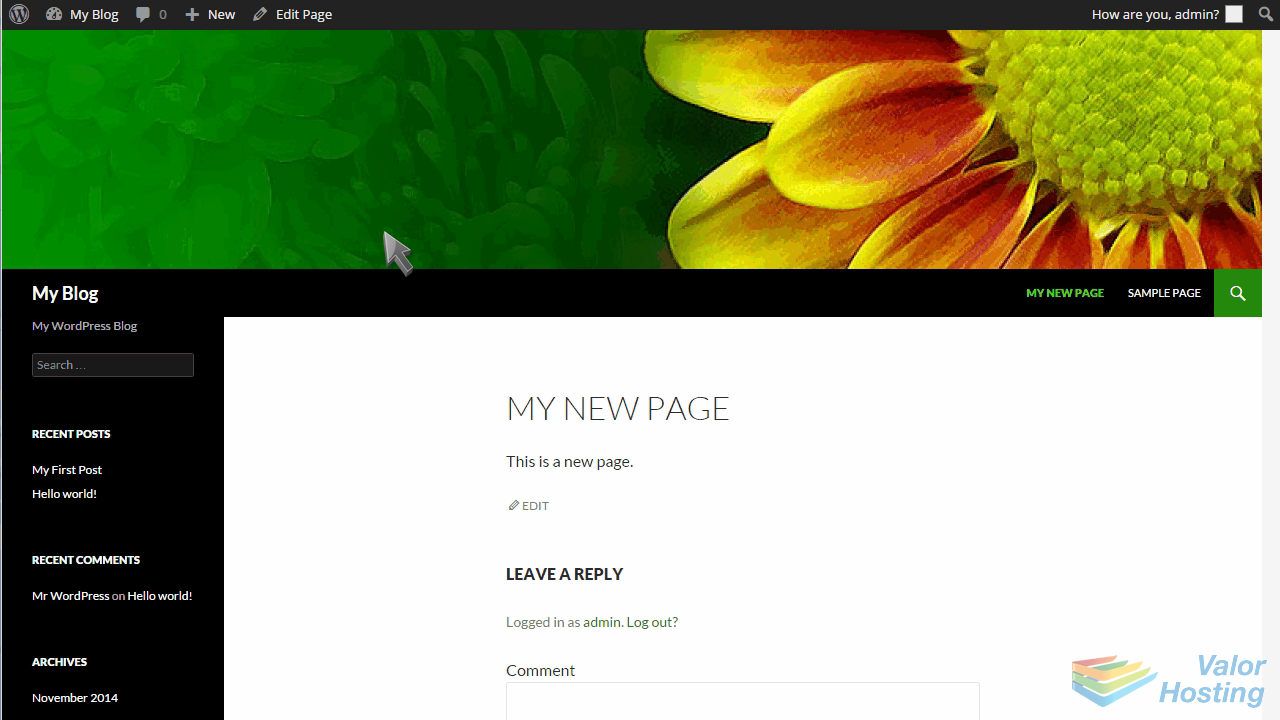
To delete a page, simply click the Bin link.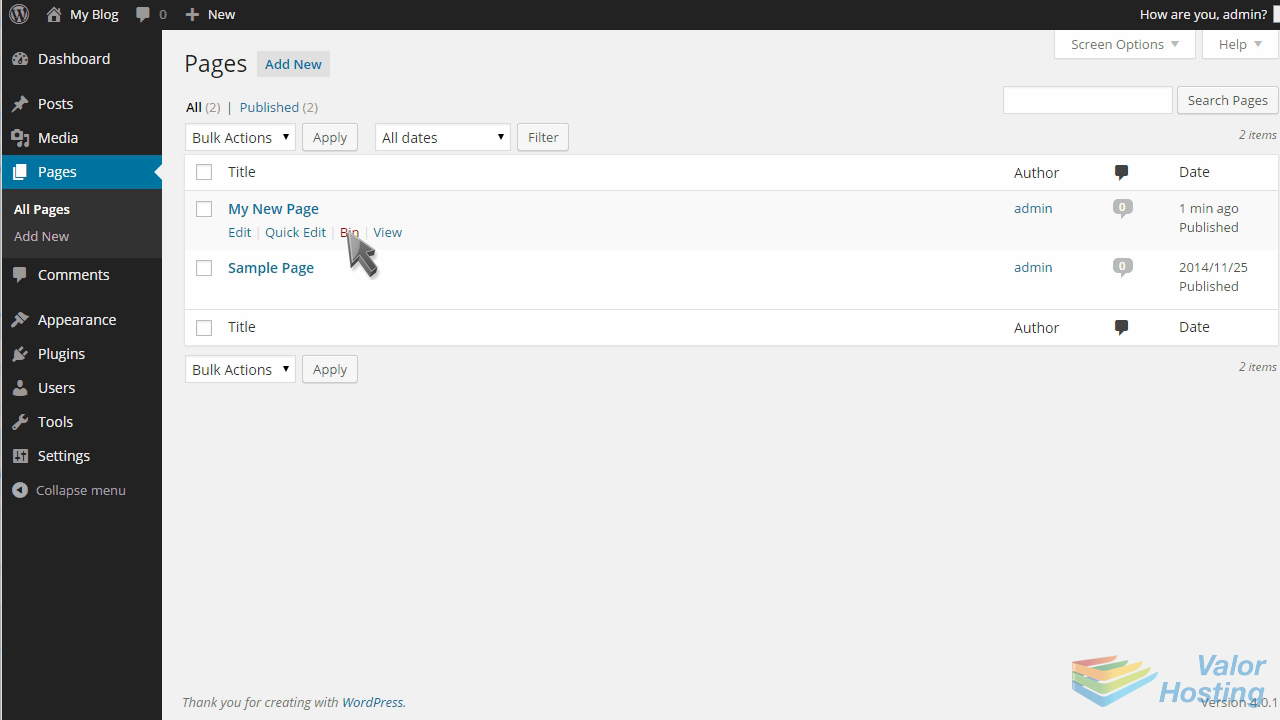
The page we just created has now been deleted.
This is the end of the tutorial. You now know how to manage pages in WordPress.