
wpHost2go WordPress
10. How to manage plugins in WordPress
This tutorial assumes you've already logged in to WordPress, and will show you how to manage plugins.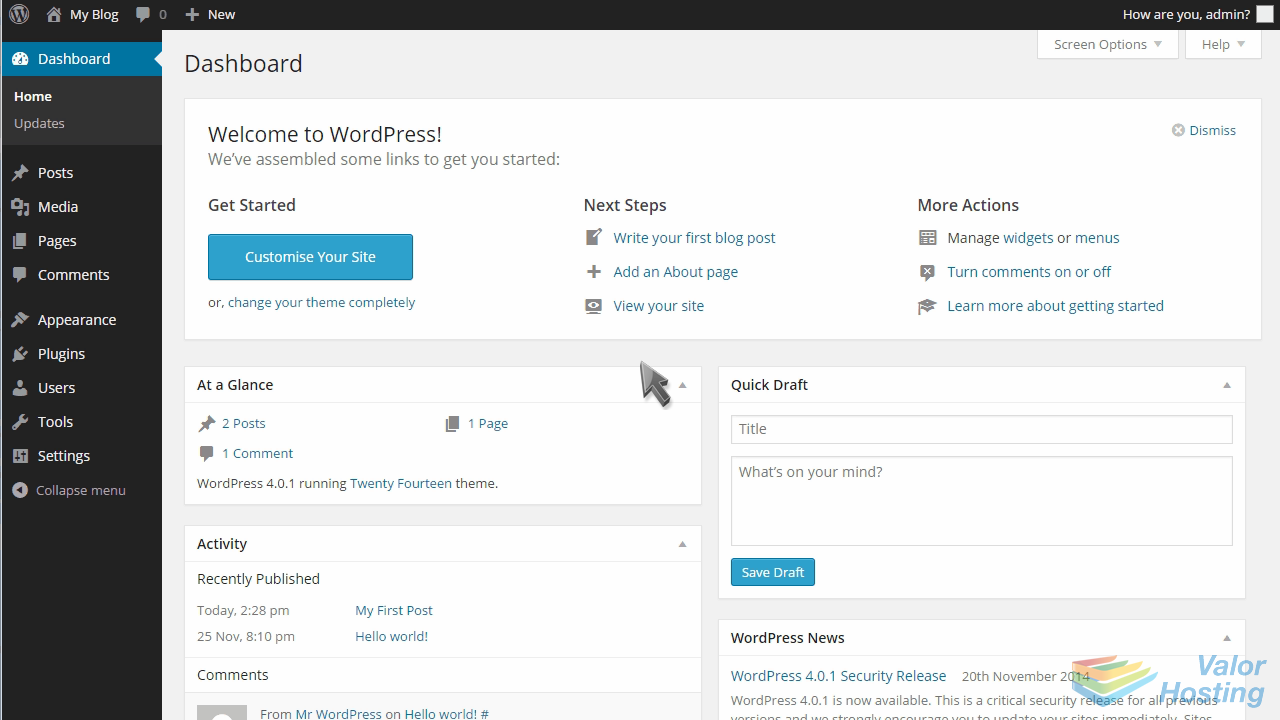
Click Plugins in the left margin.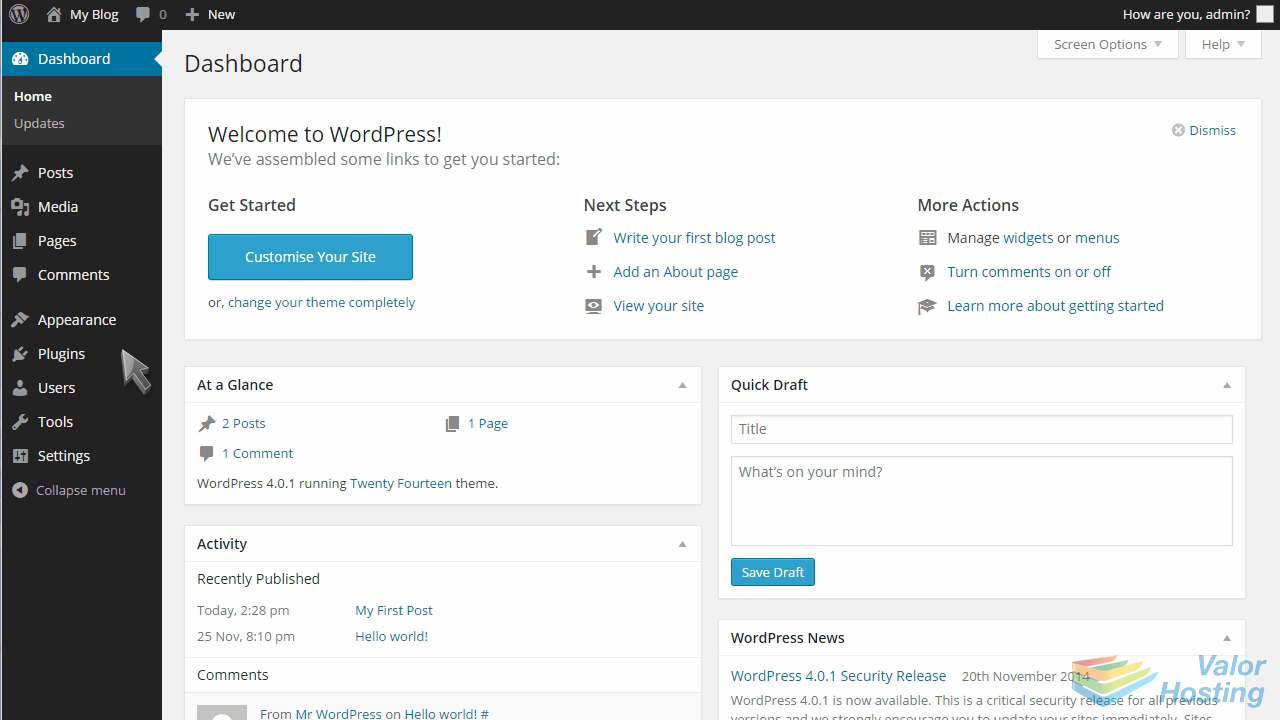
Then click Installed Plugins.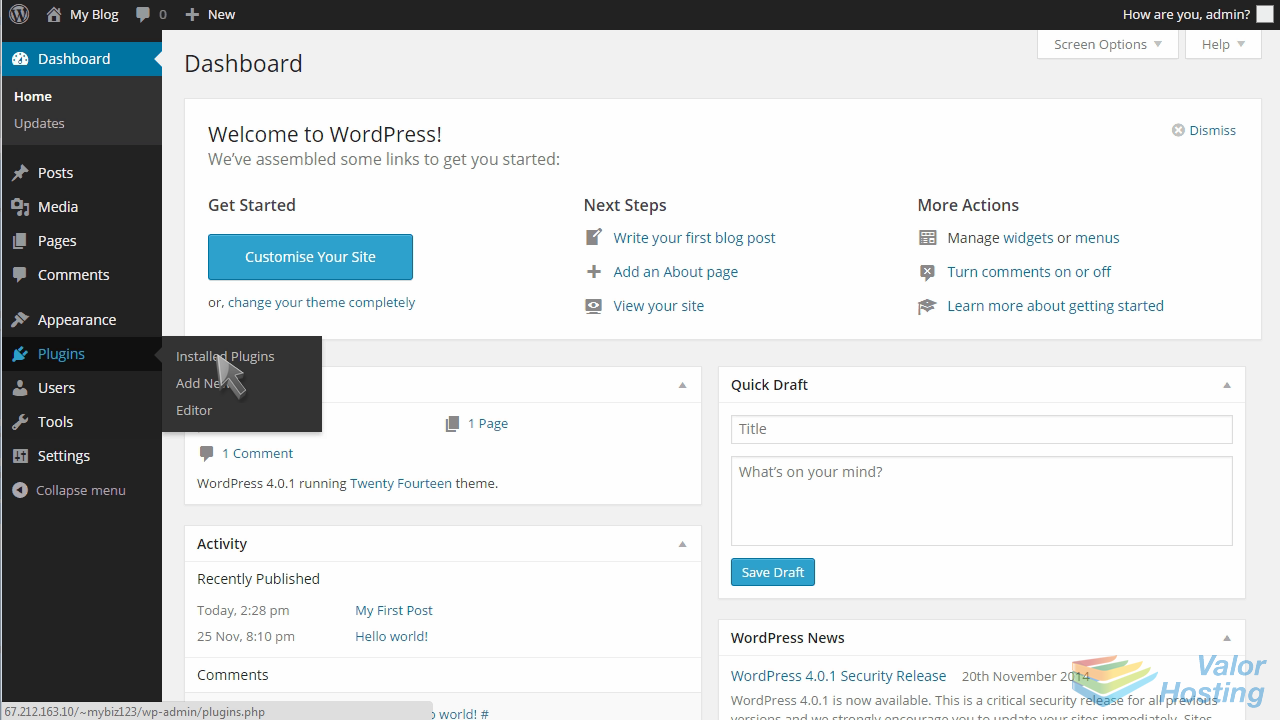
This page will show you a list of all your installed plugins.
From here you can activate, edit or delete any of your plugins.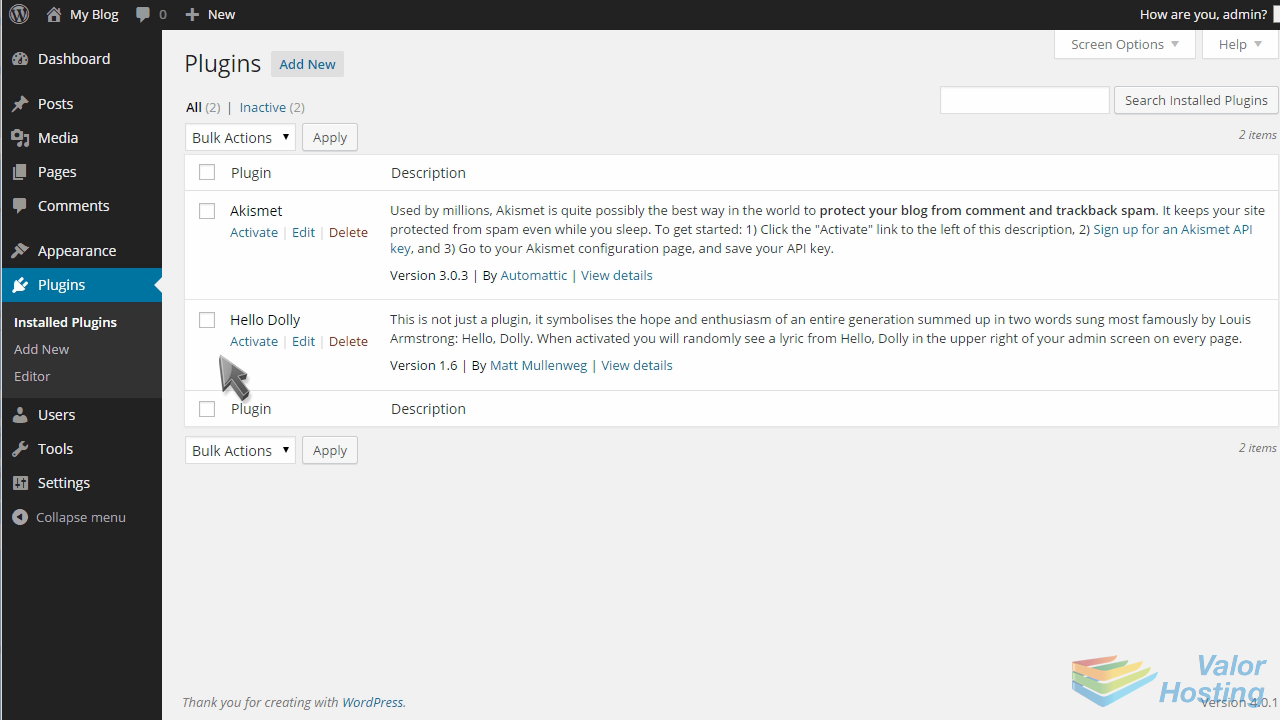
To add a plugin, click Add New.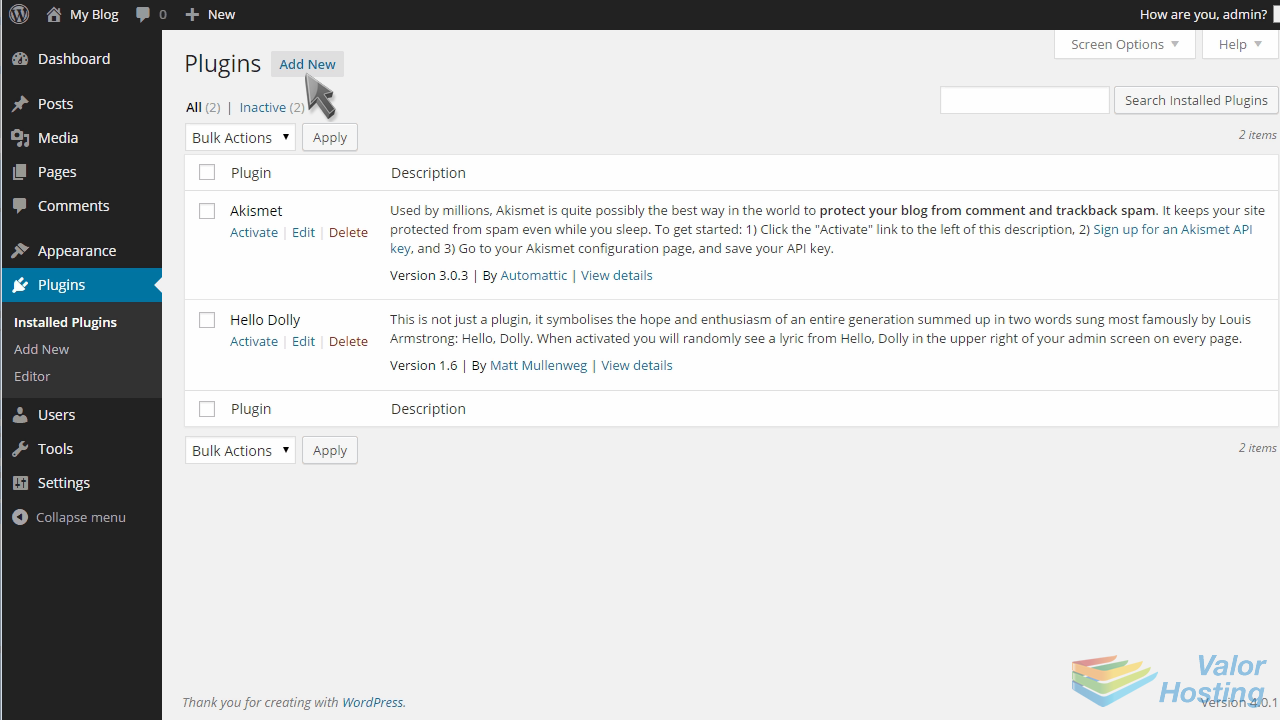
A list of available plugins are listed here... and you can find more plugins by browsing the WordPress Plugin Directory.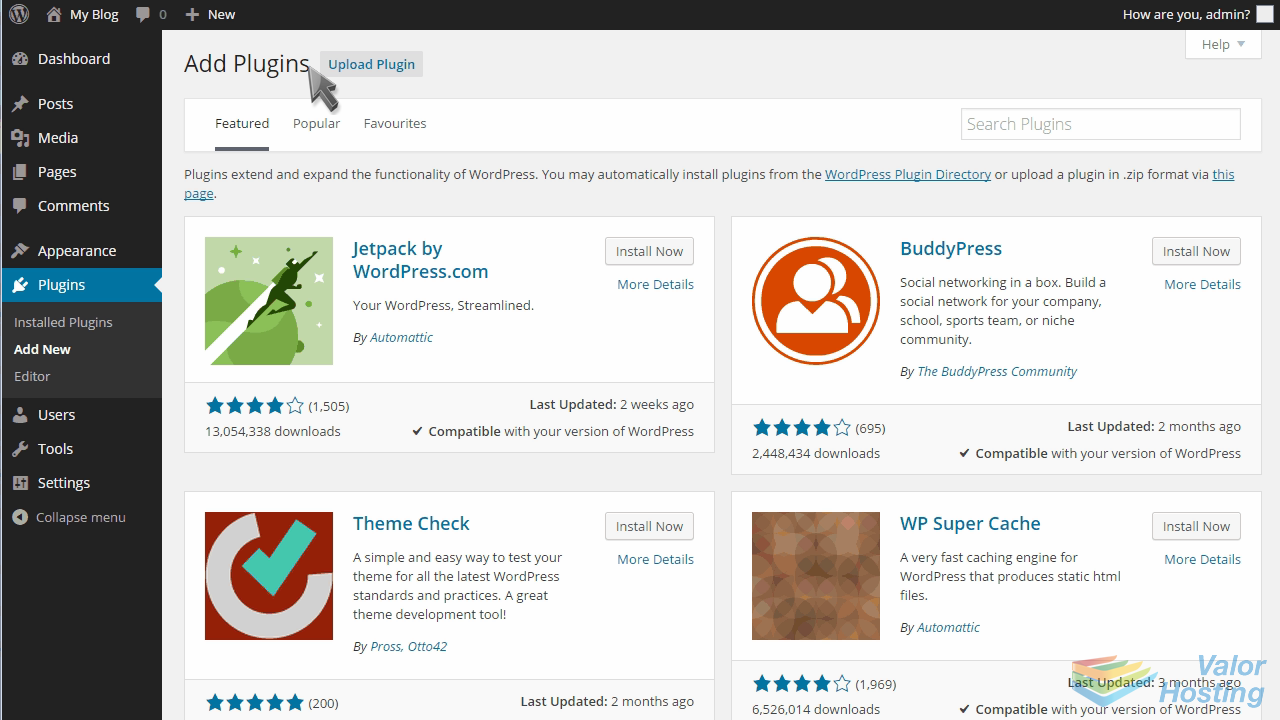
Go to the Editor to edit a plugin.
Although you can edit your plugins here, this is only recommended for advanced users.
This is the end of the tutorial. You now know how to manage plugins in WordPress.