
WordPress 4 series
11. How to write a comment in WordPress
This tutorial assumes you've already logged in to WordPress, and will show you how to write a comment.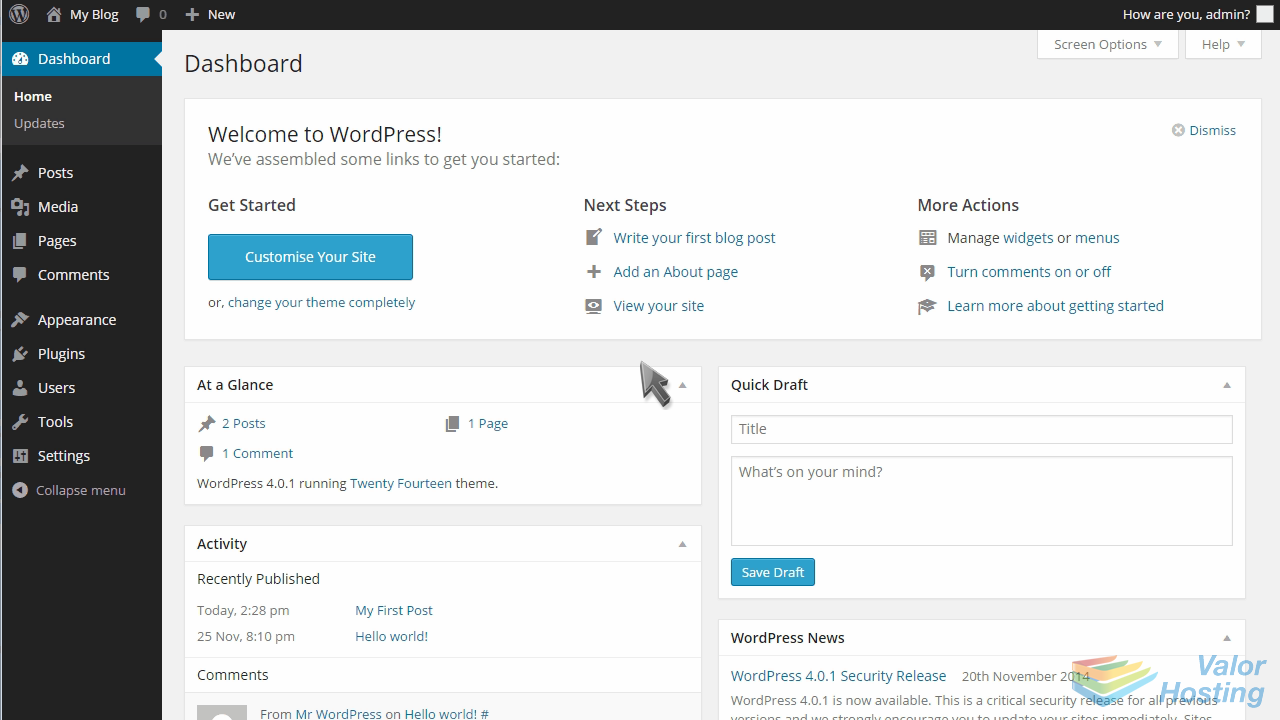
First let's go to our live website.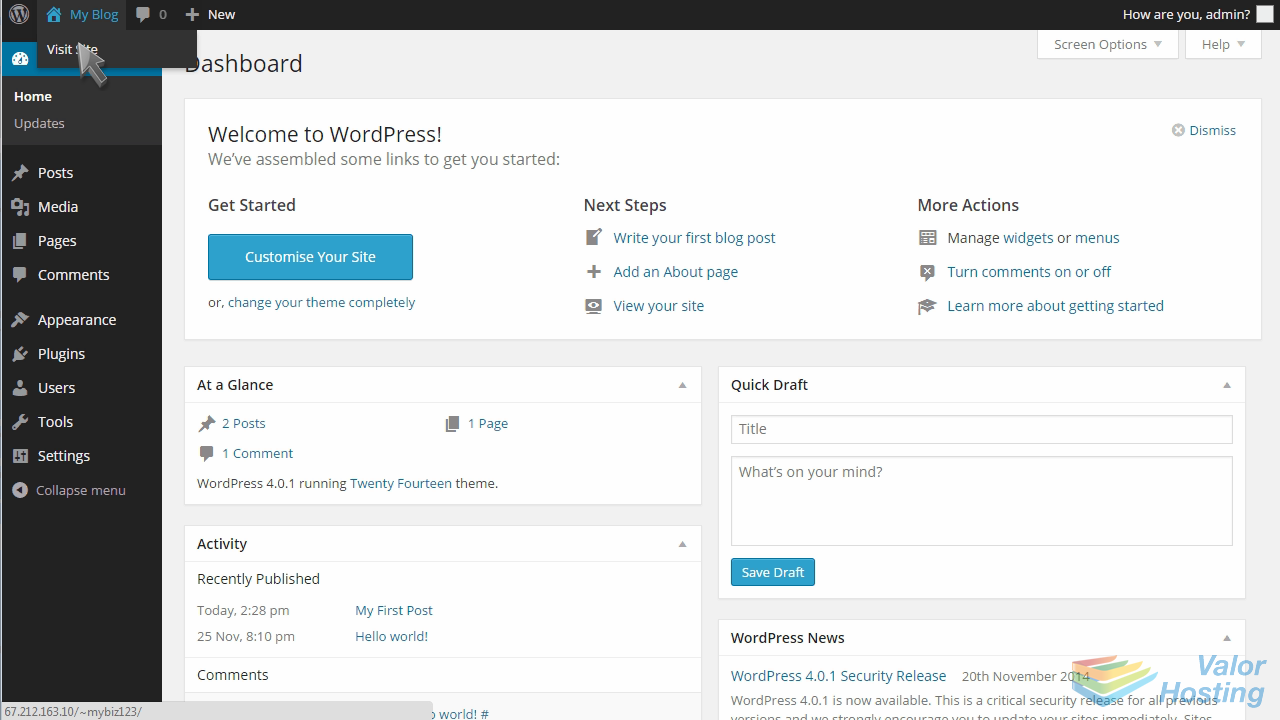
Locate the post you want to comment on, then click "Leave a Comment".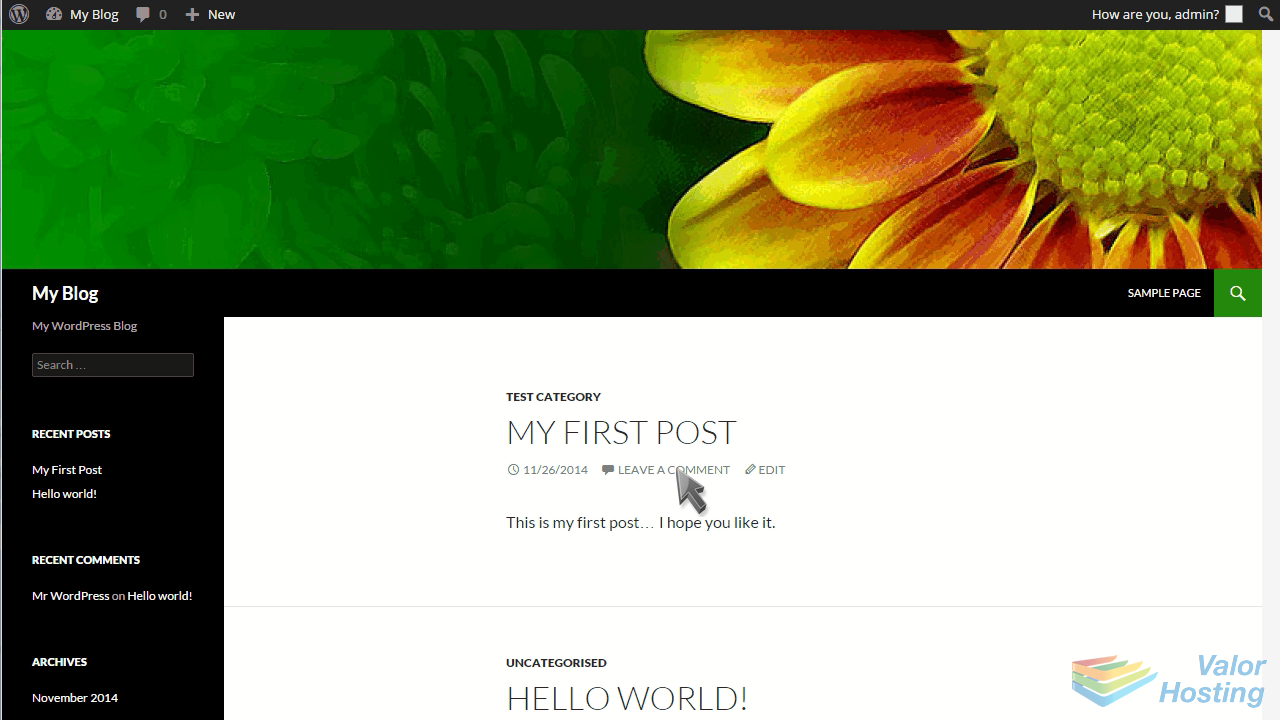
Enter your comment, then click Post Comment.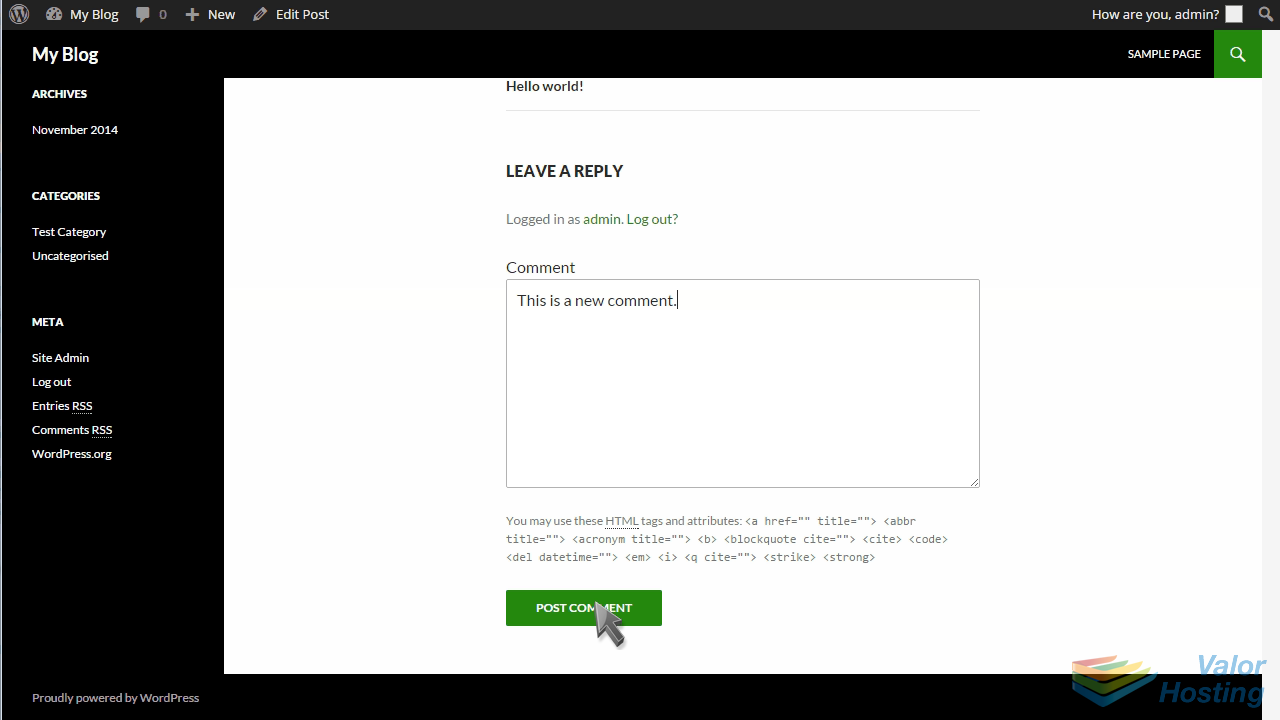
That's it! Your new comment shows up here.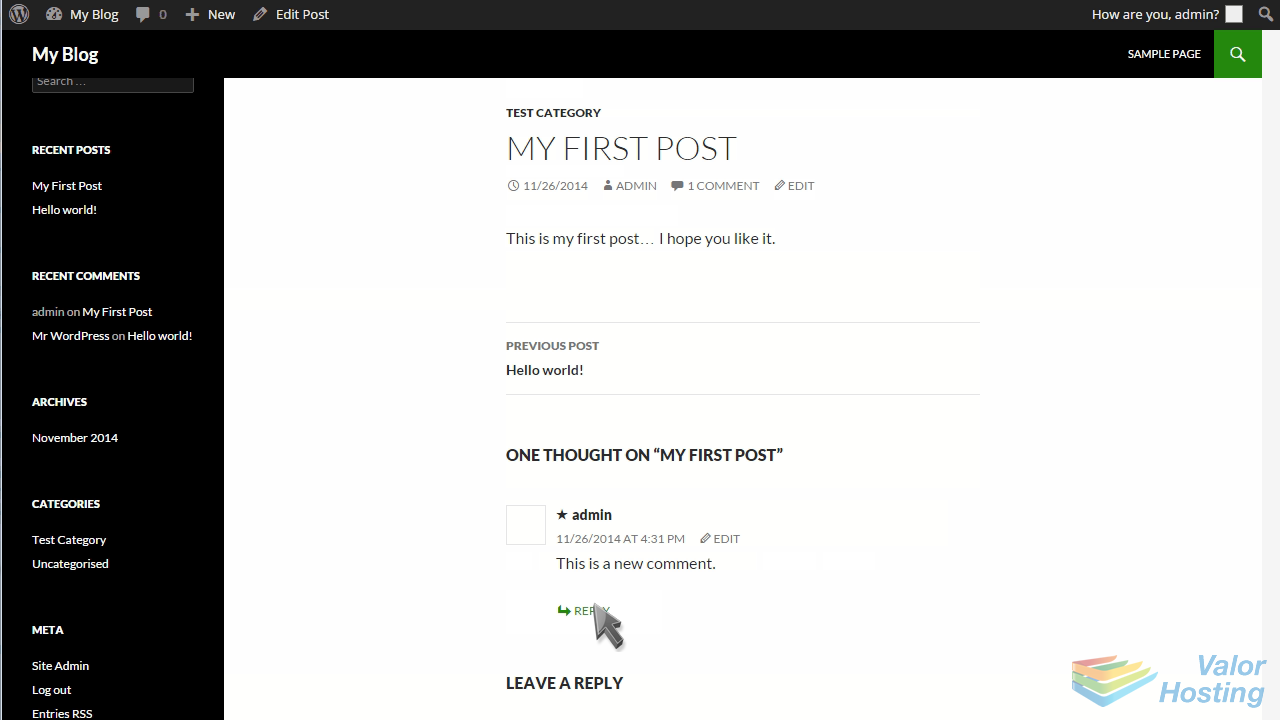
Now let's return to the admin interface.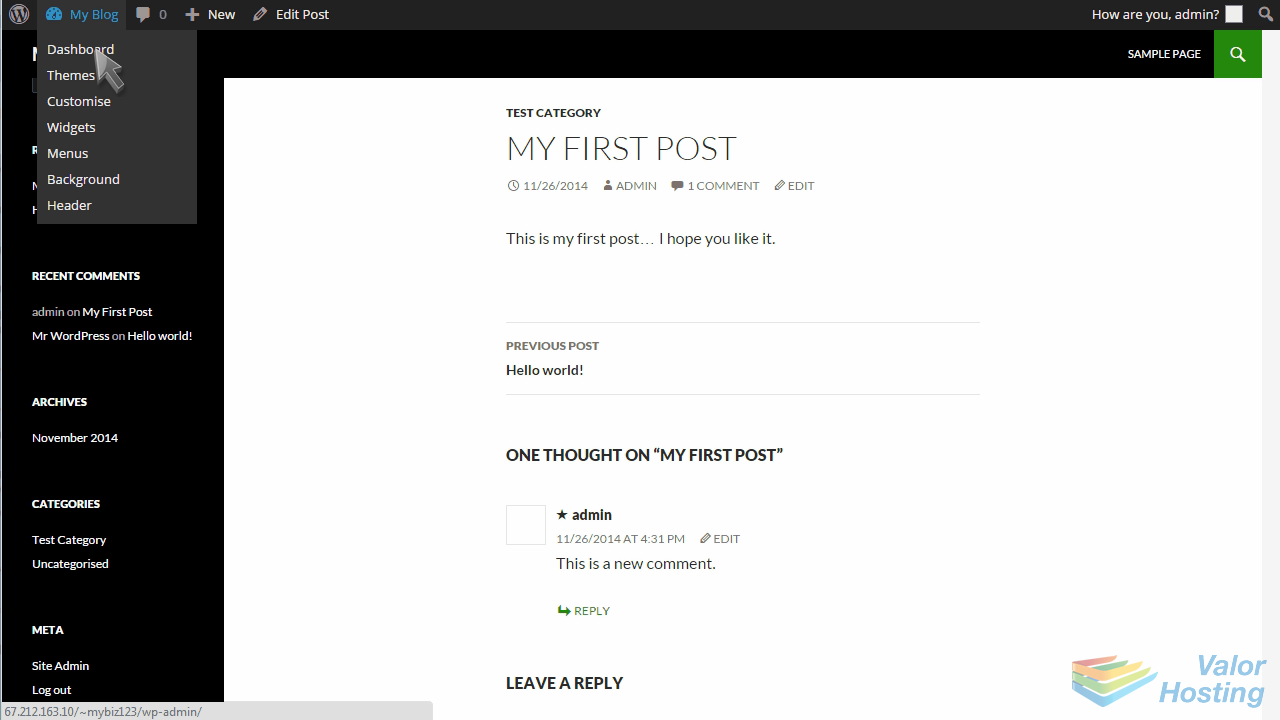
Click the Comments link.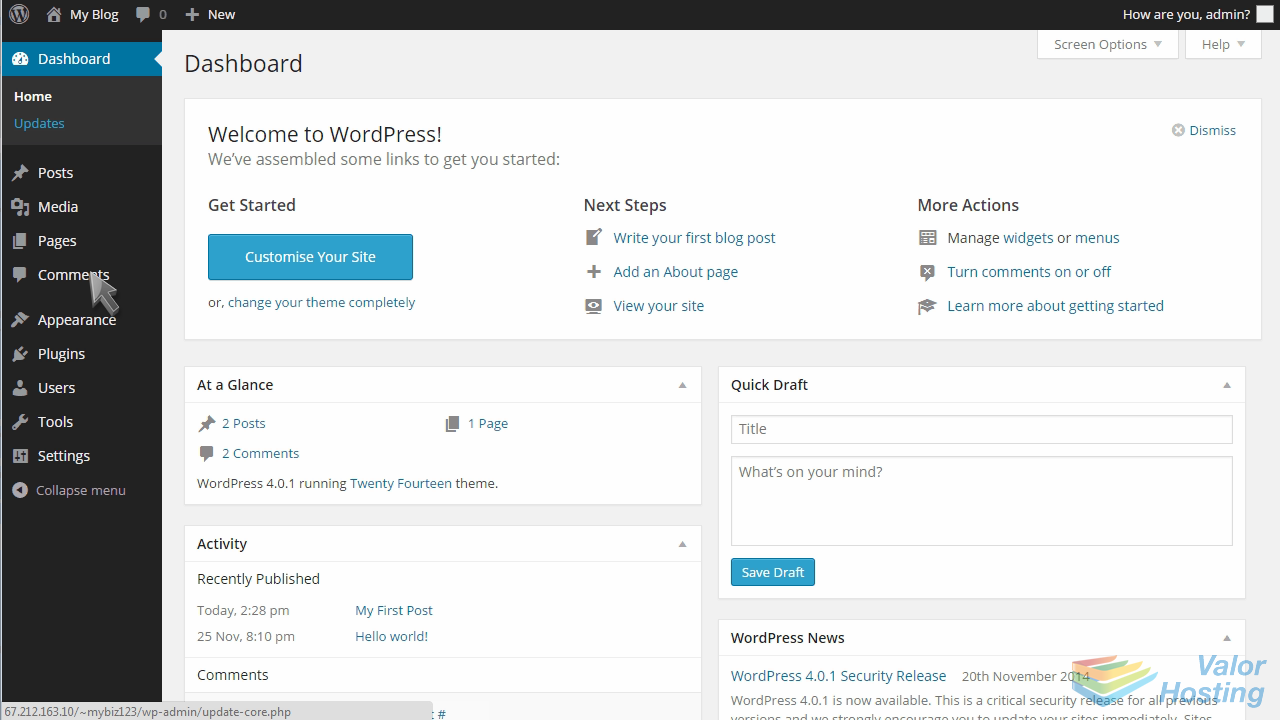
You can see the comment we just created here in the admin panel as well, and it is from here that you can delete it if you want.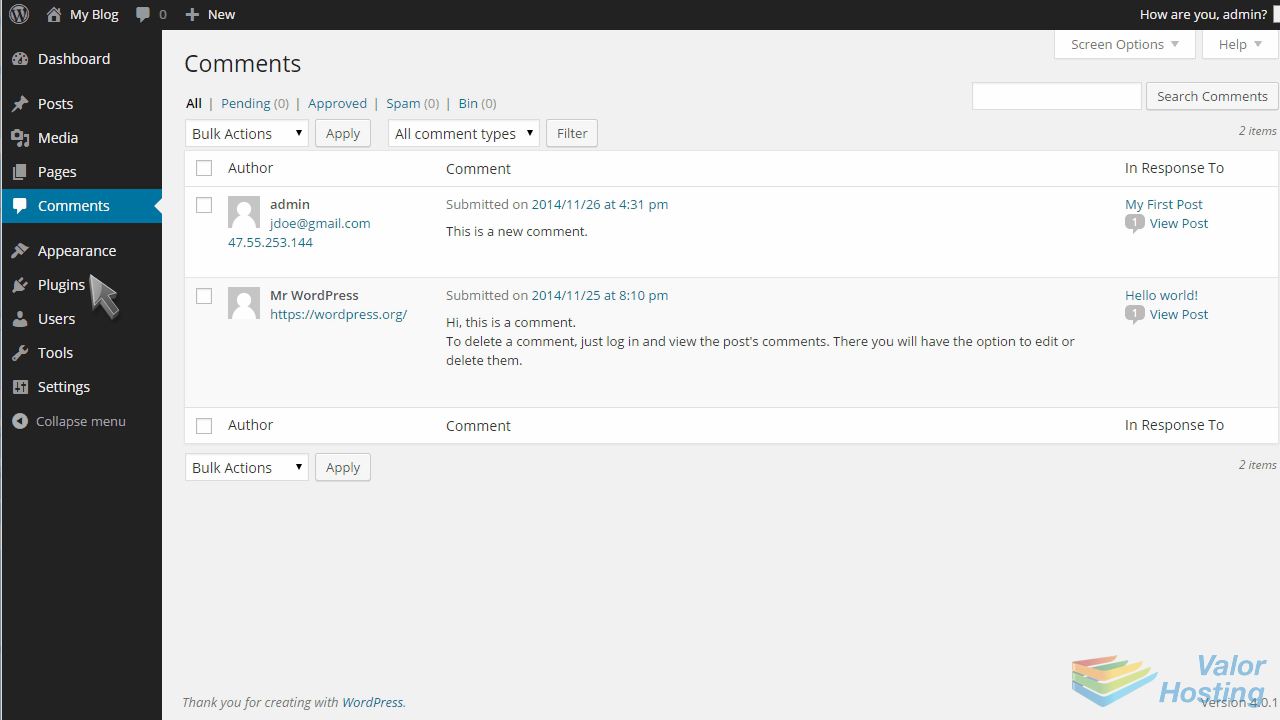
This is the end of the tutorial. You now know how to write a comment in WordPress.