
5. How to use the password generator when creating an email account in cPanel
This demo assumes you've already logged in to cPanel, and are starting on the home screen.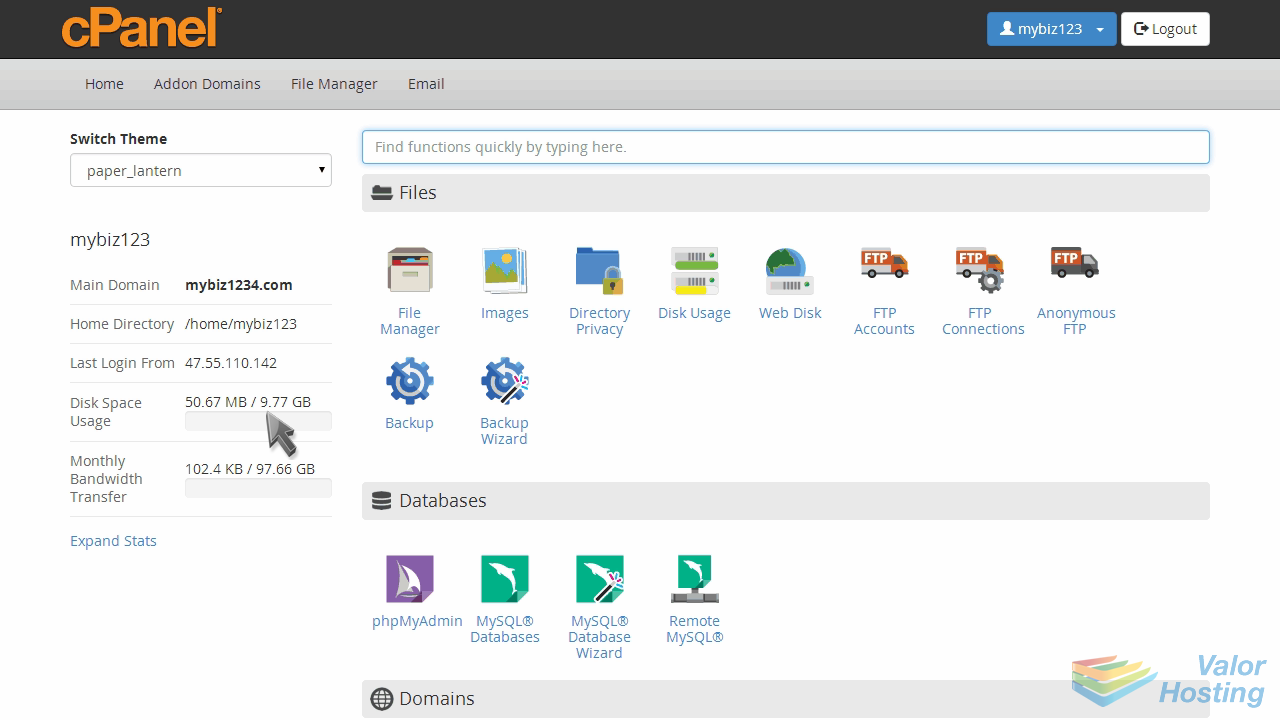
Now let's learn how to use the password generator.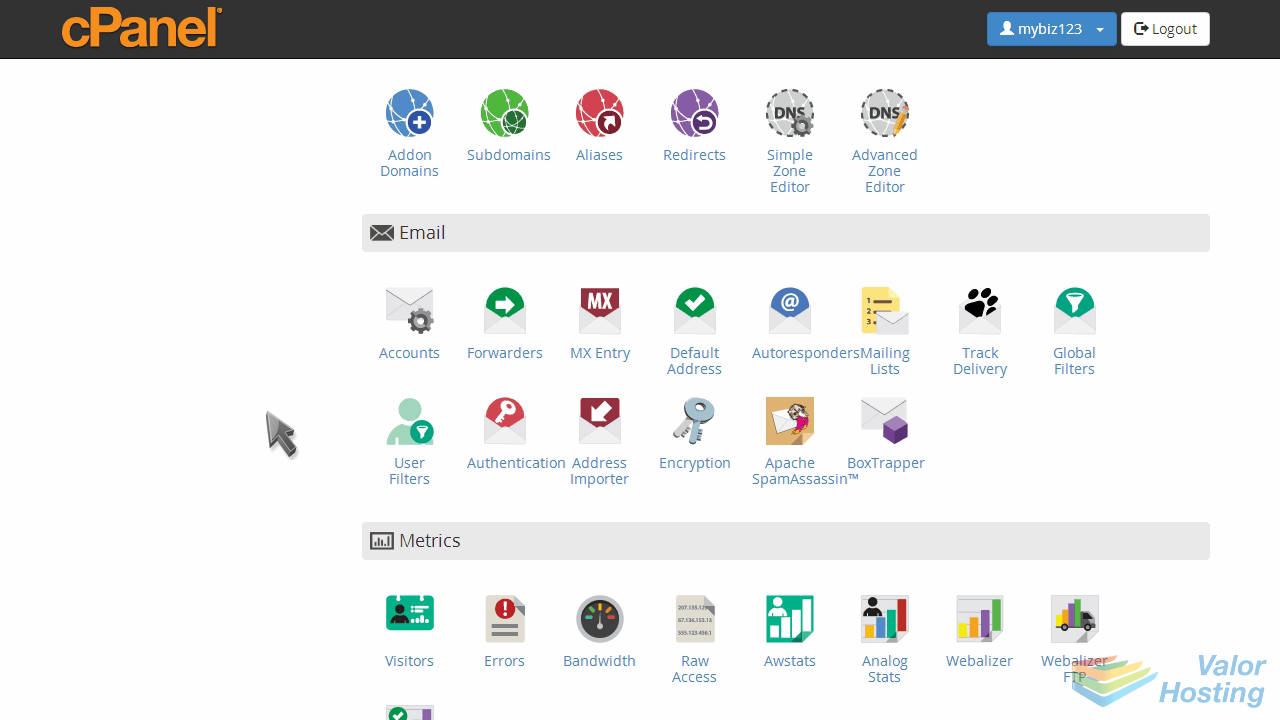
Click the "Email Accounts" icon.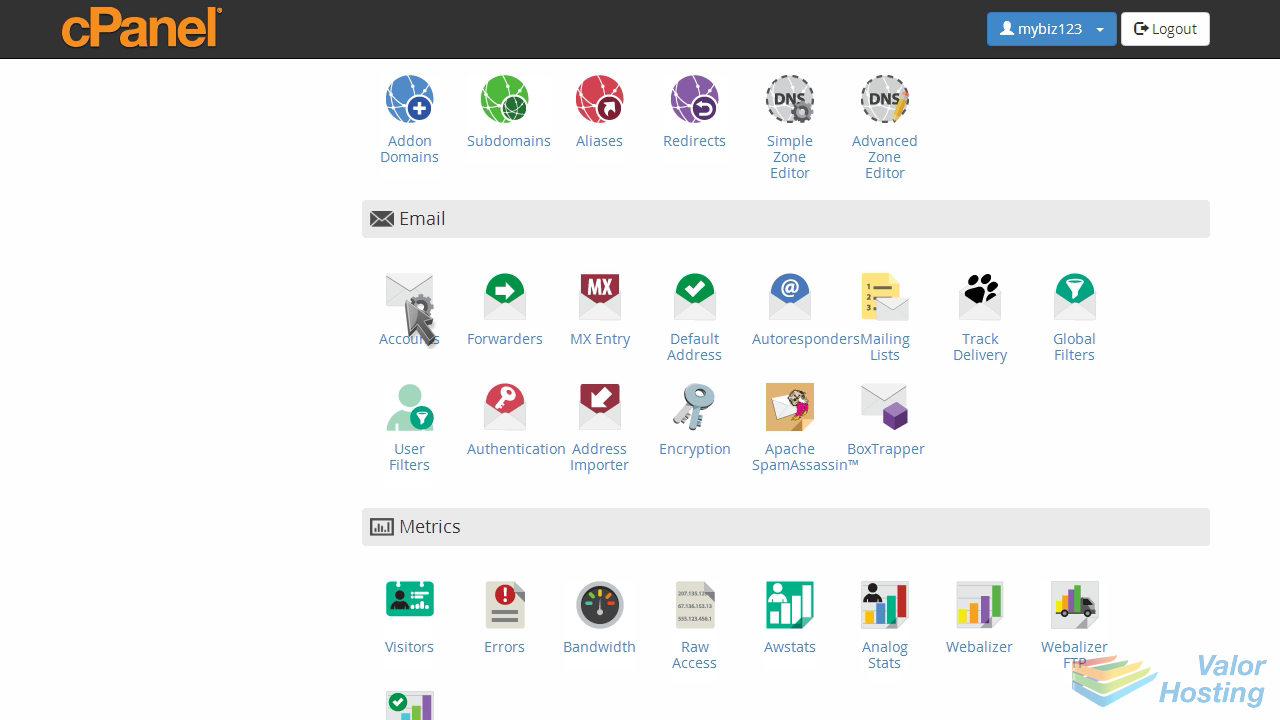
Enter the new email address you want to create.
Then instead of entering a password, click the "Password Generator" button.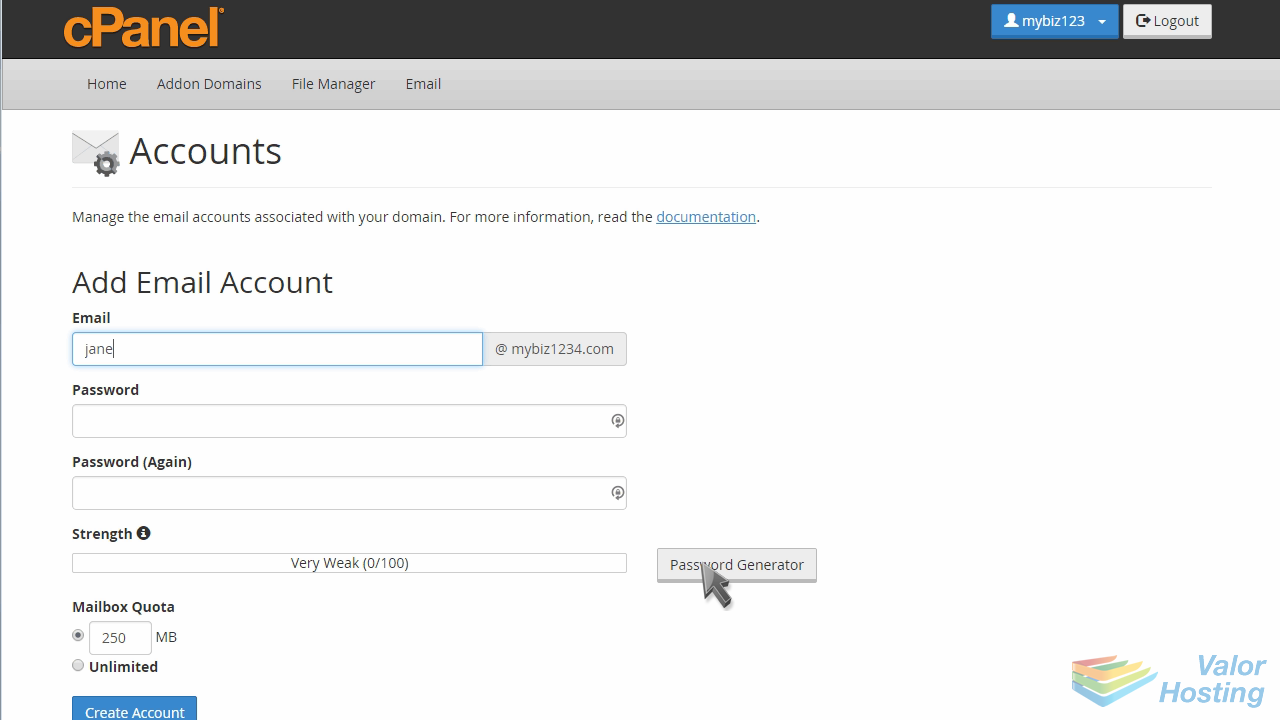
A random password will generate.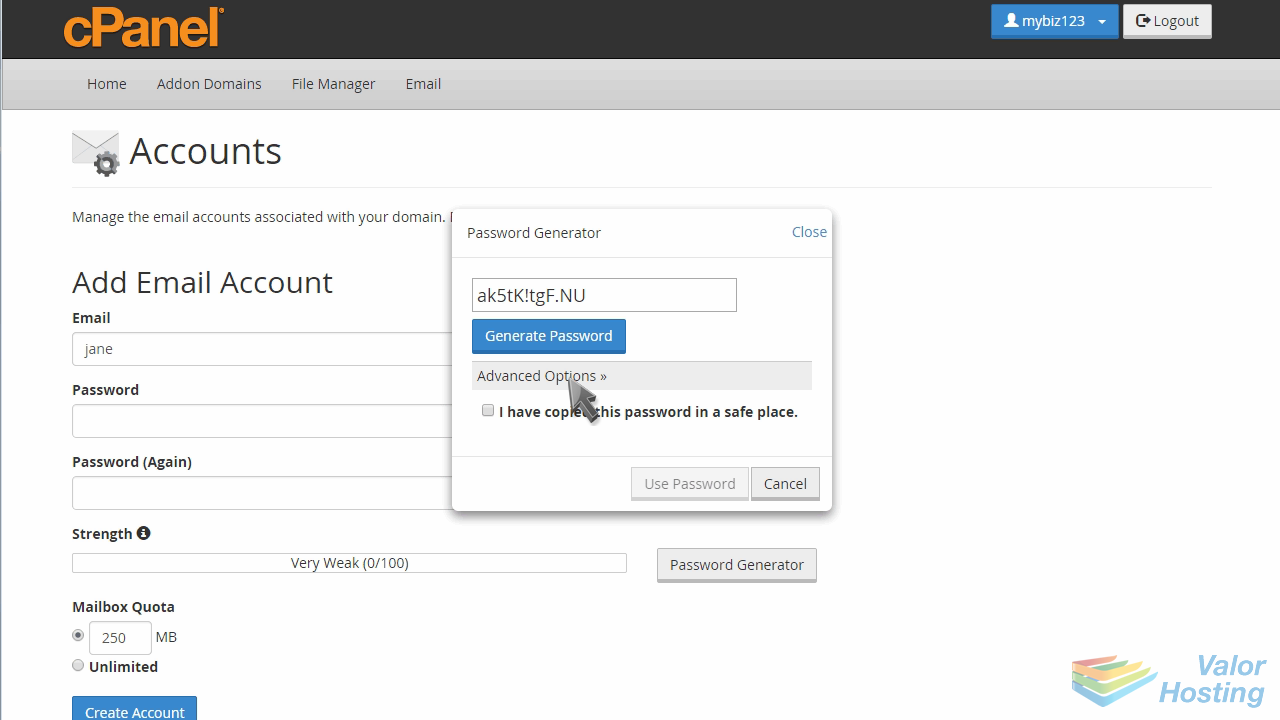
You can set some advanced options on what type of characters to allow if you wish.
Make sure you copy your new password in a safe place, then check the box indicating so.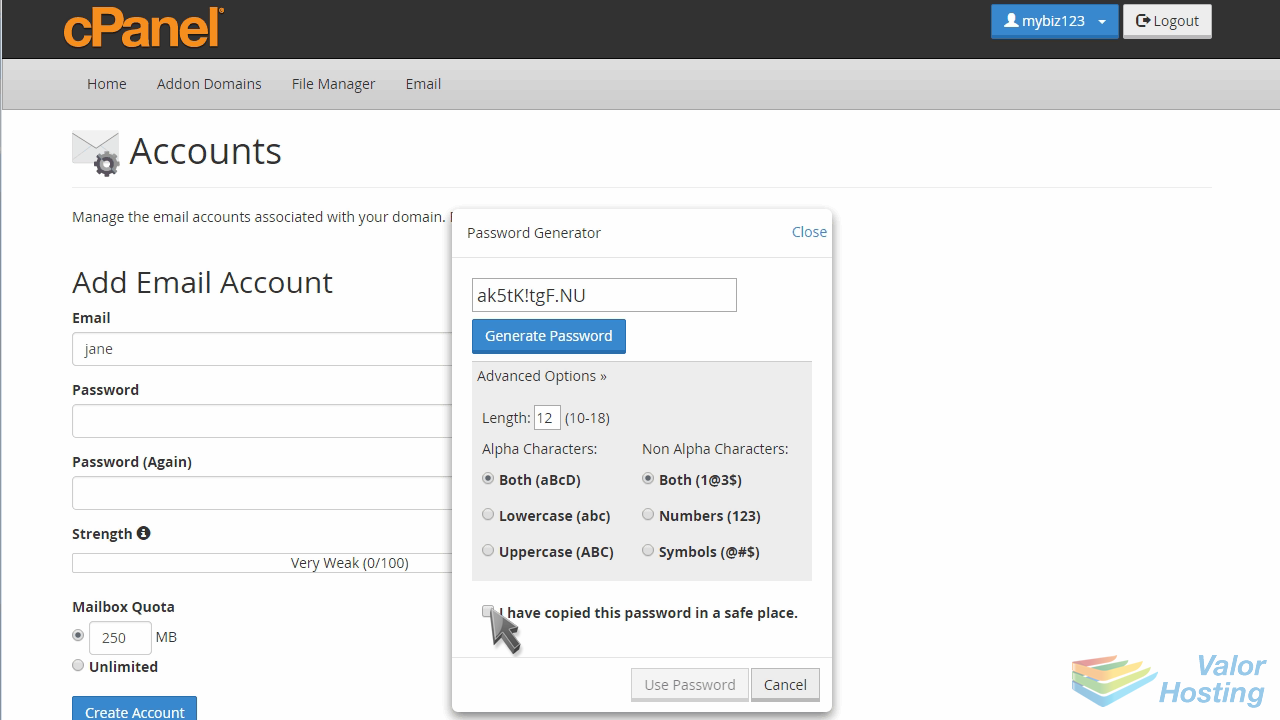
Then click "Use Password".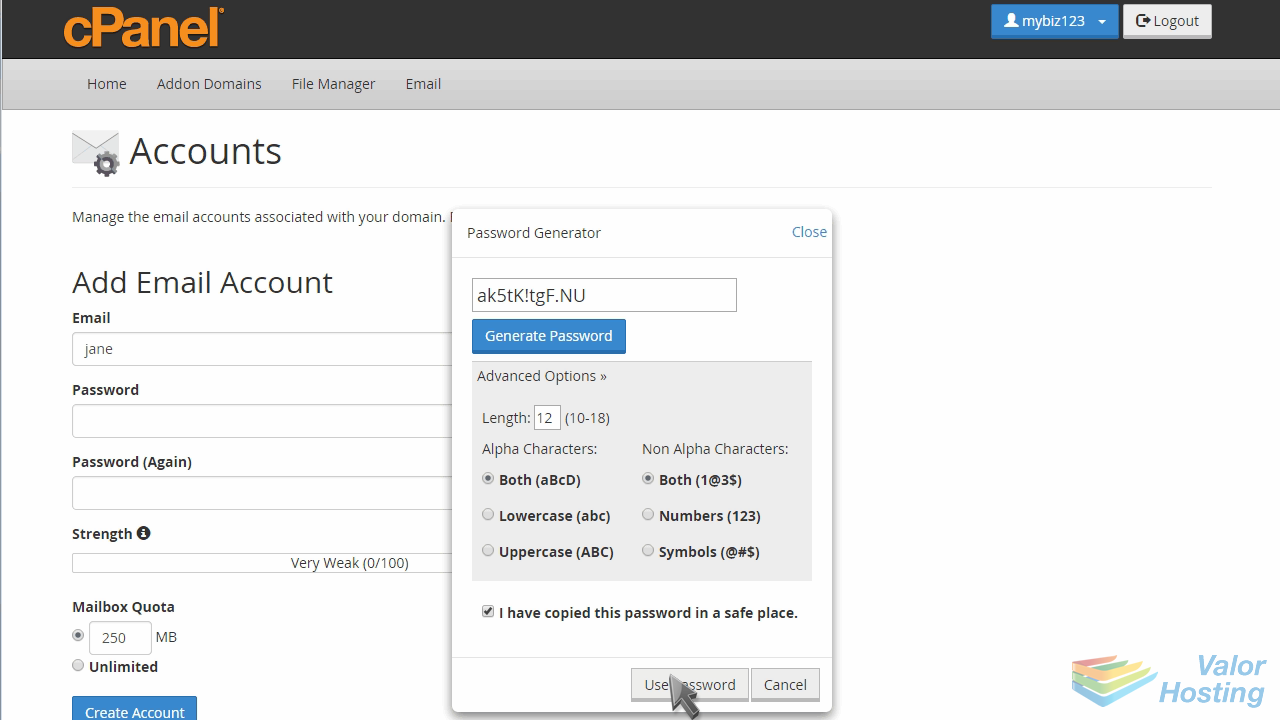
That's it! The password fields have been filled in with your new randomly generated password, and you can now proceed with the creation of the account.
This is the end of the tutorial. You now know how to use the password generator in cPanel.