
13. How to setup an autoresponder in cPanel
This demo assumes you've already logged in to cPanel, and are starting on the home screen.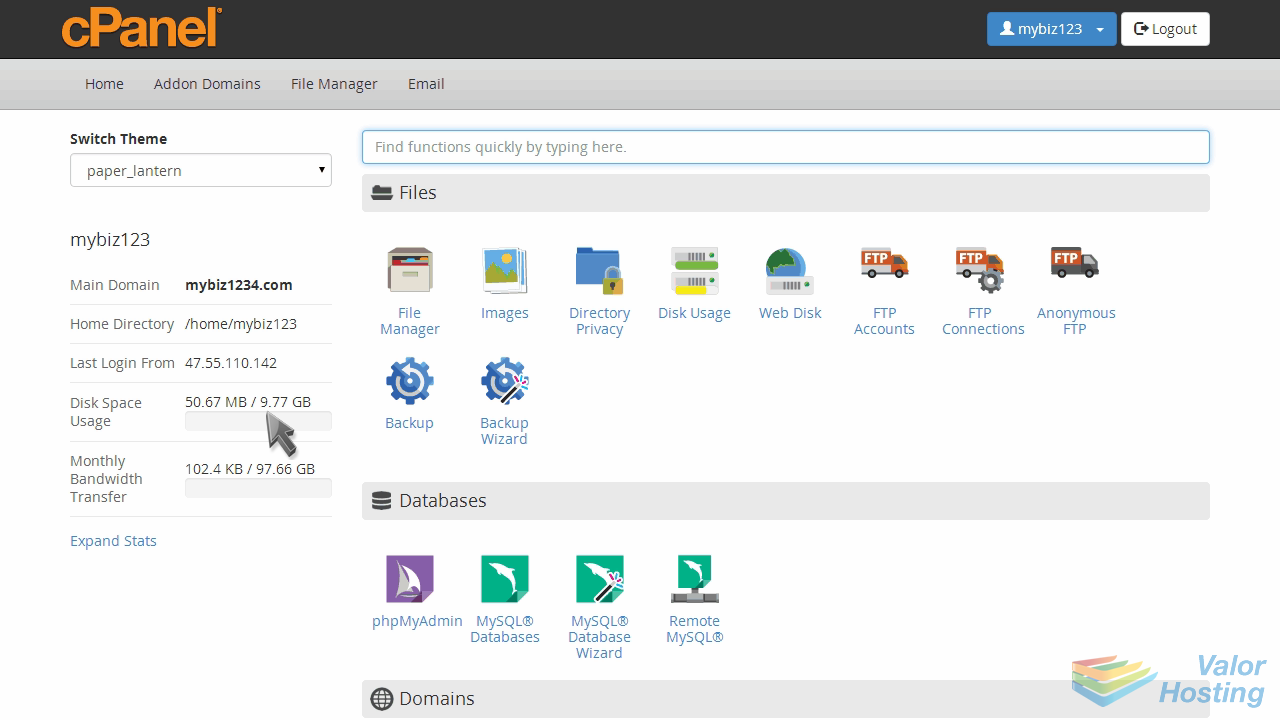
Now let's learn how to create an autoresponder in cPanel.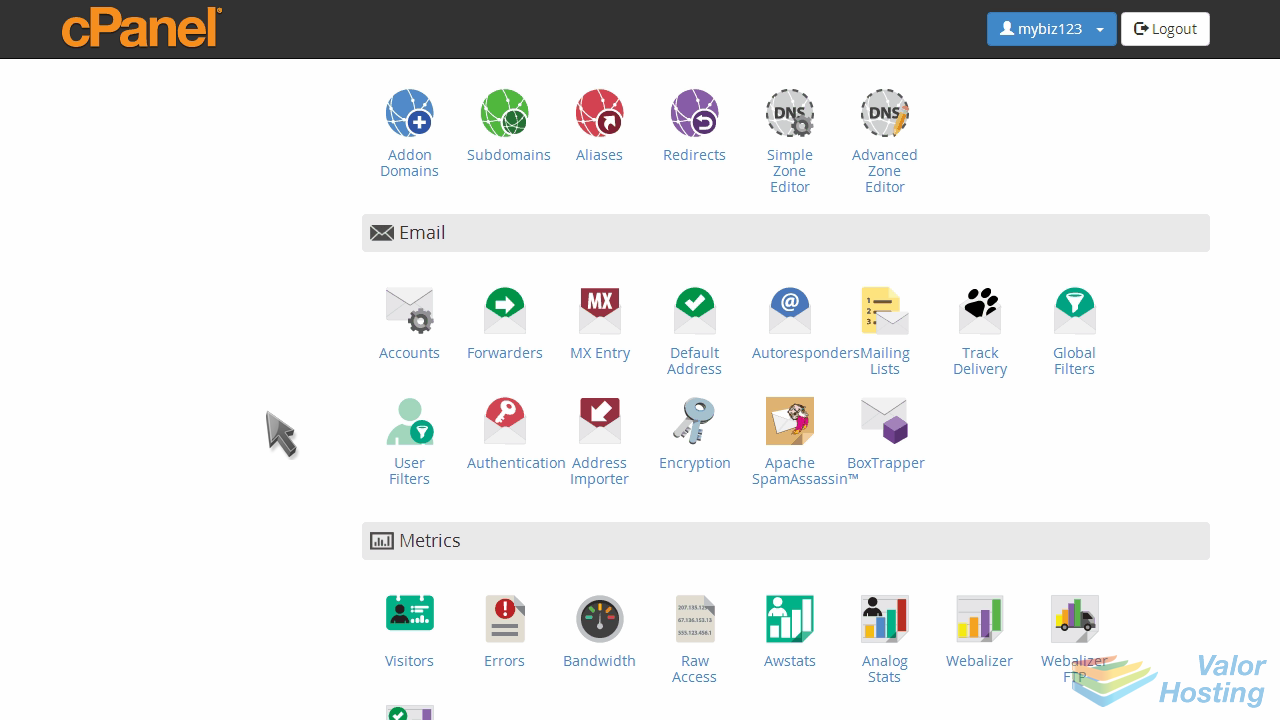
Click the "Autoresponders" icon.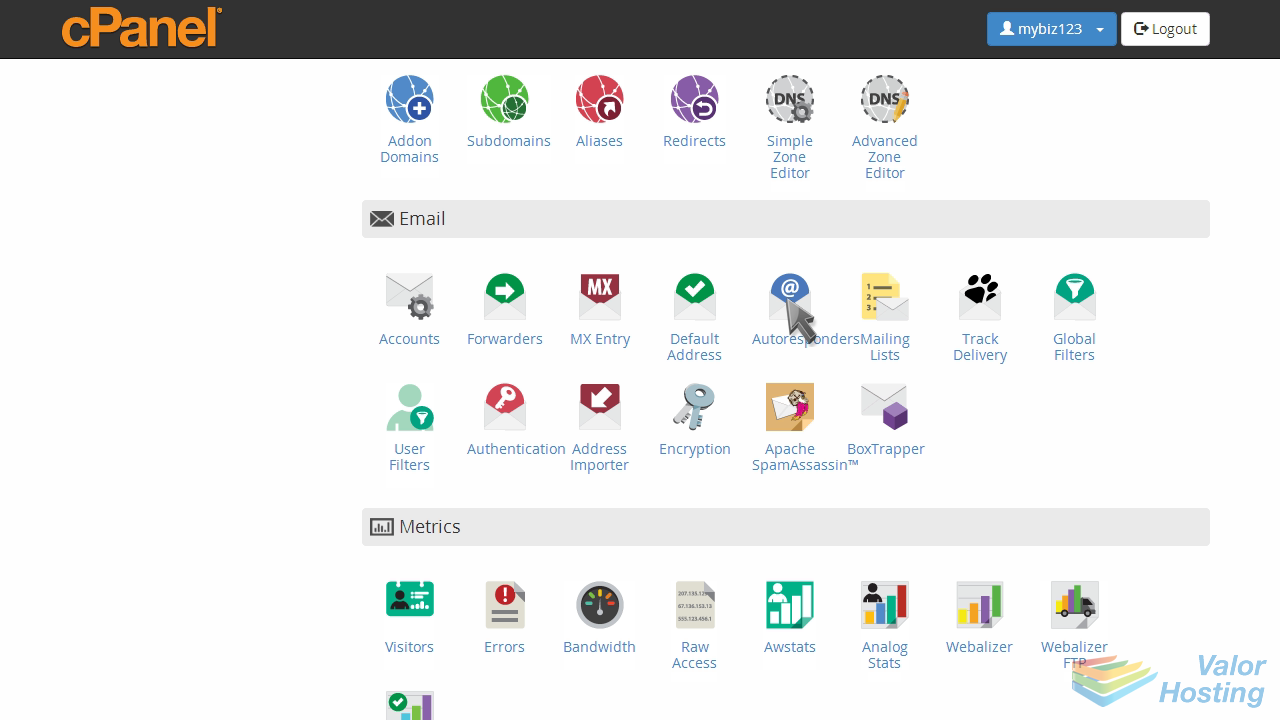
This is where you create autoresponders for your email addresses. Autoresponders send messages back automatically, to anyone who sends an email to a specific address.
Click the "Add Auto Responder" button.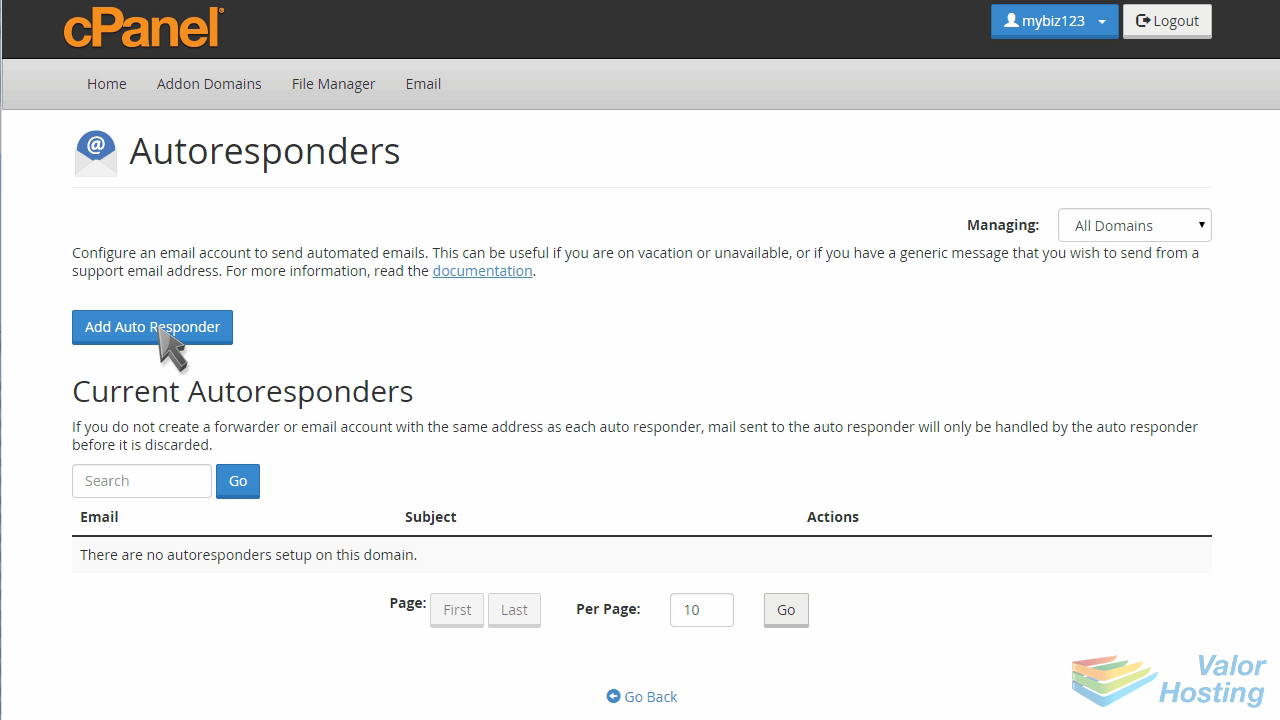
Now complete the form to setup your autoresponder.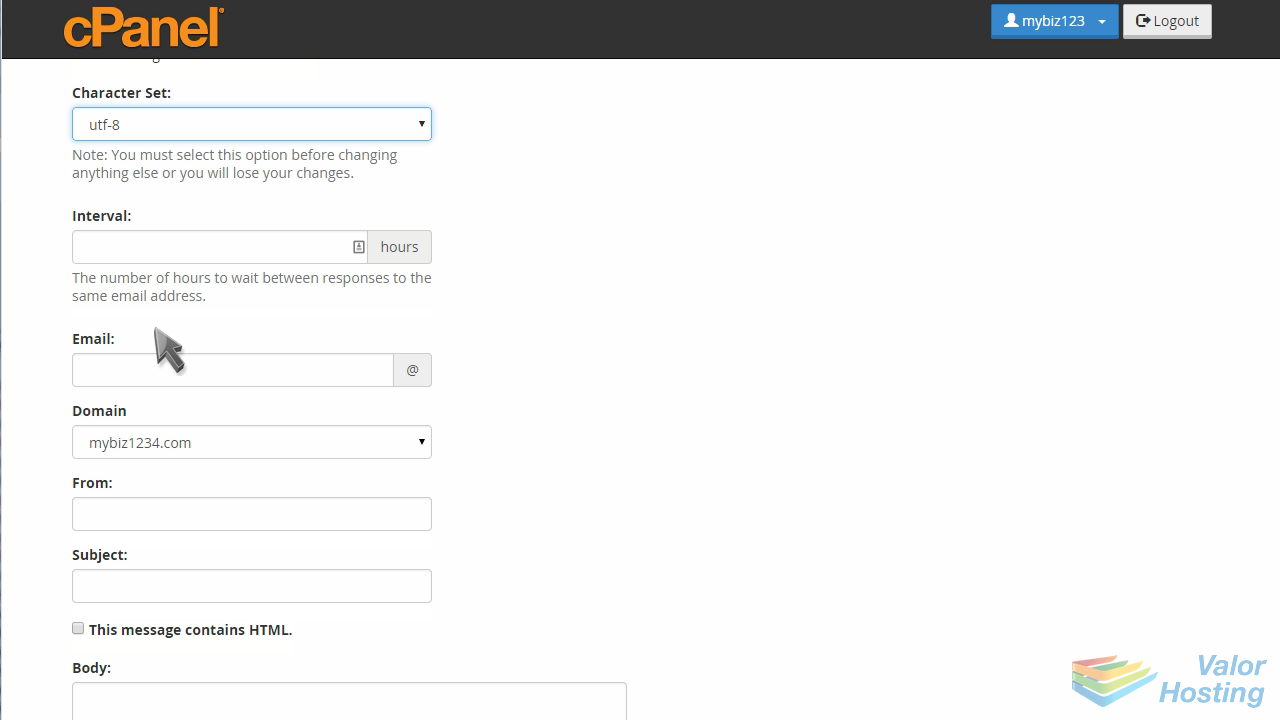
Enter an interval value, then enter an email address you want to set an autoresponder for.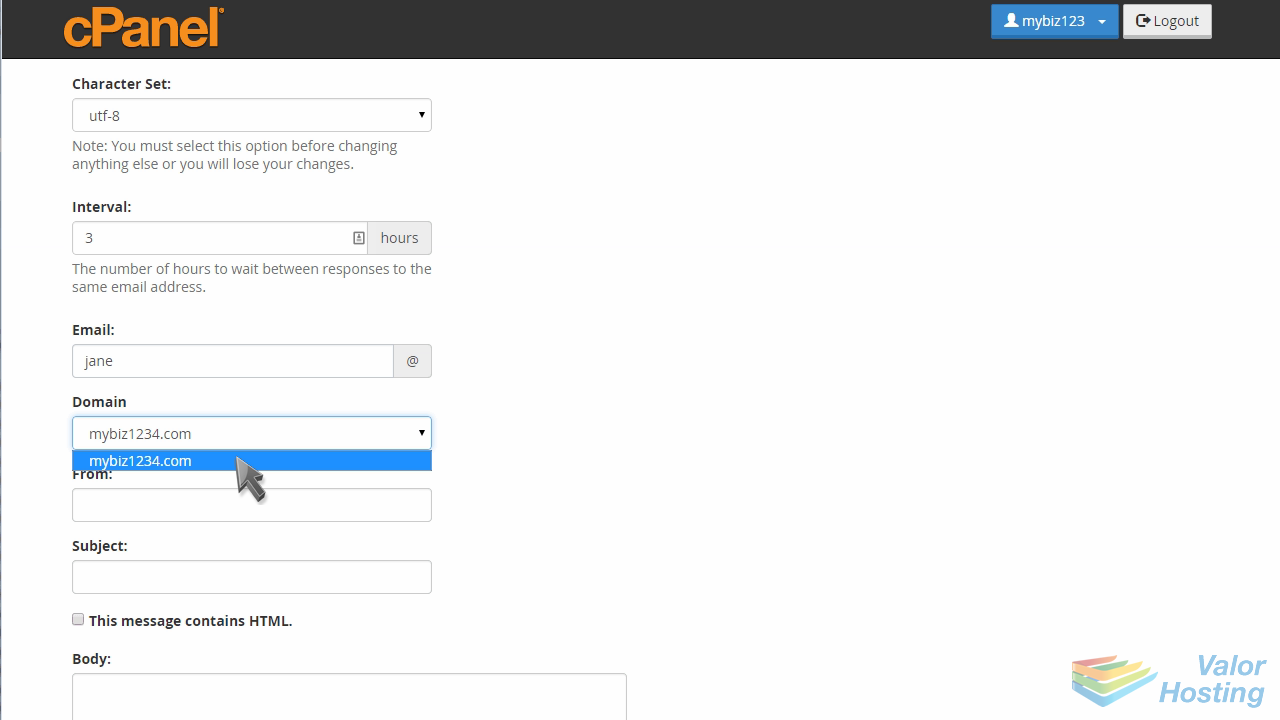
Now complete the rest of the autoresponder email by filling in the From, Subject and Body of the email.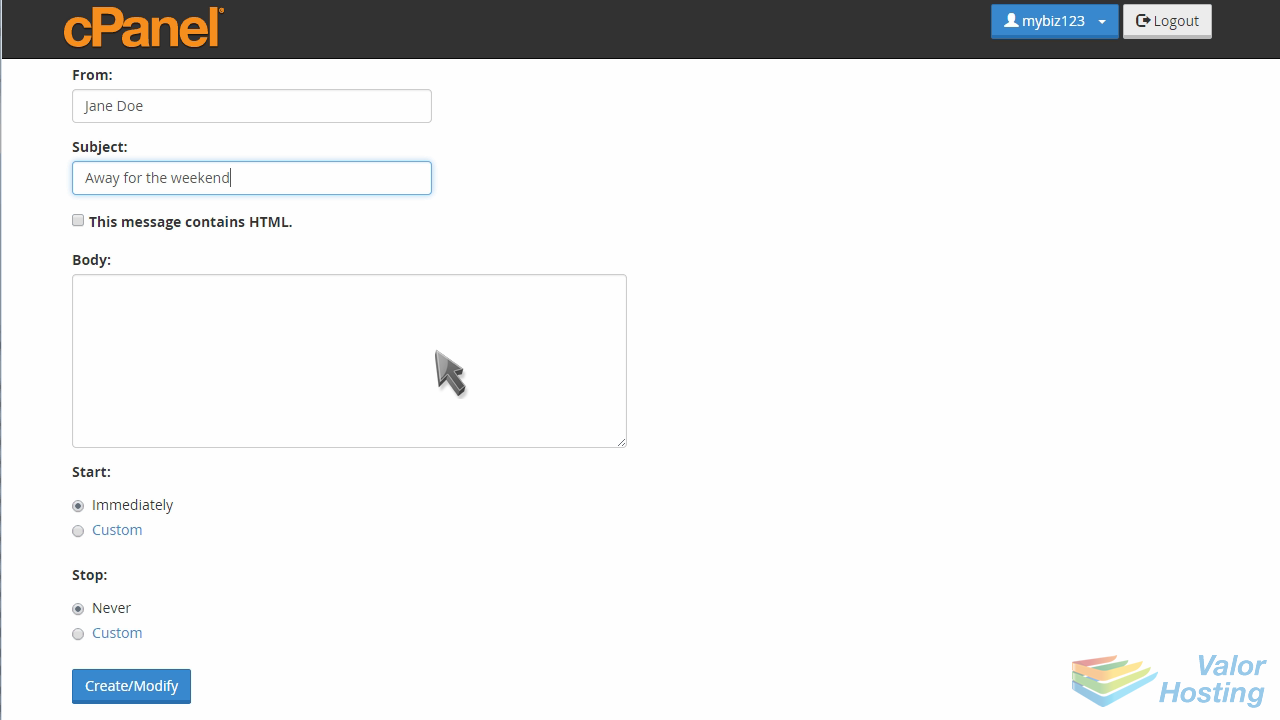
When ready, click "Create/Modify".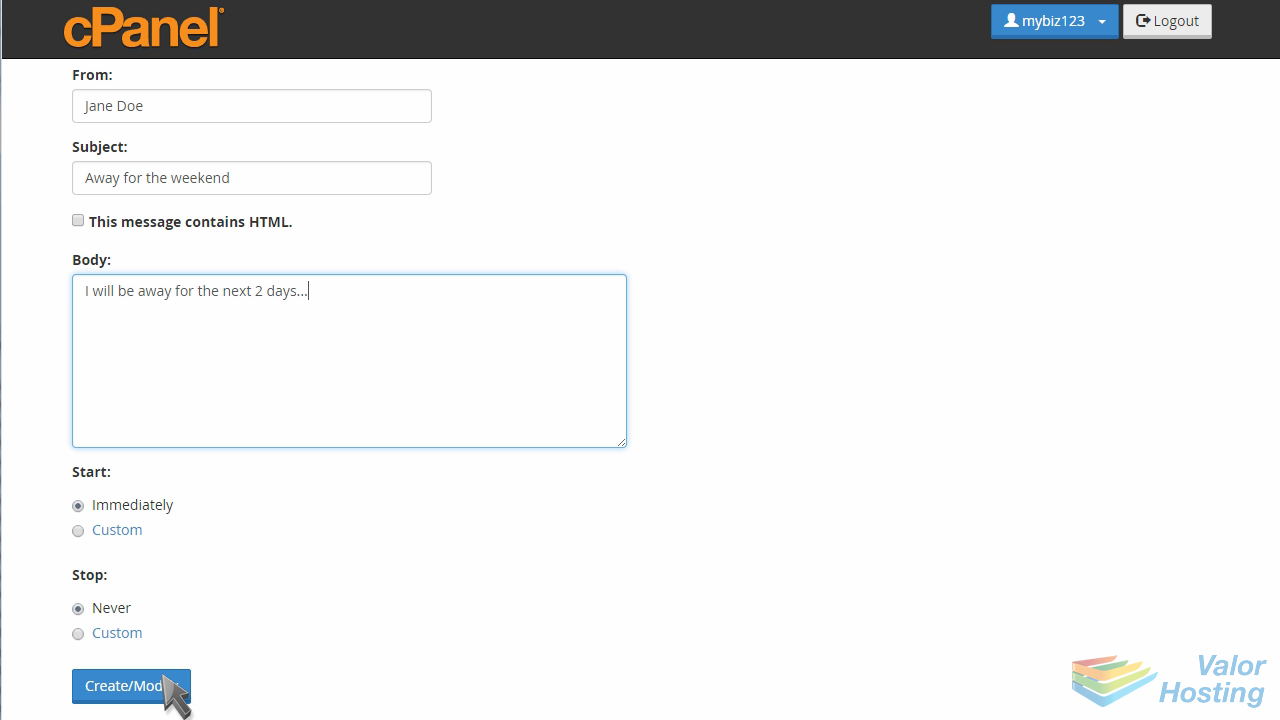
That's it! The autoresponder has been setup.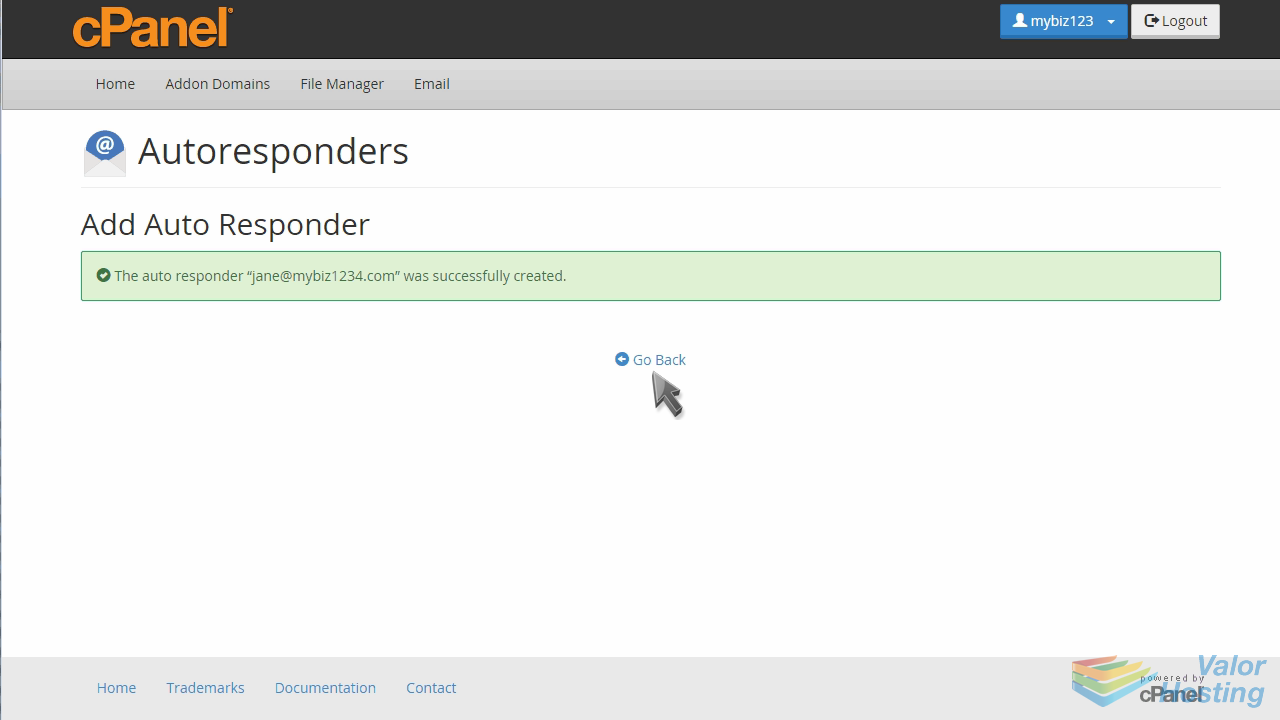
This is the end of the tutorial. You now know how to setup an autoresponder in cPanel.